Is Apple’s Vision Pro worth the money?
 Let me preface this article by saying that this is not intended review the Apple Vision pro. Instead, it is intended as an analysis of Apple’s technology and the design behind the Apple Vision Pro headset. The Vision Pro’s hefty price tag also begins at $3500 and goes up from there depending on selected features. Let’s explore.
Price Tag vs Danger Target
The first elephant in the room to address with this Virtual Reality (VR) headset is its price tag. Because there is presently only one model of this headset, anyone who sees you wearing it knows the value of this headset instantly. This means that if you’re seen out and about in public wearing one, you’ve made yourself a target not simply for theft, but for a possible outright mugging. Thieves are emboldened when they know you’re wearing a $3500 device on your person. Because the Vision Pro is a relatively portable device, it would be easy to scoop up the entire device and all of its accessories in just a few seconds and walk off with it.
Like wearing an expensive diamond necklace or a Rolex watch, these items flaunt wealth. Likewise, so does the Vision Pro. It says that you have disposable income and wouldn’t really mind the loss of your $3500 device. While that previous statement might not be exactly true, it does have grains of truth in it. If you’re so wealthy that you can plop down $3500 for a Vision Pro, you can likely afford to buy another one should it go missing.
However, if you’re considering investing in a Vision Pro VR headset, you’d do well to also invest in a quality insurance policy that covers both loss from theft and damage both intentional and accidental. Unfortunately, a loss policy won’t cover any injuries you might sustain from a mugging. Be careful and remain alert when wearing a Vision Pro in public spaces.
The better choice is not wear the headset in public spaces at all. Don’t use it on trains, in planes, at Starbucks, sitting in the lobby of airports or even in hotel lobbies. For maximum safety, use the Vision Pro device in the privacy and safety of your hotel room OR in the privacy and safety of your own home. Should you don this headset on public transportation to and from work, expect to get not only looks from people around you, expect to attract thieves looking to take it from you, potentially forcibly. With that safety tip out of the way, let’s dive into the design of this VR headset.
What exactly is a VR headset useful for?
While Apple is attempting to redefine what a VR headset is, they’re not really doing a very good job at it, especially for the Vision Pro’s costly price tag. To answer the question that heads up this section, the answer is very simple.
A VR headset is simply a strap on 3D display. That’s it. That’s what it is. That’s how it works. Keep reading much further down for the best use cases of 3D stereoscopic displays. The resolution of the display, the eye tracking, the face tracking, the augmented reality features, these are all bells and whistles that roll out along side of the headset and somewhat drive the price tag. The reality is as stated, a VR headset is simply a strap on video display, like your TV or a computer monitor. The only difference between a TV screen or monitor is that a VR headset offers 3D stereoscopic visuals. Because of the way the lenses are designed on VR headset, the headset can use its each-eye-separate-display feature to project flat screens that appear to float convincingly both at a distance and at a scale that appears realistically large, some even immensely large like an IMAX screen in scale.
These VR flat screens float in the vision like a floating displays featured in many futuristic movies. However, a VR headset is likewise a personal, private experience. Only the wearer can partake in the visuals in the display. Everyone else around you has no idea what you’re seeing, doing or experiencing…. except they will know when using the Vision Pro because of one glaring design flaw involving the audio system (more on this below). Let’s simply keep in mind that all that a VR headset boils down to is a set of goggles containing two built-in displays, one for each eye; displays which produce a stereoscopic image. Think of any VR headset as the technological equivalent of a View Master, that old 1970s toy with paper image discs (reels) and a pull down lever to switches images.
How the video information is fed to those displays is entirely up to each VR headset device.
Feeding the Vision Pro
For the Vision Pro, this device is really no different than any of a myriad of other VR headsets on the market. Apple wants you to think that theirs is “the best” because Apple’s Vision Pro is “brand new” and simply because it’s brand new, this should convince you that it is somehow different. In reality, the Vision Pro doesn’t really stand out. Oh sure, it utilizes some newer features, such as better eye tracking and easier hand gestures, but that’s interface semantics. We’ll get into the hand gesture problems below. For the Vision Pro’s uses, getting easy access to visual data from the Vision Pro is made as simple as owning an iPad. This ease is to the credit of Apple, but this ease also exists because the iPad already exists allowing that iPad ease to be slipped into and then leveraged and utilized by the Vision Pro.
In reality, the Vision Pro OS might as well be an iPad attached to a strap-on headset. That’s really how the Vision Pro has been designed. The interface on the iPad is already touch capable, so it makes perfect sense to take the iPadOS and extract and expand it into what drives the Vision Pro, except using the aforementioned eye tracking, cameras and pinch gesture.
The reason the Vision Pro is capable of all of this is because they’ve effectively married the technology guts of an iPad into the chassis of the Vision Pro. This means that unlike many VR headsets which are dumb displays with very little processing power internally, the Vision Pro crams a whole iPad computer inside of the Vision Pro headset chassis.
That design choice is both good and bad. Let’s start with the good. Because the display is driven by an M2 chip motherboard design, like an iPhone or iPad, it has well enough power to do what’s needed to drive the Vision Pro with a fast refresh rate and with a responsive interface. This means a decent, friendly, familiar and easy to use interface. If you’re familiar with how to use an iPad or an iPhone, then you can drop right into the Vision Pro with little to no learning curve. This is what Apple is banking on, literally. The fact that because it’s so similar to their already existing devices makes it simple to strap one on and be up and running in just a few minutes.
Let’s move onto the bad. Because the processor system is built directly into the headset, that means it will become obsolete the following year of its release. As soon as Apple releases its next M2 chip, the Vision Pro will be obsolete. This is big problem. Expecting people to drop $3500 every 12 months is insane. It’s bad enough with an iPhone that costs $800, but for a device that costs $3500? Yeah, that’s a big no go.
iPhone and Vision Pro
The obvious design choice in a Vision Pro’s design is to marry these two devices together. What I mean by this marriage is that you’re already carrying around a CPU device capable of driving the Vision Pro headset in the palm of your hand. Instead, Apple should have designed their VR headset to be a thin client display device. What this means is that as a thin client, the device’s internal processor doesn’t need to be super fast. It simply needs to be fast enough to drive the display at a speed consistent with the refresh rates needed to be a remote display. In other words, turn the Vision Pro into a mostly dumb remote display device, not unlike a computer monitor, except using a much better wireless protocol. Then, allow all Apple devices to pair with and use the Vision Pro’s headset as a remote display.
This means that instead of carrying around two (or rather three, when you count that battery pack) hefty devices, the Vision Pro can be made much lighter and will run less hot. It also means that the iPhone will be the CPU device that does the hard lifting for the Vision Pro. You’re already carrying around a mobile phone anyway. It might as well be the driving force behind the Vision Pro. Simply connect it and go.
Removing all of that motherboard hardware (save a bit of processor power to drive the display) from inside the Vision Pro does several things at once. It removes the planned obsolescence issue around the Vision Pro and turns the headset into a display device that could last 10 years vs a planned obsolescence device that must be replaced every 12-24 months. Instead of replacing the headset each year, we simply continue replacing our iPhones as we always have. This business model fits right into Apple’s style.
A CPU inside of the headset will still need to be fast enough to read and understand the cameras built into the Vision Pro so that eye tracking and all of the rest of these technologies work well. However, it doesn’t need to include a full fledged computer. Instead, connect up the iPhone, iPad or even MacBook for the heavy CPU lifting.
Vision Pro Battery Pack
The second flaw of the Vision Pro is its hefty and heavy battery pack. The flaw isn’t the battery pack itself. It’s the fact that the battery pack should have been used to house the CPU and motherboard, instead of inside the Vision Pro headset. If the CPU main board lived in the battery pack case, it would be a simple matter to replace the battery pack with an updated main board each year, not needing to replace the headset itself. This would allow updating the M2 chip regularly with something faster to drive the headset.
The display technology used inside the Vision Pro isn’t something that’s likely to change very often. However, the main board and CPU will need to be changed and updated frequently to increase the snap and performance of the headset, year over year. By not taking advantage of the external battery pack case to house the main board along with the battery, which must be carried around anyway, this is a huge design flaw for the Vision Pro.
Perhaps they’ll consider this change with the Vision Pro 2. Better, make a new iPhone that serves to drive both the iPhone itself and the Vision Pro headset with the iPhone’s battery and using the CPU built into the iPhone to drive the Vision Pro device. By marrying the iPhone and the Vision Pro together, you get the best of both worlds and Apple gets two purchases at the same time… an iPhone purchase and a Vision Pro purchase. Even an iPad should be well capable of driving a Vision Pro device, including supplying power to it. Apple will simply need to rethink the battery sizes.
Why carry around that clunky battery thing when you’re already carrying around an iPhone that has enough battery power and enough computing power to drive the Vision Pro?
Clunky Headset
All VR headsets are clunky and heavy and sometimes hot to wear. The worst VR headset I’ve worn is, hands down, the PSVR headset. The long clunky cables in combination with absolutely zero ventilation and its heavy weight makes for an incredibly uncomfortable experience. Even Apple’s Vision Pro suffers from a lot of weight hanging from your cheeks. To offset that, Apple does supply an over-the-head strap that helps distribute the weight a little better. Even still, VR headset wearing fatigue is a real thing. How long do you want to wear a heavy thing resting on your cheekbones and nose that ultimately digs in and leaves red marks? Even the best padding won’t solve this fundamental wearability problem.
The Vision Pro is no different in this regard. The Vision Pro might be lighter than the PSVR, but that doesn’t make it light enough not to be a problem. But, this problem cuts Apple way deeper than this.
Closing Yourself Off
The fundamental problem with any VR headset is the closed in nature of it. When you don a VR headset, you’re closing yourself off from the world around you. The Vision Pro has opted to include the questionable choice of an aimed spatial audio system. Small slits in the side of the headset aim audio into the wearer’s ears. The trouble is, this audio can be heard by others around you, if even faintly. Meaning, this extraneous audio bleed noise could become a problem in public environments, such as on a plane. If you’re watching a particularly loud movie, those around you might be disturbed by the Vision Pro’s audio bleed. To combat this audio bleed problem, you’ll need to buy some Airpods Pro earbuds and use these instead.
The problem is, how many people will actually do this? Not many. The primary design flaw was in offering up an aimed, but noisy audio experience by default instead of including a pair of Airpods Pro earbuds as the default audio experience when using the Vision Pro. How dumb did the designers have to be to not see the problem coming? More than likely, some airline operators might choose to restrict the use of the Vision Pro entirely on commercial flights simply to avoid the passenger conflicts that might ensue because the passenger doesn’t have any Airpods to use with them. It’s easier to tell passengers that the device cannot be used at all instead of trying to fight with the passenger about putting in Airpods that they might or might not have.
It goes deeper than this, though. Once you don a headset, you’ve closed yourself off. Apple has attempted to combat the closed of nature of a VR headset by offering up front facing cameras and detecting when to allow someone to barge into the VR world and have a discussion with the wearer. This is an okay idea so long as enough people understand that this barge-through idea exists. That will take some getting used to, both for the Vision Pro wearer, but also for the person trying to get the wearer’s attention. That assumes that barge-through even works well enough to do that. I suspect that the wearer will simply need to remove the headset to have a conversation and then put it back on to resume whatever they were previously doing.
Better Design Choice
Instead of a clunky closed off VR headset, Apple should have focused on a system like the Google Glass product. Google has since discontinued the production of Google Glass, mostly because it really didn’t work out well, but that’s more because of Google itself and not of the idea behind the product.
Yes, a wearable display system could be very handy, particularly with a floating display in front of the vision of the user. However, the system needs to work in a much more open way, like Google Glass. Because glasses are an obvious solution to this, having a floating display in front of the user hooked up to a pair of glasses makes the most obvious sense. Glasses are light and easy to use. They can be easily put on and taken off. Glasses are easy to store and even easier to carry. Thick, heavy VR headsets are none of these things.
Wearing glasses keeps the person aware of their surroundings, allowing for talking to and seeing someone right in front of you. The Vision Pro, while it can recreate the environment around you with various cameras, still closes off the user from the rest of the world. Only Apple’s barge-through system, depending on its reliability, has a chance to sort-of mitigate this closed off nature. However, it’s pretty much guaranteed that the barge-through system won’t work as well as wearing a technology like Google Glass.
For this reason, Apple should have focused on creating a floating display in front of the user that was attached to a pair of glasses, not to a bulky and clunky headset. Yes, the Vision Pro headset is quite clunky.
Front Facing Cameras
You might be asking, if Google Glass was such a great alternative to a bulky headset, why did Google discontinue it? Simple, privacy concerns over the front facing camera, which led to a backlash. Because Google Glass shipped with a front facing camera enabled, anyone wearing it, particularly when entering a restaurant or bar, could end up recording the patrons in that establishment. Because restaurants and bars are privately owned spaces, all patron privacy needs to be respected. To that end, owners of restaurants and bars ultimately barred anyone wearing Google Glass devices from using them in the establishment space.
Why is this important to mention? Because Apple’s Vision Pro may suffer the same fate. Because the Vision Pro also has front facing cameras, cameras that support the barge-through feature among other potential privacy busting uses, restaurants and bars again face the real possibility of another Google Glass like product interfering with the privacy of their patrons.
I’d expect Apple to fare no better in bar and restaurant situations than Google Glass. In fact, I’d expect those same restaurants and bars that banned Google Glass wearers from using those devices to likewise ban any users who don a Vision Pro in their restaurants or bars.
Because the Vision Pro is so new and because restaurant and bar owners aren’t exactly sure how the Vision Pro works, know that if you’re a restaurant or bar owner, the Vision Pro has front facing cameras that record input all of the time, just like Google Glass. If you’ve previously banned Google Glass use, you’ll probably want to ban the use of Vision Pro headsets in your establishment for the same reasons as the ban on Google Glass. Because you can’t know if a Vision Pro user has or has not enabled a Persona, it’s safer to simply ban all Vision Pro usage than trying to determine if the user has set up a Persona.
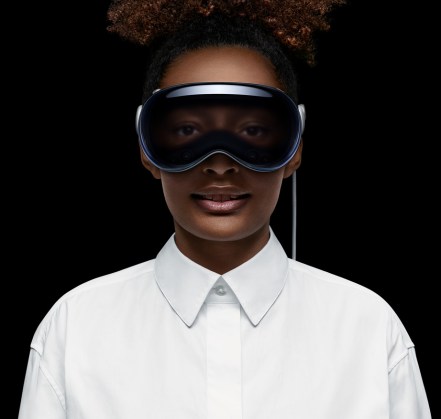 Why does having a Persona matter? Once a Persona is created, this is when the front facing cameras run almost all of the time. If a Persona has not been created, the headset may or may not run the front facing cameras. Once a Persona is created, the front facing LED display creates a 3D virtual representation of the person’s eyes using the 3D Persona (aka. avatar). What you’re seeing in the image of the eyes is effectively a live CGI created image.
The Vision Pro is claimed by Apple not to run the front cameras without a Persona created, but bugs, updates and whatnot may change the reality of that statement from Apple. Worse, though, is that there’s no easy way to determine if the user has created a Persona. That’s also not really a restaurant staff or flight attendant job. If you’re a restaurant or bar owner or even a flight attendant, you must assume that all users have created a Persona and that the front facing cameras are indeed active and recording. There’s no other stance to take on this. If even one user has created a Persona, then the assumption must be that the front facing cameras are active and running on all Vision Pro headsets. Thus, it is wise to ban the use of Apple’s Vision Pro headsets in and around restaurant and bar areas and even on airline flights… lest they be used to surreptitiously record others.
Here’s another design flaw that Apple should have seen coming. It only takes about 5 minutes to read and research Google Glass’s Wikipedia Page and its flaws… and why it’s no longer being sold. If Apple’s engineers had done this research during the design phase of the Vision Pro, they might have decided not to include front facing cameras on the Vision Pro. Even when the cameras are supposedly locked down and unavailable, that doesn’t preclude Apple’s own use of these cameras when someone is out and about used solely for Apple’s own surveillance purposes. Restaurant owners, beware. All of Apple’s assurances mean nothing if a video clip of somebody in your establishment surfaces on a social media site recorded via the Vision Pro’s front cameras.
Better Ideas?
Google Glass represents a better technological and practical design solution; a design that maintains an open visual field so that the user is not closed off and can interact and see the world around them. However, because Google Glass also included a heads up display in the user’s vision, some legislators took offense to the possibility of the user becoming distracted by the heads up display that they could attempt to operate a motor vehicle dangerously while distracted. However, there shouldn’t be a danger of this situation when using a Vision Pro, or at least one would hope not. However, because the Vision Pro is capable of creating a live 3D image representation of what’s presently surrounding the Vision Pro user, inevitably someone will attempt to drive a car while wearing a Vision Pro and all of these legislative arguments will resurface… in among various lawsuits should something happen while wearing it.
Circling Back Around
Let’s circle around to the original question asked by this article. Is the Vision Pro worth the money?
Considering its price tag and its comparative functional sameness to an iPad and to other similar but less expensive VR headsets, not really. Right now, the Vision Pro doesn’t sport a “killer app” that makes anyone need to run out and buy one. If you’re looking for a device with a 3D stereoscopic display that acts like an iPad and that plays nice in the Apple universe, this might suffice… assuming you can swallow the hefty sticker shock that goes with it.
However, Apple more or less overkilled the product by adding the barge-through feature requiring the front facing camera(s) and the front facing mostly decorative lenticular 3D display, solely to support this one feature “outside friendly” feature. Yes, the front facing OLED lenticular display is similar to the Nintendo 3DS’s 3D lenticular display. The lenticular feature means that you probably need to stand in a very specific position for the front facing display to actually work correctly and to display 3D in full, otherwise it will simply look weird. The front facing display is more or less an expensive, but useless display addition to the wearer. It’s simply there as a convenience to anyone who might walk buy. In reality, this front display is a waste of money and design dollars, simply to add convenience to anyone who might happen along someone wearing this headset. Even then, this display remains of almost no use until the user has set up their Persona.
Once the wearer has set up a Persona, the unit will display computer generated 3D eyes on the display at times, similar to the image above. When the eyes actually do appear, they appear to be placed at the correct distance on the face using a 3D lenticular display to make it appear like the real 3D eyes of the user. The 3D lenticular display doesn’t require glasses to appear 3D because of the lenticular technology. However, the virtual Persona created is fairly static and falls rather heavily into the uncanny valley. It’s just realistic enough to elicit interest, but just unrealistic enough to feel creepy and weird. Yes, even the eyes. This is something that Apple usually nails. However, this time it seems Apple got the Persona system wrong… oh so wrong. If Apple had settled on a more or less cartoon-like figure with exaggerated features, the Persona system might have worked better, particularly if it used anime eyes or something fun like that. When it attempts to mimic the real eyes of the user, it simply turns out creepy.
In reality, the front facing display is a costly lenticular OLED addition that offers almost no direct benefits to the Vision Pro user, other than being a costly add-on. However, the internal display system per eye within the Vision Pro sports around 23 million pixels between both eyes and around 11.5 million pixels per eye, which is slightly less than a 5K display per eye, but more than a 4K display per eye. When combined with both eyes, the full resolution allows for the creation of a 4K floating display. However, the Vision Pro would not be able to create an 8K floating display due to its lack of pixel density. The Vision Pro wouldn’t even be able to create a 5K display for this same density reason.
Because many 5K flat and curved LCD displays are now priced under $800 and are likely to drop in price even further, that means you can buy two 5K displays for less than than half the cost of one Vision Pro headset. Keep in mind that these are 5K monitors. They’re not 3D and they’re relatively big in size. They don’t offer floating 3D displays appearing in your vision and there are limits to a flat or curved screen. However, if you’re looking for sheer screen real estate for your computing work, buying two 5K displays would offer a huge amount of screen real estate for managing work over the Vision Pro. By comparison, you’d honestly get way more real estate with real monitors compared to using the Vision Pro. Having two monitors in front of you is easier to navigate than being required to look up, down and left and right and perhaps crane your neck to see all of the real estate that the Vision Pro affords… in addition to getting the hang of pinch controls.
The physical monitor comparison, though, is like comparing apples to oranges when compared with a Vision Pro headset (in many ways). However, this comparison is simply to show you what you can buy for less money. With $3400 you can buy a full computer rig including a mouse, keyboard, headphones and likely both of those 5K monitors for less than the cost of a single Vision Pro headset. You might even be able to throw in a gaming chair. Keeping these buying options in perspective keeps you informed.
The Bad
Because the headset offers a closed and private environment that only the wearer can see, this situation opens the doors to bad situations if using it in a place of business or even if out in public. For example, if an office manager were to buy their employee a Vision Pro instead of a couple of new and big monitors, simply because the Vision Pro is a closed, private environment, there’s no way to know what that worker might be doing with those floating displays. For example, they could be watching porno at the same time as doing work in another window. This is the danger of not being able to see and monitor your staff’s computers, if even by simply walking by. Apple, however, may have added a business friendly drop-in feature to allow managers to monitor what employees are seeing and doing in their headsets.
You can bet that should a VR headset become a replacement for monitors in the workplace, many staff will use the technology to surf the web to inappropriate sites up to and including watching porn. This won’t go over well for either productivity of the employee or the manager who must manage that employee. If an employee approaches you asking for a Vision Pro to perform work, be cautious when considering spending $3500 for this device. There may be some applicable uses for the Vision Pro headset in certain work environments, but it’s also worth remaining cautious for the above reasons when considering such a purchase for any employee.
On the flip side, for personal use, buy whatever tickles your fancy. If you feel justified in spending $3500 or more for an Apple VR headset, go for it. Just know that you’re effectively buying a headset based monitor system.
Keyboard, Eye Tracking and The Pinch
Because the Vision Pro is affixed to your head, Apple had to devise a way to obtain input within the VR environment. To that end, Apple decided on the pinch motion. You pinch your thumb and forefinger together in a sort of tapping motion. Each tapping motion activates whatever you are looking at (eye tracking). Whenever the headset “sees” (using its many cameras) your pinching motion, it activates wherever your eyes are focused. This means that in order to open an application from the iPad-ish icon list, you must be looking directly at the icon to activate it. If your eyes flutter around and you perform the pinch motion the instant your eyes look someplace else, the app will not activate. You might even activate something unintentional.
Keep in mind that this is still considered a beta product, which weird coming from Apple. This is the first time I can recall Apple explicitly releasing a beta product for review.
That said, there are definitely some improvements that could be had with this eye tracking system. For example, the system could detect and count linger time. The longer the eye lingers, the more likely it is that the user wants to activate the thing that the eyes lingered on the longest, even if the eyes are not currently looking at it. This means that even if your eyes dart away at the moment you pinch, the system would still understand that you want to activate the icon that was lingered on the longest. As far as I understand it, the OS doesn’t presently work this way. It only activates the icon or control you are presently looking at. Adding on a fuzzy eye linger system could reduce errors when selecting or activating the wrong things.
If you need to move a window around or expand the size of it, you must be looking directly at the control that performs that action. Once you’re looking at that specific control, the pinch and move will activate the control for as long as the pinch and move continues.
Unfortunately, this system falls down hard when you want to use the on-screen keyboard. This keyboard only works if you poke each key with your forefingers on each hand. This means hunt-and-peck typing. If you’re a touch typist, you’re going to feel horribly out of place being forced into using single finger hunt-and-peck. The Vision Pro will need to make much better improvements around keyboard typing.
On the flip side, it seems that the Vision Pro may want you to use the microphone and voice to input longer strings of text instead of typing. This means that for web searches, you’re likely going to fill in fields using voice dictation. I will say that Apple’s dictation system is fair. It works in many cases, but it also makes many mistakes. For example, most dictation systems can’t understand the difference between its and it’s, preferring to use it’s whenever possible, even though the selected usage is incorrect. Same problem exists with the words there, their and they’re and several similar type words when dictating. Typing is usually the better option over dictating long sentences of text, but it also means you’re going to need to pair a Bluetooth keyboard. Then, type on that keyboard blind because the Vision Pro won’t show you your hands or that keyboard in the VR display when the keyboard is sitting in your lap. Even if the keyboard is sitting on a desk, it might not show the keyboard properly without looking down at the keyboard instead of the window into which you’re typing.
For example, I would never attempt to blog an article this long using a VR headset. Not only would the headset eventually become too uncomfortable on my head, dictating everything by voice would get to be a pain in the butt because of all of the constant corrections. Even Apple’s active correction system leaves a lot to be desired, changing words from what you had actually wanted into something that doesn’t make any sense after you read it back. These problems will immediately be carried into the Vision Pro simply because these systems already exist in Apple’s other operating systems and those existing systems will be pulled into the Vision Pro exactly as they are, warts and all.
What Apple needs to create is a psuedo Augmented Reality (AR) keyboard. A keyboard where the VR system uses AR to pick up and read what you’re typing. Sure, the keyboard could be connected, but the AR system could simply watch the keys you’re pressing and then input those key presses via camera detection rather than via Bluetooth. In this way, the on-screen keyboard can still present and show which key is being typed in your vision, yet give you the option of touch typing on a keyboard.
Pinch Motion
The Apple chosen VR pinch motion seems like a fine choice and might become a sort of standard across the industry for other VR headsets and applications. Many VR headsets have struggled to produce a solid standardized input system. The pinch is a relatively easy, intuitive control and it works well for most use cases in the Vision Pro, but it’s definitely not perfect for all use cases. The cameras around the Vision Pro unit seem sensitive enough that you don’t have to hold your hands directly out in front in an awkward position like many VR headsets require. Instead, you can sit comfortably with your hands in your lap or on a desk and the unit will still pick up your pinch taps. You will need to move your hand(s) around, though, to activate resize and movement controls as well as when typing on the on-screen keyboard.
However, I do think it would be great for Apple to offer a lighted wand or other physical object that can supplement, augment and/or replace the pinch control. For people who don’t have access to fine motor controls with their hands, an alternative control method using an external device could be ideal for accessibility purposes.
VR Motion Sickness
One thing that cannot be easily overcome is VR motion sickness. It doesn’t matter what headset manufacturer it is, this problem cannot be easily overcome by software. Apple has done nothing to address this issue with the Vision Pro. If you have previously encountered VR sickness while wearing a headset, you’re likely to encounter it with the Vision Pro eventually. The transparent effect of showing you your present surroundings might help reduce this problem. If you replace your present surroundings with a forest or beach scene or some other fantasy environment, your body will be at odds with what your eyes are seeing.
VR motion sickness is typically exacerbated by rapid movements, such as riding a VR roller coaster or riding in a high speed car chase in VR. These are situations where the mind sees motion, but the body feels nothing. This disparity between the physical body sensations and the motion the mind is experiencing can easily lead to VR motion sickness.
If you stick to using the Vision Pro strictly for computer purposes, such as an extended monitor or for other productivity or entertainment purposes, you might not experience sickness. If you wish to get into full 3D virtual gaming, the reason most people want to purchase a VR headset, then you’re inviting motion sickness.
Keep in mind that VR motion sickness is not the same as real motion sickness. I can ride on planes, boats and even buffeting roller coasters, all without any sickness or issues. However, the moment I strap on a VR headset and begin riding a VR roller coaster or ride around in a fast VR car, the VR sickness begins to kick in. When it arrives, the only solution is to take off the headset and let it subside. It also means exceedingly short VR sessions. When the VR sickness comes on, it comes on rapidly. Perhaps even as fast as 5 minutes after experiencing a lot of motion on the VR screen.
If you’ve never bought into or tried a VR headset in the past, you should make sure you can return the headset should you experience VR sickness while using it.
Overall
The Vision Pro is a pricey VR headset. While the Vision Pro is not the most expensive VR headset on the market, it’s definitely up there in price. The question remains whether the Vision Pro is a suitable or efficient alternative to using a keyboard, mouse and monitor when computing. This author thinks that the presently clumsy, slow input systems utilized in VR headset systems (yes, that includes the pinch), when compared to a mouse and keyboard input, doesn’t make a VR headset the most efficient product for computing.
The best use cases for 3D stereoscopic VR headsets is for immersive 3D virtual gaming (assuming you can get past the motion sickness) and consuming movies and TV shows. The floating large screens in front of your vision are ideal for presenting flat and 3D movies as well as TV shows which make you feel like you’re watching entertainment in a theater environment. This aspect is actually quite uncanny. However, for consuming music, a VR headset is a fail. You simply need earbuds, such as Apple’s Airpods for that. You don’t need to spend $3400 to listen to music, even if the Vision Pro is capable of layering reverb and echo effects onto the music to make it sound more spatial.
Personally, I want to hear the music as it was crafted by the musician. I don’t want third party added effects that are more likely to detract from and muddy the final music product. If a musical artist as recorded a Dolby Atmos version of their music, then playing that version back exactly in its original recorded spatial form is perfectly fine, but devices shouldn’t layer anything else on top.
Overall, the Vision Pro is a fair addition to the VR headset space. However, it’s no where near perfect and it needs a lot of nuanced tweaking in subsequent models before it can become a real contender. This first released model is both overkill and naive all at the same time, adding bells and whistles that, while interesting, add to the hefty price tag without adding substantial benefit to the final product.
The built-in main board M2 computer ensures that the unit will become obsolete in 1-2 years and need to be replaced, adding yet more computer junk to our already overflowing landfills. Apple needs to firmly grasp and get behind product longevity in this product rather than planned obsolescence every 12 months. Decoupling the main board and placing it into the battery case would go a long way towards longevity AND allow for easy replacement of that battery and main board. This change alone would enable a Vision Pro headset’s display to remain viable for years to come, all while simply replacing an obsolete computer and battery that drives it. This one is a big miss by Apple’s design team.
Rating: 2.5 out of 5 (Apple tried to do too much, but actually did very little to improve VR. Apple’s design increases landfill chances; not a green product.)
Recommendation: Skip and wait for the next iteration
↩︎
How to set creation file time on MacOS X

Recently, I downloaded a bunch of mp4 videos from my PS4 to create some longer form videos for YouTube with iMovie. Unfortunately, the files copied from the PS4 did not retain the original creation date and time. I was bummed because iMovie uses the creation date to sort the video clips stored in its import library.
I’m pretty sure that the PS4 stores this information with the file in the BSD operating system used on the PS4. For whatever reason, this information is lost and is not retained when copying these video files to a USB drive.
Instead, the PS4 creates the files using the current date and time of when they were copied to USB. However, the filename does includes the date and time of the PS4’s original file creation date. All is not lost. For example, one of the files is named “Grand Theft Auto V_20231021102822.mp4.” The 20231021102822 is the file’s original creation date, but it’s embedded in the filename. This is a pain in the ass, especially when you have a lot of these files and you need to depend on sorting the files by creation date.
If you’re using Linux, some of this may apply with touch, but some may not. For example, it may not be possible to set the birth time or btime in Linux. Then again, you won’t be using iMovie on Linux, so you may not encounter the same sorting problems as when using iMovie. On Linux, you’re likely to be using ShotCut. And yes, ShotCut is available for MacOS X.
Let’s explore recovering and setting the original creation date and time for these imported PS4 video files when using a Mac.
Before Getting Started / Liability Waiver / Assumption of Risk
This is a relatively deep dive tutorial and is designed for intermediate to experienced users who are comfortable running command line tools in UNIX, Linux and MacOS X. This article also expects that you are at least somewhat experienced and familiar with writing Bash shell scripts. While every care has been taken to ensure these instructions are fully accurate at the time of authorship, risk is always a possibility when running commands. Make sure you know what you’re doing and always proceed with caution when performing any shell commands.
Assumption of Risk: Should you follow any instructions provided in this tutorial, you do so at your own risk. This author and the Randocity blog holds no responsibility for how you use and/or misuse the information provided herein NOR does this author or Randocity hold any liability over any damage that may result directly or indirectly from this article’s included information. This information is provided to you AS IS. You assume all risks herein.
By proceeding with reading the remainder of this article, you agree to these terms. If you don’t agree with these terms, then navigate away NOW and go find something else to do.
Recovering Dates and Times on Files
There are two primary date/times stored as metadata with each file: creation date and last modified date. While it’s easy to set the last modification date using the ‘touch‘ command, this same command cannot be used to set the file’s creation time. Pity.
That left me looking for alternatives. If you have installed the command line development tools from Mac OS’s Xcode, there are a couple of handy command line (CLI) tools available to help with this date-setting task. These two tools are getfileinfo and setfile. Unfortunately, it seems that while the commands do get installed with Xcode, the manual pages (man pages) do not get installed. Thus, you can’t easily see or find the parameter usage of the command.
I had to refer to searching Google for the man pages for these two. Here’s the man page for getfileinfo. Here is the man page for setfile. These two commands will help get you started. If you don’t have these commands installed, you’ll need to install the Xcode command line tools.
First Step
Setting the last modification time from the above filename supplied is relatively easy by extracting the filename’s included datecode, slightly modifying it and feeding it back into the command ‘touch‘ to set the last modification date onto the file. Here’s a shell script which does just this on all files in the current directory:
#!/bin/bash
#
# setmodificationdate.sh

# FILE: "Grand Theft Auto V_20231021102822.mp4"
# DATECODE EXAMPLE: 20231021102822 => 202310211028.22

# Set IFS delimiter to EOL marker to ignore whitespace in filenames
IFS="
"

# Loop through files in current directory and update each file's last modification
# time to ${DATECODE}.${DATESS} using touch -mt [date]
for i in `ls`
do
	FILE=$i
	DATECODE=`echo "${FILE}" | awk '{print $4}' | awk -F "_" '{print $2}' | cut -c 1-12`
	DATESS=`echo "${FILE}" | awk '{print $4}' | awk -F "_" '{print $2}' | cut -c 13-14`

        # The touch command requires the date format to be YYYYMMDDHHMM.SS. Some
        # conversion is required.
	if [ $DATECODE ]; then
		touch -mt ${DATECODE}.${DATESS} "$FILE"
                echo $FILE ${DATECODE}.${DATESS} done
	fi

done
The reason it’s important to update the files using the touch command first is that we’ll later use the getfileinfo command on these updated files to extract the modification date set with touch, making it easier to extract the date format which is used by the setfile command. Otherwise, if we don’t do this, we’ll have to spend a boatload of time reformatting that 20231021102822 string into the string format required by setfile. No, thanks.
Because I’m generally lazy when I see other easier formatting alternatives, I don’t wish to spend a full day of shell scripting on reformatting strings when I don’t have to. Since both the last modification and creation dates should be set identically, using two different commands is the easiest way to get these files back to their original dates.
Second Step
After having updated the last modification date of each of the video files using ‘touch‘, we’re halfway there. The other half is updating the creation date using the ‘setfile‘ command. Right now, even though the modification date is updated, the creation date is still set to the date and time when the file was copied from the PS4 onto the USB drive. I’m still at a loss why PS4’s Capture app does this. No reason to dwell on stupidity from Sony. Let’s move on.
If you would like to see the current creation date on the files, check it with following command:
$ ls -lhU
-rwxrwxrwx 1 owner staff 334M Oct 21 20:10 Grand Theft Auto V_20220826114603_1.mp4
-rwxrwxrwx 1 owner staff 452M Oct 21 20:05 Grand Theft Auto V_20220918194930_1.mp4
-rwxrwxrwx 1 owner staff 390M Oct 21 20:04 Grand Theft Auto V_20220922235359_1.mp4
-rwxrwxrwx 1 owner staff 398M Oct 21 20:04 Grand Theft Auto V_20221002025349_1.mp4
-rwxrwxrwx 1 owner staff 347M Oct 21 20:03 Grand Theft Auto V_20221007034124_1.mp4
-rwxrwxrwx 1 owner staff 389M Oct 21 20:03 Grand Theft Auto V_20221013095807_1.mp4
-rwxrwxrwx 1 owner staff 1.3G Oct 21 20:00 Grand Theft Auto V_20221022131151_1.mp4
-rwxrwxrwx 1 owner staff 342M Oct 21 20:00 Grand Theft Auto V_20221113174109_1.mp4
-rwxrwxrwx 1 owner staff  55M Oct 21 20:00 Grand Theft Auto V_20221124014001_1.mp4
-rwxrwxrwx 1 owner staff 389M Oct 21 19:59 Grand Theft Auto V_20221211111225_1.mp4
-rwxrwxrwx 1 owner staff 288M Oct 21 19:59 Grand Theft Auto V_20221213064150_1.mp4
-rwxrwxrwx 1 owner staff 419M Oct 21 19:58 Grand Theft Auto V_20221223001116_1.mp4
-rwxrwxrwx 1 owner staff 414M Oct 21 19:58 Grand Theft Auto V_20221230055654_1.mp4
-rwxrwxrwx 1 owner staff  77M Oct 21 19:57 Grand Theft Auto V_20230108204052_1.mp4
-rwxrwxrwx 1 owner staff 427M Oct 21 19:57 Grand Theft Auto V_20230108210502_1.mp4
-rwxrwxrwx 1 owner staff 133M Oct 21 19:57 Grand Theft Auto V_20230114165648_1.mp4
-rwxrwxrwx 1 owner staff 471M Oct 21 19:56 Grand Theft Auto V_20230205042420_1.mp4
-rwxrwxrwx 1 owner staff 441M Oct 21 19:55 Grand Theft Auto V_20230222025805_1.mp4
-rwxrwxrwx 1 owner staff 424M Oct 21 19:54 Grand Theft Auto V_20230227022823_1.mp4
-rwxrwxrwx 1 owner staff 373M Oct 21 19:54 Grand Theft Auto V_20230307124853_1.mp4
-rwxrwxrwx 1 owner staff 420M Oct 21 19:53 Grand Theft Auto V_20230311090033_1.mp4
To see the last modification time set from above touch command, use the following:
$ ls -lh
-rwxrwxrwx 1 owner staff 334M Aug 26 2022 Grand Theft Auto V_20220826114603_1.mp4
-rwxrwxrwx 1 owner staff 452M Sep 18 2022 Grand Theft Auto V_20220918194930_1.mp4
-rwxrwxrwx 1 owner staff 390M Sep 22 2022 Grand Theft Auto V_20220922235359_1.mp4
-rwxrwxrwx 1 owner staff 398M Oct  2 2022 Grand Theft Auto V_20221002025349_1.mp4
-rwxrwxrwx 1 owner staff 347M Oct  7 2022 Grand Theft Auto V_20221007034124_1.mp4
-rwxrwxrwx 1 owner staff 389M Oct 13 2022 Grand Theft Auto V_20221013095807_1.mp4
-rwxrwxrwx 1 owner staff 1.3G Oct 22 2022 Grand Theft Auto V_20221022131151_1.mp4
-rwxrwxrwx 1 owner staff 342M Nov 13 2022 Grand Theft Auto V_20221113174109_1.mp4
-rwxrwxrwx 1 owner staff  55M Nov 24 2022 Grand Theft Auto V_20221124014001_1.mp4
-rwxrwxrwx 1 owner staff 389M Dec 11 2022 Grand Theft Auto V_20221211111225_1.mp4
-rwxrwxrwx 1 owner staff 288M Dec 13 2022 Grand Theft Auto V_20221213064150_1.mp4
-rwxrwxrwx 1 owner staff 419M Dec 23 2022 Grand Theft Auto V_20221223001116_1.mp4
-rwxrwxrwx 1 owner staff 414M Dec 30 2022 Grand Theft Auto V_20221230055654_1.mp4
-rwxrwxrwx 1 owner staff  77M Jan  8 2023 Grand Theft Auto V_20230108204052_1.mp4
-rwxrwxrwx 1 owner staff 427M Jan  8 2023 Grand Theft Auto V_20230108210502_1.mp4
-rwxrwxrwx 1 owner staff 133M Jan 14 2023 Grand Theft Auto V_20230114165648_1.mp4
-rwxrwxrwx 1 owner staff 471M Feb  5 2023 Grand Theft Auto V_20230205042420_1.mp4
-rwxrwxrwx 1 owner staff 441M Feb 22 2023 Grand Theft Auto V_20230222025805_1.mp4
-rwxrwxrwx 1 owner staff 424M Feb 27 2023 Grand Theft Auto V_20230227022823_1.mp4
-rwxrwxrwx 1 owner staff 373M Mar  7 2023 Grand Theft Auto V_20230307124853_1.mp4
-rwxrwxrwx 1 owner staff 420M Mar 11 2023 Grand Theft Auto V_20230311090033_1.mp4
Note that once a file’s date is considered “too old”, the ls command no longer shows the time of the file, only the “MM DD YYYY” date. The time is still there on the file, but it’s simply not shown. With ls, this will have to do.
Extracting the Date for Setfile
To extract the date string format needed for setfile, we’ll use the getfileinfo command on the now touched files. That’s done with the following:
$ getfileinfo -m "Grand Theft Auto V_20231021102822.mp4"
10/21/2023 10:28:22
The getfileinfo -m command returns the last modified date string in the date string format “10/21/2023 10:28:22”, which is a properly formatted string to immediately use with setfile -d. Thankfully, we just set this date on the file above. This output string value from getfileinfo should match the date value in the filename. If the date value doesn’t match, the touch command above might not have worked correctly.
To set the creation date on the file, we will use the following:
$ setfile -d "10/21/2023 10:28:22" "Grand Theft Auto V_20231021102822.mp4"
The -d option is used to set the creation date on the file. This command only changes one file, though. Not very helpful since we’re needing to update a bunch of files all at once. To do this, we’ll need a shell script for batch changes.
#!/bin/bash
#
# setcreationdate.sh

# Set field separator to EOL marker to ignore whitespace in filenames
IFS="
"

# Loop through files in current directory
for i in `ls`
do
        FILE=$i

        # Extract properly formatted creation date using getfileinfo
        FCREATEDATE=`getfileinfo -m ${FILE}`

        # Update creation date using setfile with date extracted from getfileinfo
        # above, stored in FCREATEDATE
        setfile -d "${FCREATEDATE}" "${FILE}"
        echo ${FILE} done
done
Both of these shell scripts have been tested and worked perfectly to update the creation and modification dates on all of my PS4 video files back to their original dates recorded.
How do I use the scripts?
To use the above scripts, simply copy and paste them into your favorite MacOS X editor such as ‘vi’ or TextEdit, then save each script to whatever name you like. I named them setmodificationdate.sh and setcreationdate.sh, respectively. You can name them however you like. To make the script executable, do this with the following command:
$ chmod 755 scriptname.sh
Do these scripts work with vFAT formatted drives?
Yes, they do. These tools will work with vFAT as well as HFS+.
Is this the only way to change file dates?
No, there are other ways. You can use tools like ‘uuencode’, ‘tar’, ‘cpio’ or maybe even ‘zip’ to create an archive backup, then modify the dates inside the backup, then restore the files with newly updated dates. This is more complicated. The above is a simpler solution than mucking about with backup and restore processes. However, this archive solution may be the only way forward on operating systems that don’t allow modification of the creation dates on live files.
Why do all of this?
The iMovie app has an import library. In this imported clip library, the sorting feature uses the creation date, not modification date to sort the files. To make sure iMovie can sort these files properly date ascending, the creation date must be set correctly. Because copying the files to USB from the PS4 reassigns the date the mp4 was copied to the USB, not the date it was originally created on the PS4, this makes sorting from oldest to newest in iMovie a big problem.
When attempting to create a new movie using PS4 clips in chronological order, not having correct datestamps on each file makes it a challenge to locate the correct clips in the iMovie library. To correct for this, setting the creation date stamps on all of the mp4 files allows iMovie to sort them in the correct order, rather than sorting them based on the random date they were copied to the USB drive.
Note that once you have updated the dates on the mp4 files, you’ll need to restart iMovie to make sure it sees the newly updated dates on the files. iMovie won’t see these file changes until it’s been restarted.
Good luck and happy rendering!
↩︎
Rant Time: Is Apple protecting our devices better than Google?

While many people believe that Google’s App store is a far inferior store to Apple’s app store, there is also a misplaced belief that Apple’s store offers more propriety than Google’s Play store. We need to understand more about both ecosystems to better understand the answer to this article’s question. Let’s explore.
App Protection
Certainly, iOS appears to be more resilient to malware on the surface, but is it? Google’s Android also appears way more prone to malware on its surface, but is it? We need to understand more about both of these operating systems and each OS’s overall ecosystems.
Let’s understand better how and why Apple has garnered its appearance of propriety, with “appearance” being the operative word. The first reason that Apple appears to have a better system in place is primarily because iOS doesn’t allow side loading of apps. What is side loading? Side loading is the ability for the user to load apps outside of the Android app store, for example using a USB cable or, more importantly, by downloading an ‘APK‘ file directly to your device from any web site.
While there are means and methods of side loading apps on iOS, it can only be done through Apple’s developer toolkit. You cannot perform this process directly on a phone in the wild. You can’t even do it with iTunes. If you had even wanted to side load an app, you’d have to jump through some fairly complicated hoops to make that happen on iOS. Because of this one thing, this forces you to download ALL apps from the App store.
On Android, you can not only use the App store to download apps, but more importantly, you can side load them. Side loading an app on Android does require some security setting changes, but this change is easily done in about 3 simple steps.
Does side-loading account for all of Google’s malware?
No, it doesn’t. After all, there are many who likely haven’t changed the necessary side-loading parameters and have still been hit by malware. So then, how did the malware get onto their phone? Likely, through the App store directly.
One App Store
Here we come to the second reason why propriety seems to prevail at Apple. With Apple, there is one and only one app store. With Google, there are many, too many. Google not only runs Google Play, but there are many other App stores including:
- Amazon
- Samsung Galaxy Apps
- Aptoid
- Sony Apps
- Huawei App Store
- F-Droid
- GetJar
- AppBrain
- SlideMe
- 1Mobile
- Opera Mobile Store
- Appolicious
- NexVa
- Kongregate
- Appland
- Itch.io
These stores are all independently owned and operated. This is not a complete Android app store list, but it gives you an example of how many different app stores are available for Android. This is significantly different from Apple’s iOS, which only supports one app store and that store is operated by Apple and Apple alone.
There is no such thing as a third party app store for iOS. It simply doesn’t exist.
Multiple App Stores
Because of Google’s insane choice to allow many app stores to operate simultaneously by different companies, Android users are at the mercy of each of those app store’s propriety. The difficulty is, there’s no rhyme or reason or protection afforded by many of these app stores, let alone Google Play. The secondary problem is that some of these app stores come preloaded as the primary download store on some Android devices.
Clearly, Google branded devices come shipped with Google Play set up. Amazon devices some shipped to use the Amazon app store. However, no-named brand Android devices likely come shipped with one of the above non-Google stores installed. In fact, it could even be set up to a store not in the above list… a store operated by the manufacturer of the device.
Careful with that App
The difficulty with multiple app stores is one of, you guessed it, propriety. What I mean by using this specific word ‘propriety’ is the app store’s ability to police its content for completeness, functionality and, yes, malware. In short, propriety is a company’s ability to protect its download users from malware or dangerous software.
The difficulty is that while Google might have enough money to throw at App vetting to ensure higher quality apps reach its stores, not every store in that list has the money to afford that level of commitment.
What this means for consumers is, when you use a random app store, you take your chances with malware. Multiple stores combined with side loading is nearly the sole reason why Android gets a bad rap for malware. These two things are something Apple doesn’t do in its ecosystem. For Android, it’s worse still. As a consumer of a device, you don’t really know which app store is the default on your device. Most app store manufacturers properly label their apps, but cheaper devices made by random Chinese manufacturers tend to play games with naming and might name their app store app Goggle Play or Gooogle Play or even simply Play Store. There are many ways that manufacturers of cheap phone devices can trick you into thinking that you’re getting your apps from Google’s store… when, in fact, you’re not.
Not only are there too many app stores that can provide questionable apps, Android has been licensed by so many random Chinese manufacturers (okay, so perhaps licensed isn’t necessarily the correct word here… it’s more like, ripped off). Anyway, if you buy into any of these super cheap Chinese phone brands, you have no idea where your apps are really coming from. Although, because it’s Android, you should be able to load Google’s Play store (the real thing) and use those apps instead… with should being the operative word. The device manufacturer could have instituted a block to prevent the use of the Google Play store.
However, replacing a crap store with Google Play typically takes effort on the part of the consumer… that and knowledge that they must take this step. Most consumers are oblivious to this aspect of their phone’s use and naturally assume the included app store is looking out for their phone’s well-being and their own best interest. You should never assume this, not even with Apple devices.
Apple’s App Store
Here we circle back around to Apple. We are beginning to see why Android is in the state that it’s in, but how much better is Apple’s ecosystem of devices?
A lot of people believe that because there’s only one iOS app store and because Apple is the sole operator of that store that this somehow makes Apple devices safer to use.
“Security through Obscurity“
This is a phrase tossed around in the security communities. What it means is that because a platform is more obscure (more exclusive and closed), that that somehow makes the platform safer to use. Security through obscurity works maybe 10% of the time. Maybe. The other 90% of the time it’s less about obscurity and more about best practices.
For example, you should never load random apps from any store. It doesn’t matter if it’s Android or Apple. If you don’t know anything about the developer, you shouldn’t trust them. Why?
App Store Approval Process
Apple’s app store approves apps for release into the store based on specific usability criteria. For example, that the developer is not including terms-of-service restricted content or features. Restricted content being whatever Apple or Google or that specific app store deems off limits within an application.
The developer must verbally or on a written form affirm that their app does not contain such restricted content when submitting it for approval. Even then, Apple may or may not be able to verify such an affirmation. Basically, developers can lie and say their app doesn’t do something that it does, in fact, do. Apple and/or Google may not be able to see the app doing it until that specific set of code in the app is triggered. In other words, the app may appear totally genuine enough to pass Apple’s and Google’s store submission criteria.
We have seen some apps which have been released into the app store as a result of such affirmations only to be pulled from the store when it is found that the developer lied about what was affirmed and stated to have not been included in the app. Apple doesn’t take kindly to lying about app features, particularly when you can see the app doing things it shouldn’t be doing.
Apple is relatively quick on removals of offending content from its app store. Google Play and other Android stores may not be quite so nimble in this process. In fact, many of the third party stores may not even police their apps at all. Once it’s in the their store, it may be there more-or-less permanently. Apple is much more active and selective with maintaining that their apps are upholding developer agreements. However, there is a limit to even Apple’s propriety.
Epic Games
This is a recent fight between Apple and Epic Games. Epic Games apparently decided to change the way it utilized in-game purchases, which has since culminated in Apple rescinding Epic Games’s license to use Apple’s developer tools. Both Apple and Google have since removed Fortnite from their respective app stores citing violation of the store’s terms.
In-app payments require that developers hand over a portion of their profits to Apple and Google. However, there are ways of circumventing that by including outside payment systems in apps. I don’t know exactly what was included by Fortnite that triggered this specific problem, but apparently Epic wasn’t satisfied by Apple’s greedy in-app payment system and decided to take a stand.
Some may think this is about consumer protection. It’s not. It’s about Apple profiteering protection. Apple cites its terms that apply equally to all developers, but in fact, this specific condition is intended to maintain Apple’s profits. Yes, it does apply to all developers (well, almost all developers… see Amazon below), but it is also a condition that is unfavorable to developers and extremely favorable to Apple’s bottom line.
Ramifications
Apple picked a fight with the wrong company in this “epic” (ahem) fight. Epic Games also happens to be the developer of the Unreal game engine. This is a very widely used game engine throughout the gaming industry. It’s probably one of THE most commonly used engines, particularly on gaming consoles.
Without access to Apple’s iOS developer tools, this engine is effectively dead on iOS (and MacOS) devices. Worse, developers who rely on Unreal to drive their own iOS games may soon find that they have to find another game engine. These Unreal engine users may wake up to find their Unreal-based game removed from Apple’s app store as a side effect of Epic Games’s removal.
If Unreal can’t be supported, then neither can the games that utilize this engine. This Epic Games fight has deep reaching ramifications for not only Apple, but also impacts every iOS device owner and every developer that uses Unreal to drive their game. If that game you love was built around Unreal, you may find that app no longer available in just a few weeks.
If you have the app downloaded onto your device, you can still use it. Bought a new Apple device? Well, don’t expect to cloud download that app again if it’s been removed. You’ll need to rely on iTunes backup and restore instead of Apple’s cloud storage… which relies on downloading the app again from the app store. If it’s been removed, the app will be unavailable. Only backing up and restoring through iTunes will recover apps you presently have on your phone device and which are no longer in Apple’s app store. Didn’t do this? Oh, well. That app is gone.
Apple’s Ramifications
Apple’s once burgeoning gaming section may soon become a ghost town. Maybe this is an exaggeration, but maybe not? Let me explain. The loss of the Unreal engine from the iOS platform is a huge blow to iOS game developers worldwide. It means game developers must either now build their own engine instead (to avoid such engine removals in the future) or rely on another gaming engine that supports iOS (at the peril of it being removed in the future).
Apple is effectively “Cutting off its nose to spite its face”. In other words, Apple has most likely done more long term damage to its own brand and products than it has done in short term damage to Epic Games. Sure, Epic’s loss of Fortnite on iOS is a big loss to Epic, but Apple’s loss of the Unreal engine is a much, much bigger problem for Apple.
If developers can no longer turn to the Unreal engine for use on iOS, then that means fewer games will be developed for iOS… at a time when iOS doesn’t need this gaming speed bump. Fewer games developed means fewer game apps in the app store. Fewer game apps means less revenue for Apple. Basically, Apple’s loss of revenue from cutting off developer access to the Unreal engine will come back to bite Apple hard in the ass.
Apple relies on that in-app revenue for its continued operation of the App store. If that revenue dries up, well so too will iOS devices while also undercutting MacOS notebook sales. It’s not just about Fortnite here. It’s about every iOS game using Unreal that also uses in-app payments legitimately. People won’t buy into a mobile platform when they can no longer find and play their favorite games, particularly if those games are on other platforms. The loss of the Unreal game engine is a big deal to Apple. Considering Apple’s paltry 10-13% mobile device market share as of 2019 (and shrinking), killing off development tools that bring revenue to the platform should be a big deal to Apple, one would think.
However, there are still other game engines that developers can use, such as Unity, BuildBox and AppGameKit. With the loss of the Unreal engine, of which many, many games are built on consoles, that means straight ports of well recognized and popular console games to iOS will become almost impossible. Very few console developers choose Unity and none use BuildBox or AppGameKit.
If Apple was hoping to pull over the bigger console titles onto iOS, they’ve just lost that opportunity by kicking Epic Games off of their platform. No console developer will spend several years porting their Unreal based game to Unity or one of the other game development kits. Without Unreal on iOS, the much larger money making console games will forever be locked out of iOS, simply because of Apple’s stupidity.
Instead of trying to work through a compromise with Epic Games over this issue, they simply pulled the plug. They’ve “thrown the baby out with the bathwater”. They’ve as I said above, “Cut off their nose to spite their face.”
Apple’s Stupidity
This is a huge blow to iOS devices and to consumers alike. Within the next year or so without Epic Games support on iOS, Apple’s gaming community is likely to dry up. Games like Fortnite can no longer come to exist on Apple’s platform because of the loss of the Unreal engine.
There is a bigger danger to using a third party game engines for iOS games. If you, as a developer, settle on a third party game engine and that engine developer has a fight with Apple thus causing their developer licenses to be rescinded, just like Epic Games, you could see your game pulled from the store or, more importantly, obsolete by the next yearly iOS release. This whole Epic fight has some serious ramifications to the gaming industry.
I guarantee that with Epic Games being pulled from the Apple platform and if this is allowed to stand going forward, Apple’s usefulness as a gaming platform will greatly diminish. Not instantly, but definitely over time. It will definitely erode confidence in iOS and MacOS as a gaming platform.
Lest you think I’m being overly dramatic, I suggest you look at this very long Wikipedia page and see the list of games produced using Unreal for consoles, specifically Unreal Engine 4. Every single one of these games had the potential of making their way to iOS or even MacOS. This hope is now lost. The loss of the Unreal engine on Apple’s ecosystem is a loss to the entirety of Apple’s devices.
If Apple had designs of getting into gaming, they summarily lost that hope in one fell swoop. What’s worse is that other game developers may follow suit and voluntarily pull their engines from Apple’s devices as well, leaving only the smallest and crappiest of game development engines available for iOS devices… firmly dragging Apple’s devices back into the stone age for gaming. The best you can hope are the silly finger swipe games that leave you bored in less than 15 minutes.
Sure, Bethesda, Ubisoft and Activision may continue to maintain their proprietary engines on iOS and MacOS for their specific games, but up-and-coming and existing Unreal console developers alike have lost any iOS portability inroads they might have seen on the horizon.
Though, I suppose this situation is a win for Sony’s PlayStation and Microsoft’s Xbox consoles… and consoles in general.
Epic Games Ramifications
I would be remiss without discussing the ramifications to Epic Games, also. Certainly, Epic Games has lost a huge platform for both Fortnite and the Unreal engine … well, two with the additional loss of Google’s Play store. Though, I don’t think that Google has yet rescinded Epic’s developer license for Android. As a result, would-be game developers considering which engine to choose will not choose Unreal if they have eyes on iOS, MacOS or possibly Android (depending on how far Google takes this). For game developers who’ve already chosen Unreal, it’s probably too late to undo that choice. Game developers in the planning stages can reconsider which engine to choose.
Epic Games Unreal engine may not fall out of favor with the game development community. It was formerly an engine developers could rely on, more specifically for a wide range of platform support. With the loss of iOS and Android, that leaves a big hole for the Unreal engine, and Epic Games. That’s basically the loss of every mobile platform! Epic Games chose this battle by not wanting to follow Apple’s greedy rules.
Honestly, I don’t blame Epic. Amazon fought with Apple over these very same rules a long while back. Amazon chose to remove all ability to buy anything via their apps. Though, the Amazon app seems to have regained its ability to purchase junk, but I’ve no idea how they’ve worked this with Apple. Epic should cite Amazon app’s ability to purchase products using a third party payment processor. If Amazon can do this, Epic should be able to as well. It seems that even Apple isn’t following its own “all developers are equal” rules.
Tim Sweeney, Epic Games CEO, should call out this incongruity in Apple’s “equal” application its app store terms and conditions. If Epic Games is violating Apple’s purchasing rules, then so is Amazon… and so is any other company who is able to offer purchases using their own third party payment processor.
However, that doesn’t leave Epic Games without problems. Without iOS and Android for not only Fortnite, that leaves a huge revenue stream hole for Epic Games. That’s the downside for Epic. That and the loss of being able to license the Unreal engine to would-be iOS and potentially, depending on how far Google takes this, Android developers.
TikTok and WeChat
Beyond Epic, there are other problems brewing at Apple. The problem with Apple’s app store is that it will accept and publish apps from any developer from any part of the world. Yes, even communist bloc countries like China and Russia.
What does this mean for you as a consumer? It could mean spying, malware and theft of your data. Apps like WeChat and TikTok originated in China. These are apps that were intentionally designed and released by Chinese people who live in China and who have no ties to the U.S. and who don’t care about data privacy, your data or anything else about you. They don’t even have to follow United States laws. They want your money and they’ll do whatever they can to get it. They don’t care if they have to step on your toes (or turn on your camera and microphone at inappropriate times) to do it.
Apple has been entirely remiss in this area of vetting apps. Can we trust apps developed and produced entirely in China or Russia? Yet, Apple has published these apps to the App store and still allows them to remain in the store. But… Epic Games, a U.S. based game developer, can’t keep their app in the store because of silly in-app purchases? It’s perfectly okay to allow apps to spy and steal data for communist bloc countries, but it’s not okay for a U.S. developer to want to use a third-party payment processor. Yeah, Apple’s priorities are entirely effed up.
Apple’s values at this point are entirely suspect. What Apple has done to Epic is retaliation. It has nothing to do with propriety or consumer safety. It has to do with ensuring Apple’s revenue remains intact. If it were about consumer safety, Apple would have not only re-reviewed WeChat and TikTok for appropriateness the moment the President called them out, they would have been removed from the store.
This is where we learn Apple is not about propriety, it’s about making money. Losing the ability to make money from Fortnite (and by extension the Unreal engine) is way bigger of a deal than allowing Tencent and ByteDance to use their respective apps to potentially spy on U.S. consumers.
Here’s where consumers get lost in the mire and murk of it all. Apple’s silly hide-everything-from-everyone ideals allow this sort of behavior from developers to fester. Developers get to hide behind Apple’s veil of secrecy and “wall of friendliness” so that apps like WeChat and TikTok can flourish without consumers being the wiser.
Yet, here we are. Chinese and Russian apps are infiltrating Apple’s store with careless abandon, some of these are taking the Internet by storm, like TikTok. ByteDance rolled the big one with TikTok and now they can roll out spying measures if they wish, assuming they haven’t already.
I look on anything coming out of China as suspect. Most products coming out of China are third rate products that fall apart as soon as you sneeze on them. Many are counterfeit or are a stolen designs from an original product created outside of China. Clearly, China’s ability to innovate is limited. Instead, Chinese engineers must reverse engineer an existing design that originated outside of China only then to build their thing based on that existing design. Copying is said to be the highest form of flattery, but in this case it’s intellectual property theft.
With products that don’t need the Internet, such as a toaster oven or a microwave or a fridge, other than their possibility of falling apart or harming you physically, they can’t steal personal data or spy on you. Like physically harming you with junk appliances from China, downloading apps from an app store can be equally harming to you. They can steal keyboard input, turn on microphones and cameras at inappropriate times, grab your photos… they can even monitor which apps you use and watch your movement around the city via GPS on your phone. There’s so much data they can collect about you, including the contacts in your phone book.
By installing one of these communist bloc apps, there’s literally a mountain of data they can learn about you from your device. Spying? That’s literally an understatement.
Apple has given the communist bloc countries carte blanche access to U.S. owned devices through iOS. Google has done the same with Android. Worse, both Apple and Google are doing absolutely NOTHING about this. Treason by U.S. companies? That’s an understatement. They not only allow these apps to be published, they’re endorsing them… and some of Apple’s and Google’s own developers may even be using these apps personally. Talk about inception.
Spying
Spying was formerly thought to be about covert operatives running around gathering intel with crude and rudimentary devices in black garb. Today, it can be done in broad daylight using every person’s very own cell phone right in their hand.
Need access to listen in on a conversation at a specific GPS point… I can just hear someone say, “Let’s see which of our apps are on devices close to that location.” Yeah, this is a real thing. Simply enable the microphone and possibly even the outward camera and BOOM, you’ve got access to immediate intel relayed instantly back to you in real-time.
Yeah, that’s the danger of social apps like TikTok and WeChat. They can be used to eavesdrop on anyone anywhere. You only need to give access to the camera and microphone and boom, they’ve got access anywhere the app owners wish.
Apple can thwart this possibility potentially, but only if they add some heavy restrictions for when and how these devices may be used. Like, for example, these devices can only be enabled when the app is the front most active app and the screen is on (i.e., the user is accessing the screen). Even then, access to these devices should always require positive confirmation to use them every single time. Without positive confirmation, these devices cannot be enabled remotely.
Otherwise, spying is already here. Nefarious apps can listen in on what you are doing without your knowledge. They may even be able to switch on the camera and stream video data back to whomever. Yeah, bad news here.
Malware
Many people think malware means software that intends to cause malicious harm to your device. It doesn’t only mean that. Malware covers a lot of territory including spyware, malicious software, ransomware and many, many other types.
Any type of software designed to subvert your device for someone else’s use is considered malware. Don’t limit your thoughts to only software that intends to erase or destroy data. It doesn’t end there. It begins there. It ends with any software of malicious intent, including any software that is designed to spy on you, steal your data, copy data from your device or attempt to get you to do things that might compromise not only your phone, but also your personal finances.
However, the days of overt malware are firmly over. Now we’re seeing a new wave of software that makes itself appear legitimate by offering seeming legitimate services, but which have malware belying that happy-go-lucky façade. It’s the software version of social engineering. They trick you in believing you’re getting a real legitimate app, but underneath, these apps are doing things they shouldn’t be doing.
This is a new wave of bad news rolled into one app. No one can know the ultimate intentions of an app producer. Hopefully and trustingly, we put our faith into the developers hands to “do the right thing”, to be upstanding and give us an app that does only what it claims.
Unfortunately, we’ve moved into an era that’s now firmly gone beyond this. If you’re getting an app from a U.S. developer, you can pretty much be assured that what the app says that it does, it actually does do… and nothing beyond that. That’s a given because U.S. companies must follow U.S. laws. With apps coming from China or Russia or Cuba or Vietnam or even North Korea (don’t kid yourselves here), you have no idea what their ultimate motives for producing that app are. Worse, they are not required to follow United States laws. Yeah, and that’s the problem in a nutshell.
Apple and Google’s trusting nature
These communist countries not only see the dollar potential wrapped up in these apps, but they also see the spying potential above the dollars. Not only can they divert U.S. dollars outside of the country to fund who-knows-what, they can steal your data and spy on you, too.
Why? Because Apple and Google are far too trusting and let them do it. They believe that developers will be good neighbors and not do untrustworthy things. Apple and Google are both trapped into believing that everyone will follow United States laws. Naïve! Unfortunately, that trusting nature is now being used against both Apple and Google… though, Google more than Apple by these communist countries. Google devices way outpace Apple’s devices in market share. In 2019, Apple’s devices made up just ~13% of the market, where Google’s Android devices made up a whopping 87%! Together, Apple and Google make up close to 100% of the market, with the small remaining percent running other mobile operating systems (yes, there are a few).
For Google’s saturation reason, it’s no wonder why malware authors are targeting Google over Apple. It’s a simple matter of low-hanging fruit. Google’s fractured stores and litany of device problems has led to where we are. Malware authors can have a field day with Google’s devices because they can take advantage of these tinier stores with much reduced release restrictions. It’s easy, then, for small indie developers to release malware onto Android… far too easy. It’s much more difficult to do this same thing on Apple devices. That is, until you realize exactly how developers are outwitting Apple’s far-too-trusting nature.
Once not-so-upstanding developers understand they can disguise malware underneath a legitimate service, they can then push that service out to app stores (with Apple’s blessing) and get people to use it, in similar form to TikTok. In fact, perhaps the app was even released without the malware to have the appearance of propriety (and to pass Apple’s initial scrutiny). Then, after enough momentum has been reached, the app developer can then slowly release updates containing bits of malware at a time. As far as I know, Apple doesn’t put the same level of scrutiny into app updates as it puts into new app listings. Apple’s hands off approach to updates means the author can slip bad features into updates under Apple’s and our noses and none will be the wiser.
Security Considerations
You always have to really think 🤔 about what apps you have installed and why you’ve installed them. More than that, you need to find out who specifically is developing your apps and where they are in the world. You might be surprised to find that the author doesn’t live in the country where you reside. If the author isn’t in your country of residence, they don’t have to follow your country’s laws for, well, anything.
Of course, you never know what an app author intends by writing and releasing an app. Even the money making aspect on the surface may not be the actual agenda. Hopefully, the app’s purported use case (making money) is the only reason the app exists. Unfortunately, subversion seems to be becoming more and more common in apps, particularly those that may not be developed in the same country where you reside.
For example, someone who develops an app in China doesn’t have to follow the laws of any other country than China. Meaning, if the app developer decides to include spyware, no laws will apply to that developer other than Chinese law. Even then, since they weren’t spying on Chinese citizens, they likely won’t be seen as having violated any Chinese laws… even when spying on citizens in other countries. Because the U.S. can’t apply laws to Chinese citizens, any spying that may have taken place is damage already done. The only action that can be taken is banning the app entirely from the U.S., just as Trump had wanted to do with TikTok.
Every mobile device user must remain on their toes. You can’t assume that Apple’s closed store nature will protect you from spying or data theft (all forms of malware). Apple is way too naïve for that. Instead, you must do the research yourself. Determine who develops an app you intend to install. Find out where they live in the world. If they live in a country where you do not, your local laws will not apply if the developer includes illegal activities in your place of residence. This means they can do a lot of nefarious things and never be caught at it, particularly if they live in a country like China.
If you want to safeguard your own data, don’t install apps without knowing where the author lives. No, not Android and not even on iOS devices. No, not even on… and especially not on company owned devices.
In this day and age of anyone and everyone who can design and build an app basdd anywhere in the world, we’ve firmly come to a time where our devices can be used to spy on us and those around us simply because we’ve installed a random app.
It’s now only a matter of time before government policies catch up with this technology trend and new laws begin emerging which intend to hold device owners responsible for treason when an app spies on and funnels data outside of your country of residence.
In answer to the article’s primary question. No, neither Google nor Apple is better at protecting our devices from malware. However, while the overt malware may be less common on Apple devices, Apple’s and Google’s trusting nature is now firmly subverting our devices for foreign spying activities… particularly when these apps are designed to intentionally use the camera and microphone.
↩︎
Apple and Law Enforcement
 Apple always seems to refuse law enforcement requests. Let’s understand why this is bad for Apple… and for Silicon Valley as a whole. Let’s see how this can be resolved.
Stubbornness
While Apple and other “Silicon Valley” companies may be stubborn in reducing encryption strength on phones, reduction of encryption strength isn’t strictly necessary for law enforcement to get what they need out of a phone device. In fact, it doesn’t really make sense to reduce encryption across all phone devices simply so law enforcement can gain access to a small number of computer devices in a small set of criminal cases.
That’s like using a sledgehammer to open a pea. Sure, it works, but not very well. Worse, these legal cases might not even be impacted by what’s found on the device. Making all phones vulnerable to potentially even worse crimes, such as identity theft and stealing money in order to prosecute a smaller number of crimes which might not be impacted by unlocking a phone doesn’t make sense.
There Are Solutions
Apple (and other phone manufacturers) should be required to partner with law enforcement to create a one-use unlocking system for law enforcement use. Federal law could even mandate that any non-law enforcement personnel who attempts to access the law enforcement mode of a phone would be in violation of federal law. Though, policing this might be somewhat difficult. It should be relatively easy to build and implement such one-use system. Such a system will be relatively easy to use (with the correct information) and be equally difficult to hack (without the correct information).
How this enforcement system would work is that Apple (or any phone vendor) would be required to build both law enforcement support web site and a law enforcement mode on the phone for law enforcement use only. This LE support server is naturally authentication protected. A verified law enforcement agent logs into Apple’s LE system and enters key information from/about a specific device along with their own Apple issued law enforcement ID number. Apple could even require law enforcement officers to have access to an iPhone themselves to use FaceID to verify their identity before access.
The device information from an evidence phone may include the iPhone’s IMEI (available on the SIMM tray), ICCID (if available), SEID (if available), serial number, phone number (if available) and then finally a valid federally issued warrant number. Apple’s validation system would then log in to a federal system and validate the warrant number. Once the warrant is validated and provided the required input data specific to the phone all match to the device (along with the Apple’s law enforcement ID), Apple will issue a one-time use unlocking code to the law enforcement agent. This code can then be used one time to unlock the device in Law Enforcement Mode (LEM).
To unlock an evidence device, the agent then boots the phone into LEM (needs to be built by Apple) and then manually enters an Apple-generated code into the phone’s interface along with their law enforcement ID. The law enforcement mode then allows setup and connection to a local WiFi network (if no data network is available), but only after entering a valid code. The code will then be verified by Apple’s servers and then the phone will be temporarily unlocked. Valid entry of a law enforcement code unlocks the device for a period of 24 hours for law enforcement use. There is no “lock out” when entering the wrong code when the phone is in “law enforcement mode” because these codes are far too complex to implement such a system. Though, the phone can reboot out of LEM after a number of wrong attempts. You simply can’t randomly guess these codes by trial and error. They are too complex and lengthy for this.
This specific one-use code allows unlocking the device one time only and only for a period of 24 hours. This means that phone will accept that specific code only once and never accept that specific code again. If law enforcement needs to unlock the phone again, they will have to go through the law enforcement process of having Apple generate a new code using the same input data which would then generate a new code, again, valid for only 24 hours.
A successfully used LE code will suspend all phone screen lock security for a period of 24 hours. This means that the only action need to get into a phone for up to 24 hours (even after having been powered off and back on) is by pressing the home key or swiping up. No touch ID or Face ID is needed when the phone is unlocked during this 24 hour period. This allows for use of this phone by multiple people for gathering evidence, downloading information or as needed by law enforcement. This mode also suspends all security around connecting and trusting iTunes. iTunes will also allow downloading data from the phone without going through its “trust” security. After 24 hours, the phone reboots, deletes LE configuration parameters (such as WiFi networks) and reverts back to its original locked and secured state.
The iPhone will also leave a notification for the owner of the phone that the phone has been unlocked and accessed by law enforcement (much the same as the note left in luggage by the TSA after it has been searched). If the phone still has Internet access, it will contact Apple and inform the Apple ID that the phone has been unlocked and accessed by law enforcement. This Internet notification can be suspended for up to 30 days to allow law enforcement time enough to get what they need before the system notifies the Apple ID owner of access to that device. Though, I’d recommend that Apple notify the owner right away of any access by law enforcement.
How to use the code
When a valid generated Apple law enforcement code is entered into the phone in LEM, the phone calculates the validity of the code based on an internal process that runs on the phone continuously. While the phone is validly being used by its owner, this process will periodically sync with Apple’s LE servers to ensure that an iPhone’s LEM process will work properly should the phone fall into the possession of law enforcement. This information will have to be spelled out and agreed to in Apple’s terms and conditions. Apple’s servers and the phone remain synchronized in the same way as RSA one-time keys remain synchronized (within a small calculable margin of error). Thus, it won’t need to synchronize often.
How to use Law Enforcement Mode
This mode can be brought up by anyone, but to unlock this mode fully, a valid Apple issued law enforcement ID and one-use code must be entered into an iPhone for the mode to unlock and allow setup of a WiFi network. Without entry of an Apple issued law enforcement ID number or because of successive incorrect entries, the phone will reboot out of LEM after a short period time.
Law Enforcement ID
A law enforcement ID must be generated by Apple and these IDs will synchronize to all Apple devices prior to falling under law enforcement possession. To keep this list small, it will remain compressed on the device until LEM successfully activates, at which time the file is decompressed for offline validation use. This means that a nefarious someone can’t simply get into this mode and start mucking about easily to gain entry to a random phone. It also means someone can’t request Apple issue a brand new ID on the spot. Even if Apple were to create a new ID, the phone would take up to 24 hours to synchronize… and that assumes that the phone still has data service (which it probably doesn’t). Without data service, the phone cannot synchronize new IDs. This is the importance of creating these IDs in advance.
Apple will also need to go through a validation process to ensure the law enforcement officer requesting an ID is a valid officer working for a legitimate law enforcement organization. This in-advance validation may require a PDF of the officer’s badge and number, an agency issued ID card and any other agency relevant information to ensure the officer is a valid LE officer or an officer of the court. This requires some effort on the part of Apple.
To get an Apple law enforcement ID, the department needing access must apply for such access with Apple under its law enforcement support site (to be created). Once an Apple law enforcement ID has been issued, within 24 hours the ID will sync to phones, thus activating the use of this ID with the phone’s LEM. These IDs should not be shared outside of any law enforcement department. IDs must be renewed periodically through a simple validation process, otherwise they will expire and fall off of the list. Manufacturers shouldn’t have to manage this list manually.
Such a system is relatively simple to build, but may take time to implement. Apple, however, may not be cool with developing such a law enforcement system on its own time and dime. This is where the government may need to step in and mandate such a law enforcement support system be built by phone manufacturers who insist on using overly strong encryption. While government(s) can legislate that companies reduce their encryption strength on their devices to avoid building a law enforcement system as described, instead I’d strongly recommend that companies be required to build a law enforcement support and unlocking system into their devices should they wish to continue using ever stronger encryption. Why compromise the security of all devices simply for a small number of law enforcement cases? Apple must meet law enforcement somewhere in the middle via technological means.
There is also no reason why Apple and other device manufacturers are denying access to law enforcement agents for phone devices when there are software and technical solutions that can see Apple and other manufacturers cooperate with law enforcement, but yet not “give away the farm”.
I don’t even work for Apple and I designed this functional system in under 30 minutes. There may be other considerations of which I am not aware within iOS or Android, but none of these considerations are insurmountable in this design. Every device that Apple has built can support such a mode. Google should also be required to build a similar system for its Android phones and devices.
Apple is simply not trying.
↩︎
How to screenshot on a Mac
 Ever wondered how to create screenshots on a mac? Creating a screenshot on a Mac should be a simple process, and it is once you know the hotkeys. Let’s explore.
Hot Keys
I could run off into a diatribe about how Apple has screwed with its OSes to make them less intuitive than they once were, but I’ll skip this rant and jump right into what you’re looking for and make this one short.
There are several built-in screenshot options on a Mac running MacOS X. You’ll want to choose an option that makes the most sense for your current needs.
Option 1 — Snapshot to the clipboard (does NOT create an image file)
Whole Screen: ⌘ (command) + ⌃ (control) + ⇧ (shift) + 3 or simply ⌘⌃⇧3
Drag Select: ⌘ (command) + ⌃ (control) + ⇧ (shift) + 4 or simply ⌘⌃⇧4
Option 2 — Snapshot file saved to your Desktop (does NOT land in clipboard)
Whole Screen: ⌘ (command) + ⇧ (shift) + 3 or simply ⌘⇧3
Drag Select: ⌘ (command) + ⇧ (shift) + 4 or simply ⌘⇧4
Simple (sorta)… and now we’re done. That wasn’t so hard now was it?
↩︎
Can I use my Xbox One or PS4 controller on my iPhone?
 This is a common question regarding the two most popular game controllers to have ever existed. Let’s explore.
MFi Certification
Let’s start with a little history behind why game controllers have been a continual problem for Apple’s iOS devices. The difficulty comes down to Apple’s MFi controller certification program. Since MFi’s developer specification release, not many controller developers have chosen to adopt it. The one notable exception is the SteelSeries Nimbus controller. It’s a fair controller, it holds well enough in the hand, has an okay battery life, but it’s not that well made. It does sport a lightning port so you can charge it with your iPhone’s charger, however. That’s of little concession, though, when you actually want to use an Xbox One or PS4 controller instead.
Because Apple chose to rely on its own MFi specification and certification system, manufacturers would need to build a controller that satisfies that MFi certification. Satisfying the requirements of MFi and getting certified likely requires licensing technology built by Apple. As we know, licenses typically cost money paid to Apple for the privilege of using that technology. That’s great for Apple, not so great for the consumer.
Even though the SteelSeries Nimbus is by no means perfect, it really has become the de facto MFi controller simply because no other manufacturers have chosen to adopt Apple’s MFi system. And why would they?
Sony and Microsoft
Both Sony and Microsoft have held (and continue to hold) the market as the dominant game controllers. While the SteelSeries Nimbus may have become the de facto controller for Apple’s devices, simply because there is nothing else really available, the DualShock and the Xbox One controllers are far and away better controllers for gaming. Apple hasn’t yet been able to break into the console market, even as much as they have tried with the Apple TV. Game developers just haven’t embraced the Apple TV in the same way they have of the Xbox One and the PS4. That’s obvious as to why. The Apple TV, while reasonable for some games, simply does not offer the same level of graphics and game power as an Xbox One or PS4. It also doesn’t have a controller built by Apple.
Until Apple gets its head into the game properly with a more suitably named game system actually intended for gaming, rather than general purpose entertainment, Apple simply can’t become a third console. Apple seems to try these roundabout methods of introducing hardware to try and usurp, or at least insert itself into certain markets. Because of this subtle roundabout method Apple chooses, it just never works out. In the case of MFi, that hasn’t worked out too well for Apple.
Without a controller that Apple has built themselves, few people see the Apple TV as anything more than a TV entertainment system with built-in apps… even if it can run limited games. The Apple TV is simply not seen as a gaming console. It doesn’t ship with a controller. It isn’t named appropriately. Thus, it is simply not seen as a gaming console.
With that said, the PS4 and the Xbox One are fully seen as gaming consoles and prove that with every new game release. Sony and Microsoft also chose to design and build their own controllers based on their own specifications; specifications that are intended for use on their consoles. Neither Sony, nor will Microsoft go down the path to MFi certification. That’s just not in the cards. Again, why would they? These controllers are intended to be used on devices Sony and Microsoft make. They aren’t intended to be used with Apple devices. Hence, there is absolutely zero incentive for Microsoft or Sony to retool their respective game controllers to cater to Apple’s MFi certification whims. To date, this has yet to happen… and it likely never will.
Apple is (or was) too caught up in itself to understand this fundamental problem. If Apple wanted Sony or Microsoft to bend to the will of Apple, Apple would have to pay Sony and Microsoft to spend their time, effort and engineering to retool their console controllers to fit within the MFi certification. In other words, not only would Apple have to entice Sony and Microsoft to retool their controllers, they’d likely have to pay them for that privilege. And so, here we are… neither the DualShock nor does the Xbox One controller support iOS via MFi certification.
iOS 12 and Below
To answer the above question, we have to observe Apple’s stance on iOS. As of iOS 12 and below, Apple chose to rely solely on its MFi certification system to certify controllers for use with iOS. That left few consumer choices. I’m guessing that Apple somehow thought that Microsoft and Sony would cave to their so-called MFi pressure and release updated controllers to satisfy Apple’s whims.
Again, why would either Sony or Microsoft choose to do this? Would they do it out of the goodness of their own heart? Doubtful. Sony and Microsoft would ask the question, “What’s in it for me?” Clearly, for iOS, not much. Sony doesn’t release games on iOS and neither does Microsoft. There’s no incentive to produce MFi certified controllers. In fact, Sony and Microsoft both have enough on their plates supporting their own consoles, let alone spending extra time screwing around with Apple’s problems.
That Apple chose to deny the use of the DualShock 4 and the Xbox One controllers on iOS was clearly an Apple problem. Sony and Microsoft couldn’t care less about Apple’s dilemmas. Additionally, because both of these controllers dominate the gaming market, even on PCs, Apple has simply lost out when sticking to their well-intentioned, but misguided MFi certification program. The handwriting was on the wall when they built the MFi developer system, but Apple is always blinded by its own arrogance. I could see that MFi would create more problems than it would solve for iOS when I first heard about it several years ago.
And so we come to…
iOS 13 and iPhone 11
With the release of iOS 13, it seems Apple has finally seen the light. They have also realized both Sony and Microsoft’s positions in gaming. There is simply no way that the two most dominant game controllers on the market will bow to Apple’s pressures. If Apple wants these controllers certified under its MFi program, it will need to take steps to make that a reality… OR, they’ll need to relax this requirement and allow these two controllers to “just work”… and the latter is exactly what Apple has done.
As of the release of iOS 13, you will be able to use both the Xbox One (bluetooth version) and the PS4’s DualShock 4 controller on iOS. Apple has realized its certification system was simply a pipe dream, one that never got realized. Sure, MFi still exists. Sure, iOS will likely support it for several more releases, but eventually Apple will obsolete it entirely or morph it into something that includes Sony and Microsoft’s controllers.
What that means for the consumer is great news. As of iOS 13, you can now grab your PS4 or Xbox One controller, pair it to iOS and begin gaming. However, it is uncertain exactly how compatible this will be for iOS. It could be that some games may not recognize these controllers until they are updated for iOS 13. This could mean that older games that only supported MFi may not work until they are updated for iOS 13. The problem here is that many projects have become abandoned over the years and their respective developers are no longer updating apps. That means that you could find your favorite game doesn’t work with the PS4 or Xbox One controller if it is now abandoned.
Even though iOS 13 will support the controllers, it doesn’t mean that older games will. There’s still that problem to be solved. Apple could solve that by folding the controllers under the MFi certification system internally to make them appear as though they are MFi certified. I’m pretty sure Apple won’t do that. Instead, they’ll likely offer a separate system that identifies “third party” controllers separately from MFi certified controllers. This means that developers will likely have to go out of their way to recognize and use Sony and Microsoft’s controllers. Though, we’ll have to wait and see how this all plays out in practice.
Great News
Even still, this change is welcome news to iOS and tvOS users. This means that you don’t have to go out and buy some lesser controller and hope it will feel and work right. Instead, you can now grab a familiar controller that’s sitting right next to you, pair it up and begin playing on your iPad.
This news is actually more than welcome, it’s a necessity. I think Apple finally realizes this. There is no way Sony or Microsoft would ever cave to Apple’s pressures. In fact, there was no pressure at all really. Ultimately, Apple shot themselves in the foot by not supporting these two controllers. Worse, by not supporting these controllers, it kept the Apple TV from becoming the hopeful gaming system that Apple had wanted. Instead, it’s simply a set-top box that provides movies, music and limited live streaming services. Without an adequate controller, it simply couldn’t become a gaming system.
Even the iPad and iPhone have been suffering without good solid controllers. Though, I’m still surprised that Apple itself hasn’t jumped in and built their own Apple game controller. You’d think that if they set out to create an MFi certification system that they’d have taken it to the next step and actually built a controller themselves. Nope.
Because Apple relied on third parties to fulfill its controller needs, it only really ever got one controller out of the deal. A controller that’s fair, but not great. It’s expensive, but not that well made. As I said above, it’s the SteelSeries Nimbus. It’s a mid-grade controller that works fine in most cases, but cannot hold a candle to the PS4’s or the Xbox One’s controller for usability. Personally, I always thought of the Nimbus controller as a “tide me over” controller until something better came along. That never happened. Unfortunately, it has taken Apple years to own up to this mistake. A mistake that they’ve finally decided to rectify in iOS 13.
A little late, yes, but well done Apple!
↩︎
Security Tip: Apple ID locked for security?
 This one also doubles as a Rant Time. Having my Apple ID account locked is an issue I face far too often with Apple. Perhaps you do, too? In my case, no one knows my account ID. Yet, I face having to unlock my account frequently because of this issue. I personally think Apple is causing this issue. Let’s explore.
Unlocking an Apple ID
As with far too many things, Apple’s unlocking system is unnecessarily complex and fraught with digital peril after-the-fact… particularly if you enable some of Apple’s more complex security features (i.e., Two Factor authentication).
One of the things Apple hasn’t yet to get correct is properly securing its Apple ID system from intrusion attempts. That doesn’t mean that your account is unsafe. What it means is that your account is unsafe against malicious attacks targeting your account ID. But, there’s an even bigger risk using Apple’s ID system… securing your credentials by using an email address. I’ll come back to this practice a little later.
Once your account becomes locked, there are a number of major problems that present. The first immediate problem is that you need to remember your security questions OR face changing your password (assuming standard security). If you use Apple’s two-factor authentication, you face even more problems. If you don’t use two-factor and you’ve forgotten your security questions, you have the option to contact Apple Support to help you with your security question problems to gain access to your account. On the other hand, if you’ve forgotten your security information set up when enabling two-factor, you’re screwed. Apple can’t help you after you have two-factor set up… one of the major reasons I have chosen not to use two-factor at Apple. Two-factor IS more secure, but by using it you risk losing your Apple ID if you lose a tiny bit of information. That risk is far too great. With all of the “ease of use” Apple is known for, its Apple ID system is too overly complex.
The second problem is that once you do manage to get your account unlocked, you are then required to go touch EVERY SINGLE DEVICE that uses your account ID and reenter your password AGAIN. This includes not only every Apple device, but every device utilizing Apple services such as Alexa’s account linking for Apple Music on the Amazon Echo. If you use Apple Music on an Android, you’ll need to go touch that too. It’s not just the locking and unlocking of your account, it’s the immense hassle of signing into your Apple ID on EVERY SINGLE DEVICE. Own an Apple Watch? Own an Apple TV? Own a Home Pod? Own an iPad? Own a MacBook? Use Apple Music on your Android? You’ll need to go to each and every one of these devices and touch them.
On the iPhone, it’s particularly problematic. You’ll be presented with at least 3 login prompts simultaneously all competing with one another on the screen. Later, you’ll be presented with a few more stragglers over the course of 30 minutes or an hour. Apple still can’t seem to figure out how to use a single login panel to authenticate the entire device and all of its services. Instead, it must request passwords for each “thing” separately. So many prompts pop up so fast you have no idea which one is which because none of them are labeled as to which service they are attached. You could even be giving your account ID and password to a random nefarious app on your device. You’d never know. If you own an Apple Watch, you’ll have to re-enter it separately for that device as well. Literally, every single device that uses your Apple ID must be touched after unlocking your Apple ID. Unlike Wi-Fi passwords which you enter once and it’s shared across every device you own, Apple can’t possibly do that with its Apple ID system so that we enter it once and it populates ALL of our devices. No. We must touch each and every device we own.
Worse, if you don’t do go touch each and every one of these devices immediately upon unlocking your account, you risk having your account locked almost immediately by just one of these devices. Apple’s ID system is not forgiving if even one of these devices hasn’t logged in properly after a security lock. You could face being locked out just a few hours later.
So the rant begins…
Using Email Addresses as Network IDs
Here’s a security practice that needs to stop. Apple, I’m l👀king at you! Using email addresses as an ID was the “norm” during the mid-late 00s and is still in common practice throughout much of the Internet industry. It is, however, a practice that needs to end. Email addresses are public entities easily seen, easily found and, most easily, attacked. They are NOT good candidates for use as login identifiers. Login identifiers need to use words, phrases or information that are not generally publicly accessible or known. Yes, people will continue to use their favorite pet’s name or TV show or girlfriend’s name as login IDs. At least that’s only found by asking the person involved. Email addresses are not required when developing login systems. You can use tie the email address to the account via its profile. But, it SHOULD NOT be used as a login identifier.
When an Apple ID account gets continually locked, Apple Support suggests to change the login ID, but that’s not going to change anything. You’re simply moving the crap from one toilet to another. Crap is still crap. The problem is that it still uses an email address and, to reiterate, email addresses are easily seen, found and attacked. What I need is a login ID that’s of my own choosing and is not an email address. This way, random folks can’t go to Apple’s iCloud web site and randomly enter an email address intentionally to lock accounts. If I can choose my own login identifier, unless I give that information out explicitly to someone, it’s not guessable AT ALL and far less likely to be locked out by random folks entering junk into web based Apple’s login panels.
Oh, and make no mistake, it’s not people on an iPhone or iPad doing this. It’s people going to Apple’s web site and doing it there. There is no other place where it can be happening. And yet, we unsuspecting users are penalized by having to spend a half an hour finding and reentering passwords on all our devices because someone spent 5 minutes at Apple’s web site entering random information incorrectly 3 times. Less than 5 minutes worth of effort triggers at least 30 minutes of work unlocking the account and reentering passwords on many devices and services. And then there are the stragglers that continue to prompt for at least an hour or two after… all because Apple refuses to secure its own web site login panels from this activity. This is not my problem Apple, it’s yours. You need to fix your shit and that’s something I absolutely cannot do for you.
Notifications
Apple prides itself on building its push notification system, yet it can’t even use it to alert users of potential unusual activity on its very own Apple IDs. If someone is incorrectly trying passwords on a web site, they know where this vector is. So then, tell me about it, Apple. Send me an alert that someone is trying to log into the Apple Store or the iCloud.net site. Inform me that my ID is being used in a place that seems suspect. You know the IP address where the user is coming from. Alert me. Google does. You can, too.
Additionally, Apple stores absolutely NO information about bad login attempts. If you attempt to contact Apple Support about your account activity, they don’t have access. They can’t even tell you what triggered your Account ID lock. This level of information is the absolute bare minimum a company using centralized login IDs must offer to its users. If Apple can’t even bother to help you find out why and where your account was locked, why would you trust Apple to store your information? Apple puts all its cards on its functionality side, but it can’t put a single card on this side of the security fence? What the hell, Apple?
Apple Locking Accounts
I also firmly believe that Apple is intentionally locking accounts. When these lockouts occur, it’s not me doing it. I’m not out there entering my account credentials incorrectly. It’s not my devices, either. My devices ALL have my correct password setup. This means that either someone has guessed my email address or, more likely, Apple is intentionally locking the account. I firmly believe Apple is intentionally doing this internally and it’s not incorrect password attempts at all. The more it happens, the more I believe Apple is forcing this. I don’t know why they would want to do this, but I do believe they are. Maybe it’s a disgruntled employee who just randomly feels the need to screw with Apple’s users?
Apple’s Response
I’ve called Apple Support at least twice regarding this issue and gotten absolutely nowhere. They can’t and, more importantly, won’t help with this issue. They claim to have no access to security logs. They can’t determine where, when or why an account was locked. In fact, I do believe Apple does have access to this information, but I believe Apple Support has been told not to provide any information.
If Apple Support can’t give this information, then this information should be offered through the Apple ID account site (appleid.apple.com). This site should contain not only the ability to manage your Apple ID, it should also store and offer security information for when and where your ID was used (and where the account was used when it locked). Yet, Apple offers NOTHING. Not a single thing. You can log into this site, but there are no tools offered to the user. Apple exposes nothing about my account use to me. Google, on the other hand, is very transparent. So transparent, in fact, that they send “unusual activity” alerts whenever your ID is used in an unusual way. Google errors on the side of over-communication. Yet, Apple hasn’t done shit in this area and errors on the side of absolute ZERO communication.
Get your act together Apple. Your Apple ID system sucks. Figure it out!
↩︎
Apple Cancels AirPower charge mat
 While I realize that this “news” is a little old at this point (announced March 29th), the intention of this article is not to report on this announcement, but to write an analysis of this announcement’s ramifications to Apple. Let’s explore.
Think Different
Apple used this slogan for a time when it was touting its innovative approach to the creation of its devices and systems. However, Apple has pretty much abandoned this slogan after Steve Jobs’s passing.
Since the loss of Jobs, Apple’s innovation has waned, which has left industry pundits with a conundrum. Do these Apple expert journalists continue to be fanboys for this brand and “love everything Apple” or do they finally drop that pretext and begin reporting the realities of the brand?
I’ve never been an Apple “fanboy” in the sense that I “automatically love everything Apple”. There are too many legitimate journalists and social media influencers who already follow that trend. However, I won’t name any names, iJustine. Whoops. If you’re another of these people, you know who you are.
Think The Same
In recent years, Apple has been trailing its competition with its phone and other tech ideas. Ideas that have already been done, sometimes better than Apple. For example, the iPhone X is an iPhone version of the Galaxy Note 8. The Note 8 released months earlier than the iPhone X. The wired EarPods were simply Apple’s version of a similar Bose earbud. And… the AirPower would simply have been an Apple version of a Qi Wireless charging mat.
As you can see, Apple’s most recent innovations aren’t innovations at all. Even the AirPods, while wireless, are not new. While they do sound pretty good, they leave some to be desired for long wear-ability and comfort. They also take way too long to connect, when they decide to connect at all (at least the gen 1 AirPods). These are iterations of products that have already existed on the market.
The iPhone 1 demonstrates actual innovation. No one had created a smart phone like the iPhone when it came to exist. Sure, some handsets had limited apps and a few had a touch screen, but Apple took the handheld phone to a whole new level. The first iPad was also quite innovative. No other tablet was on the market at the time and offered something never before seen. Just look at the tablet market today!
Unfortunately, the innovation that was once so prevalent at Apple has evaporated after Jobs’s untimely death.
Qi
Inductive wireless charging is nothing new. It’s been a staple technology in Braun’s wireless toothbrushes since the early 90s. It was simply the next logical step to bring inductive charging to mobile devices. Samsung did that with its own Qi wireless charging mats (and by backing the Qi standard). These mats and phones were introduced in 2008.
With the introduction of the iPhone X model in November of 2017 (and other Apple phone models released that same year), Apple finally added induction charging to its handsets. That’s 9 years after Qi became a thing. That’s 9 years after Samsung had it on their handsets. There’s nothing at all innovative about wireless charging on an Apple device. Yes, it may have been a “most requested” feature, but it certainly was not innovative or even new. If anything, Apple decided it was time to fill a technology gap on their mobile devices… while with earlier phones they had refused to fill that gap. We won’t get into the whys of it all (ahem… Samsung).
With its iPhone X announcement, Apple also announced a new product called AirPower. This product would be a rival inductive charging mat to already existing Qi charging mats. The primary iterative difference between AirPower and the existing Qi charger bases is that the AirPower would output more power to wireless charge the iPhone much faster… perhaps even faster than a Lightning cable. We’ll never know now. The AirPower announcement also showed 3 devices charging simultaneous, including an AirPods case.
Unfortunately, Apple wasn’t able to release this product at the same time as the iPhone X. Apple announced they would release this charging mat sometime in mid-late 2018. This release date came and went without an announcement or release. By the end of March 2019 (nearly a year and a half after Phil Schiller announced it to the public), Apple officially pulled the plug on the AirPower product.
Everyone reading this announcement should take it as a sign of problems within Apple. And… here we are at the crux and analysis portions of this article.
The Apple Bites
With the cancellation of the AirPower, this signifies a substantial problem brewing within Apple’s infinite circle. If the engineers of what seems to be a relatively simple device cannot even manage to design and build a functional wireless charging base, a technology that’s been in use since the 1990s and in use in the mobile phone market for over 10 years now, how can we trust Apple to provide innovative, functional products going into the future?
This cancellation is a big, big deal to Apple’s reputation. If Apple cannot build a reasonably simplistic device after nearly a year and a half, what does this say about Apple’s current engineers on the whole?
Assuming Apple’s internal engineers were actually incapable of producing this product in-house, Apple could have farmed the product design out to a third party company (i.e., Samsung or Belkin) and had that third party design and build the product to Apple’s specs. It doesn’t seem that this product should have died on the vine, let alone be abandoned.
Instead of outright abandoning the product, Apple should have brought it to market in a different way. As I said, outright cancelling the product signifies much deeper problems within Apple. This is actually one of the first times I’ve actually seen Apple publicly announce a vapor product and then cancel said vapor product (albeit, over a year later). It’s a completely surprising, disappointing, unusual and highly unprecedented move by Apple… especially considering Apple’s new devices that desperately rely on this unreleased device. I guess this is why Apple has always been so secretive about product announcements in the past. If you cancel an unannounced product, no one knows. When you cancel a publicly announced product, it tarnishes your reputation… particularly when a functional product already exists on the market from other manufacturers (and competitors) and when the product is rather simplistic in nature. That’s a huge blow to Apple’s “innovative” reputation.
AirPods 2
The AirPower cancellation is also particularly disappointing and disheartening on the heels of the announcement of the AirPods 2 wireless charging case. The lack of the AirPower mat is a significant blow to one of the biggest features of the newest generation of AirPods. Effectively, without AirPower, the AirPods 2 are basically the same as the AirPods gen 1 except that the AirPods 2 offer a better “Hey Siri” support (and a better placed LED charge light).
The one feature that many people really looked forward to on the AirPods is basically unavailable. Sure, you can charge the AirPods 2 on a standard Qi wireless charger, but at a much slower rate than via the Lightning port. You don’t want to be sitting around waiting on a slow Qi charger to get the AirPods case fully charged. No, you’re going to plug it in to make sure you can walk out the door with a fully charged AirPods case. The case already charges slowly enough on a Lightning cable. There’s no reason to make it charge even slower by using a Qi charger. That’s the sole reason for the AirPower to exist.. to charge at much faster rates. Without AirPower, the reason to charge wirelessly has more-or-less evaporated.
Of course, you can also buy a wireless case for the AirPods gen 1, but what’s the point in that? With the AirPower cancelled, you have to invest in a Qi charger and live with its very slow charge speed for Apple’s brutal $80 price tag. No thanks. Even then, you don’t get any other benefit out of placing your AirPods gen 1 earbuds into a gen 2 wireless charging case for that $80. You might as well invest that $80 into a new set of AirPods gen 2, even though the Airpods 2 cost $199 (with wireless charging case) versus $159 for the gen 1 AirPods (without charging case).
Of course, in Apple’s typical form, they also offers the AirPods 2 without a wireless charging case for $159, the same price as the AirPods gen 1. But this is all diversionary minutiae.
Analysis
Apple’s level of innovations have been both flagging and lagging for several years. With the AirPower cancellation, it should now be crystal clear to not only journalists and analysts alike, but also to Apple’s fanboys that Apple’s luster has officially worn off. Apple’s once strong “reality distortion field” is now a distant memory.
Even the iPhone X isn’t fairing well in terms of durability of design just slightly over a year after its introduction. I’ve seen several people report FaceID failing over time, as well as other hardware problems on this phone model. A premium model phone at a premium price tag should hold up longer than this. Arguably, the iPhone X is one of Apple’s ugliest phones ever made, with that stupid unsightly “notch” covering up a portion of that expensive OLED screen.
It seems the iPhone 8 design (based on the iPhone 7 case design) is fairing much better than the iPhone X. Even the iPhone 7, which Apple still sells, holds up better. That should also be an indication of Apple’s current practical level of design. Of course, the problems showing in the iPhone X could be because there are more iPhone Xs in circulation than iPhone 8s. Still, the iPhone X is appearing more often in repair shops than the iPhone 8. That says something about the build quality and durability (or lack thereof) of the iPhone X’s design for that premium price tag.
Apple now needs to pull a rabbit out of a hat very soon to prove they still have the chops to not only innovate AND provide high quality goods, but be the first to the table with a new product idea or forever hold their peace and become an underdog in the tech industry. That doesn’t mean Apple won’t continue to sell product. It doesn’t mean Apple won’t design product. However, it does mean that the “fanboy” mentality that so many had previously adopted towards Apple’s products should finally evaporate, just as has Apple’s innovation. Before the AirPower cancellation announcement, we only had a hunch that Apple’s design wasn’t up to par. With the cancellation of the AirPower, we finally have confirmation.
Eventually, everyone must take off their rose colored glasses and see things as they really are at Apple. And with this article, I hope we’re finally to that point.
↩︎
Apple Music on Amazon Echo via Alexa
 This one’s a quickie. Let’s explore.
Apple Music and Amazon
Apple has recently begun expanding its reach of Apple Music onto non-Apple devices. First was Android. Now, Apple Music has come to Amazon’s Alexa virtual assistant on the Echo, Dot and other Alexa enabled devices. Of course, you’ll also need to subscribe to Apple Music to take advantage. Personally, I find Amazon’s digital music selection a bit lacking when compared to Apple’s catalog… part of the reason I chose to buy into Apple Music instead of Amazon Music Unlimited.
That’s not to say Apple Music is in any way perfect. There are plenty of artists who don’t publish digitally on Apple’s or Amazon’s platforms. For these artists, Apple offers a solution. Amazon doesn’t.
Unlike Amazon, who recently shut down the ability to upload songs into its platform, Apple Music allows iCloud upload for sharing music not found on iTunes between all of Apple’s devices. This means that even if you can’t find the song on Apple Music, you can buy a CD, rip it and then upload it to the iCloud platform for sharing and download on all of your devices. You can even buy it digitally, if you can find it, import it into iTunes and upload it for all of your devices.
I actually liked this feature on Amazon before they shut it down this summer. This is other half of the reason I have chosen Apple Music over Amazon Music Unlimited. I have a number of artists in my personal catalog that do not exist on Amazon or Apple’s platforms. I still want to be able to listen to these songs on all of my devices and have them in my Apple playlists. Apple’s iCloud sharing works perfect for this purpose. Amazon no longer has a solution for its Amazon Music Unlimited platform.
If you have music outside of Amazon Music Unlimited platform, you’ll have to figure out some other way to listen to it. You won’t be able to listen to it via Amazon Music Unlimited or by asking Alexa to play it… though, you can play it on your Echo by using your Echo as a Bluetooth speaker.
Installing Apple Music on Alexa
- It’s really simple to enable this. Launch a browser to alexa.amazon.com (intentionally not linkified, select it, right click and then “Open in a new tab”) and login. You can also perform this setup from the Alexa app on your phone or tablet.
- Once logged in, click Music, Movies and Books from the left panel. It doesn’t matter which device is currently selected as this skill applies to all devices, but make sure the device can play music.
- Scroll down under Music and look for Apple Music and click it.
- If you’re in a browser, a new tab will open and take you to an Apple login & password screen.
- Log in with your Apple ID. Once logged in with your Apple ID, you’ll need to allow linking between Amazon Alexa and Apple Music.
- Done. Time to play some music!
Asking Alexa to play Music
To play music, simply ask Alexa like, “Alexa, play the playlist Fallout 76 Modern Radio on Apple Music” or “Alexa, play the song Pistol Packin’ Mama by Bing Crosby on Apple Music.”
If you leave off the “on Apple Music” statement, Alexa assumes you want to play the song via Amazon’s digital music platform such as Prime Music or Amazon Music Unlimited. Don’t forget to say this.
Alexa will respond by telling you that the song or playlist is playing via Apple Music. Keep in mind that this is a new skill for Alexa from Apple. This means that Apple may not yet have all of the bugs worked out. Expect some problems, particularly if you’re trying to use multiple Dots or Echos to produce stereo. Apple will get all of this worked out, but it may not work perfectly for a while.
Third party Alexa enabled devices, such as Sonos, may not yet support the Apple Music skill. If your device isn’t yet supported, contact your device manufacturer and ask when the skill will be supported. Amazon’s own devices should all work fine.
↩︎
What does Reset Network Settings in iOS do?
If you’ve experienced networking issues with your iPad or iPhone, you may have called Apple for support. Many times they recommend that you “Reset Network Settings.” But, what exactly does this operation do? Let’s explore.
What’s included in this Reset Network Settings process?
This is a complicated answer and how it affects you depends on several factors. What this process does, in addition to resetting a bunch of locally stored device settings on the iOS device itself, it also deletes network settings stored in your iCloud Keychain. If you have only an iPhone and own no other devices (i.e., no iPads, no Macs, no iPods, no Apple Watches, no Apple TVs, nothing else), resetting these settings will likely work just fine for you.
However, if you own or use multiple Apple devices and these devices participate in iCloud Keychain, things can get complicated… very, very complicated. The “or use” statement is the one that makes this process much more complicated. If you have a work Mac computer that’s hooked up to your Apple ID and is participating in iCloud Keychain, performing “Reset Network Settings” on an iPhone can become problematic for your work computer. How? First, let’s find out more about iCloud Keychain.
iCloud Keychain
What is iCloud Keychain? This is an iCloud network service that stores sensitive passwords and credit card information in a secure way. This iCloud service also lets multiple iOS, MacOS, tvOS and WatchOS devices participate and use this data as part of your Apple ID. If you own multiple Apple devices, they can all share and use this same set of sensitive data without having to enter it individually on each device (convenience).
Your iCloud Keychain is specific to your Apple ID which is protected by your Apple ID login and password. The iCloud Keychain was created as both a convenience (all devices can share data), but also secure in that this data is protected behind your Apple ID credentials.
When you “Reset Network Settings” on any iOS (or possibly even MacOS, tvOS or even WatchOS) device and your devices participate in iCloud Keychain synchronization, a “Reset Network Settings” can cause networking issues for all of your devices. Why?
The iCloud Keychain stores WiFi access point names (SSIDs) and passwords. Not only that, it also stores credit cards that you might use with Apple Pay (this becomes important later). When you run “Reset Network Settings” on any iOS device, it will wipe all access point SSIDs and Passwords from your iCloud Keychain.
You might be asking, “Why is this a problem?” This will become a problem for all devices participating in iCloud Keychain. All of your Apple devices share in using this SSID and password data from your iCloud Keychain. This important to understand. Because of this level of sharing, it only takes one device to learn of an access point for all Apple devices to use that network when in range. For example, if you bring your Mac to a convention and log it into an access point at the convention, your Mac logs this access point data to the iCloud Keychain. Your phone will immediately pick up on this new access point addition and also connect to that access point using the newly stored password as soon as it finds it… automagically.
Likewise, it only takes one device to wipe an access point and all devices lose access to it. It’s a single shared location for this networking data. One device adds it, all can use it. One device deletes it, all devices forget about it. Is this a good idea? You decide.
Reset Network Settings and Multiple Devices
Here’s where things get complicated with iCloud Keychain. If you are having network troubles with your iPhone, you might be requested by Apple Support to “Reset Network Settings”.
If all of your MacOS, tvOS, iOS and WatchOS devices participate in iCloud Keychain and you actually perform “Reset Network Settings” on your iPhone, it will wipe not only the current access point, but every access point that every device is aware of. It returns your network settings on iOS (and in iCloud Keychain) to a clean slate to start it over. It does this to try and clear out any problematic network settings. It also deletes known access points from the iCloud Keychain. This wipes access to this data for ALL of your Apple devices, not just the one you performed “Reset Network Settings” on.
What this means is that every device participating in iCloud Keychain will lose access to ALL access points that had previously been known because they have been deleted as part of “Reset Network Settings”. If your iOS device knew of all access points, they will ALL be wiped from iCloud Keychain. This means that every device will immediately lose access to its current access point. It also means that every Apple device you own must now be touched to reselect a new access point requiring you to reenter the password for that access point… On. Every. Apple. Device!
For example, I own two Macs, two iPads, three iPhones and two iPod Touches. A “Reset Network Settings” from a single device means I will need to go and manually touch 9 different devices to reconnect them to WiFi after a single iOS device performs a “Reset Network Settings” operation. It requires this because every device has lost access to even its home network which means no access to iCloud Keychain… which means, touching every device to get them back onto a WiFi network.
For me, it was even more complicated than the mere hassle of setting up WiFi on every device. It wiped known access points created by my employer on my Mac which were put into my iCloud Keychain… access points where I didn’t know the name or passwords. Thankfully, I was able to recover this data from another co-worker’s Mac and get back onto my corporate network. Otherwise, I’d have been down at my IT team’s desk asking for them to fix my Mac… and all as a result of performing “Reset Network Settings” on my iPhone.
Horrible, horrible design.
Avoiding This Problem
Can this problem be avoided? Possibly. If you turn off iCloud Keychain on your iOS device BEFORE you perform “Reset Network Settings”, it may avoid wiping the data in the iCloud Keychain. I say “may” because after you take the device out of iCloud Keychain, then reset the network settings and then rejoin it to iCloud Keychain, it may propagate the differences at the time the device rejoins. Hopefully, not. Hopefully, the newly reset device will ONLY download the existing data in the iCloud Keychain without making any modifications to it. With Apple, you never know.
The secondary issue is that removing your iPhone from iCloud Keychain may remove stored credit cards. This may mean reentry of all of your credit cards after you have “Reset Network Settings” and after you have rejoined your device to the iCloud Keychain. This may also depend on iOS version. I just tried removing iCloud Keychain, then performed “Reset Network Settings”, then rejoined iCloud Keychain and all my cards are still intact on the device. If you’re on iOS 11 or iOS 10, your results may vary.
Why is this a problem?
First off, I don’t want to have to go touch many devices after a single device reset. That’s just stupid. Second, removing the device from iCloud Keychain to perform “Reset Network Settings” will wipe all of your current credit card data from the device and likely from the iCloud Keychain. Third, Apple needs to fix their shit to allow more granularity in what it wipes with “Reset Network Settings”. In fact, it shouldn’t even touch iCloud Keychain data. It should wipe only locally stored information on the device and then see if that works. If that doesn’t work, then wipe the data on iCloud Keychain, but only as a LAST RESORT!
I understand that Apple seems to think that wiping all network data (including what’s in iCloud Keychain) might solve “whatever the problem is”, but that’s just a sledgehammer. If what’s stored in iCloud Keychain were a problem, my 8 other devices should be experiencing the same issue as well. It’s basically, stupid Apple troubleshooting logic.
As I mentioned, disabling iCloud Keychain may unregister your credit cards from your device (and from the Keychain). I know this was the case in iOS 11, but in iOS 12 it seems to not require this any longer. I definitely don’t want to have to rescan all of my credit cards again onto my iOS device to restore them. It takes at least 30 minutes to do this with the number of cards I have to input. With the Apple Watch, this process is horribly unreliable and lengthy. It can sometimes take over an hour diddling with Bluetooth timeouts and silly unreliability problems to finally get all of my cards back onto the Watch (in addition to the iPhone).
Such time wasting problems over a single troubleshooting thing that should be extremely straightforward and easy. Horrible, horrible design.
Representatives and Suggestions
If you’re talking to an Apple representative over the phone about a networking problem and they suggest for you to “Reset Network Settings”, you should refer them to this article so they can better understand what it is they are asking you to do.
Neither Apple Support, nor will any of your phone carrier support teams warn you of this iCloud Keychain problem when requesting “Reset Network Settings.” They will ask you to perform this step as though it’s some simple little step. It’s not!
Whenever Apple asks me to perform the “Reset Network Settings” troubleshooting step, I always decline citing this exact problem. Perhaps someone at Apple will finally wake up and fix this issue once and for all. Until then, you should always question Apple’s troubleshooting methods before blindly following them.
How to disable iCloud Keychain
To disable the iCloud Keychain on your iOS device, go to …
Settings=>Your Name=>iCloud=>Keychain
… and toggle it off. Your Name is actually your name. It is located at the very top of settings. Once toggled off, it will likely unregister your credit cards stored on your iOS device, but I guess it’s a small price to pay if you really need to reset these network settings to your restore networking to 100% functionality. Of course, there’s no guarantee that “Reset Network Settings” or jumping through any of these hoops will solve this problem. There’s also the possibility that “Reset Network Settings” could still screw with your iCloud Keychain even if you disable it before performing “Reset Network Settings”.
With Apple, your mileage may vary.
How to Reset Network Settings
Settings=>General=>Reset=>Reset Network Settings
If you own multiple Apple devices and they are using iCloud Keychain, don’t perform this step first. Instead, disable iCloud Keychain first (above), then perform this step. If you only own one Apple device, there is no need to disable iCloud Keychain.
Network Problems and Quick Fixes
In my most recent case of being prompted to “Reset Network Settings”, my phone’s Wi-Fi calling feature simply stopped working. I first called T-Mobile and they referred me to “Reset Network Settings” (based on Apple’s documentation) and they also referred me to Apple Support. Because I already knew about the iCloud Keychain problem from a previous inadvertent wipe of all of my network access points, this time I opted to turn off iCloud Keychain before attempting “Reset Network Settings.” Suffice it to say that “Reset Network Settings” didn’t do a damned thing, as I full well expected.
In fact, I tried many options prior to “Reset Network Settings”. These included:
- Disabling and enabling Wi-Fi calling
- Joining a different access point
- Restarting my Comcast modem
- Restarting my network router
- Restarting my Apple Airport
- Restarting my phone
- Hard restarting my phone
- Disabling and enabling Wi-Fi
- Dumping Sysdiagnose logs and digging through them
- Killing and restarting the Phone app
I tried all of the above and nothing resolved the issue. No, not even “Reset Network Settings”.
Then it dawned on me. I had recalled reading a year or two back that sometimes Airplane Mode can resolve many network connectivity issues. I’m not sure exactly what Airplane Mode actually does under the hood in detail, but it seems to modify and/or reset a bunch of config files after disabling all networking including Cellular, Wi-Fi, Bluetooth and anything else that performs networking.
Once Airplane Mode is enabled, allow the phone to sit for 30 seconds to make sure all components recognized Airplane Mode. Then, disable Airplane Mode. Almost immediately, the phone’s menu bar now shows ‘T-Mobile Wi-Fi’. Wow, it actually works.
If you’re having networking problems on your iPhone, I strongly suggest enabling then disabling Airplane Mode instead of using the very sledgehammery “Reset Network Settings”. At least, it’s worth a try before resorting to disabling iCloud Keychain followed by “Reset Network Settings”.
If you’re having a specific problem with Bluetooth or WiFi, then I suggest taking a step back and trying this next idea. For example, if Bluetooth is having troubles, turn off Bluetooth, reboot the phone, then turn it back on after a reboot. This troubleshooting step is somewhat less reliable than using Airplane mode. Airplane mode doesn’t necessarily require a reboot also and works more often than this single device troubleshooting.
iOS 11 vs 12
The first time I experienced my issue with the iCloud Keychain and “Reset Network Settings”, I was using iOS 11. I’m firmly of, “Once Bitten, Twice Shy.” This means, I haven’t tested this on iOS 12 to see if Apple has changed their ways. It’s very doubtful they have and very likely this problem still persists even in the most current version of iOS.
iCloud Keychain and Passwords
One last caveat about the iCloud Keychain. Ever more and more credentials and passwords are being stored in the iCloud keychain, including Safari’s credentials, possibly even other browsers and even app credentials. As we become more and more dependent on using TouchID or FaceID to unlock access to our favorite apps and sites, the credentials behind these unlocks are stored in the iCloud Keychain. If you use ‘Reset Network Settings’ without first removing the phone from the iCloud Keychain, you may find all of your browser and app passwords have also been deleted.
This then means having to go into all of your favorite websites in Safari and phone apps and reentering usernames and passwords all over again. If you don’t remember these passwords, you may end up having to reset a bunch of them. Be very careful when using ‘Reset Network Settings’. This feature doesn’t yet warn you of these dangers and it also doesn’t offer to remove the device from the iCloud Keychain before proceeding.
This may go even deeper. As stated above, iOS apps also store their user credentials in the iCloud Keychain. These apps may also require reentering credentials after performing ‘Reset Network Settings’.
In fact, even Apple phone reps don’t fully understand the dangers here. They tell you that you need to ‘Reset Network Settings’, but then fail to warn you of the consequences of not removing your device from the iCloud Keychain first. Since this is a critical step, Apple needs to not only warn you of the dangers of not disabling iCloud Keychain, the ‘Reset Network Settings’ mechanism needs to suggest the user disable the iCloud keychain before proceeding.
Beware!
Design Rant Mode On
Apple seems to be under the delusion that we’re still living in a one-device-ownership-world. We’re not. We now own Macs, Apple TVs, Watches, iPhones and iPads that all rely on their multi-device services, such as iCloud Keychain. To design a feature that can wipe the entire data shared by multiple devices is not only the very definition of shit software, it’s also the very definition of a shit company that hasn’t the first clue of what the hell they’ve actually built.
If this article is helpful to you, please leave a comment below.
↩︎


 Random Thoughts - Randocity!
leave a comment