Home Automation: The good, bad and ugly
You’ve just picked up an Amazon Echo with a Hue Starter Kit and you have decided to take plunge into controlling small devices in your home via Alexa. Well, here is what I’ve learned so far about this process. Take note, it’s not always easy to set this up. Keep in mind that I haven’t explored every system or every device. This article documents only my experiences with those devices I’ve tried. Let’s explore.
Smart Home Hubs
The first thing you need to understand is that many home automation systems still require a centralized hub to control the accessories (i.e., lights, switches, dimmers, and plugs). Systems like Wink and Hue are good in that a hub aggregates all of the accessories under a single logical device, these devices also have their own pitfalls. Some lights and plugs are WiFi only and do not require a hub, leading to even more consumer confusion, more apps and more logins and passwords.
As an example, Hue’s bridge (hub) comes in several versions (I’ll explain the reasons for this shortly). If the you stay within the Philips universe of devices, then you’ll be good. However, the moment you step outside of the Philips universe, just like with Apple’s products, compatibility takes a significant dive. It’s the same situation for Wink. As long as you wholly subscribe to the devices that are compatible with a Wink hub, you’ll be perfectly fine. If you choose to add in a bulb that isn’t compatible, your days will become far less happy. Worse, if you want to intermix devices from the Philips universe with the Wink universe, you’re asking for a world of hurt.
Intermixing Devices
So you’re probably asking, “why would I want to intermix devices?” It’s very simple. Cost. While the Hue color bulbs are spectacular for producing vivid colors, they aren’t so great for their brightness levels and they are substantially pricey. If you want to get a bulb that supplies higher than 50-60 watts of effective illumination, you have to jump out of the Philips universe. I don’t know why Philips is dragging their feet on 75 and 100 watt Hue bulbs, but they are and its frustrating. That means you might end up over at GE or Cree or even looking at LIFX bulb.
Costs, Value and Brightness
Hue bulbs are also incredibly pricey. At around $60 per color bulb, changing every bulb in your home is likely going to cost hundreds or perhaps thousands of dollars. Even the ambient white colored Hue bulbs at $30 are still quite pricey because they can range their colors between cold and warm white. If you simply want a bulb you can turn on and off and dim, there are far cheaper options… like the Cree Connected (~$15) and the GE Link (~$20). These are quite a bit less costly than the Hue white ambience bulbs. However, Hue also makes a 4 pack of white dimmable bulbs that cost around $13 per bulb (note that this may be holiday pricing). However, these bulbs are simple on, off and dim only. They do not vary the color hue of the bulb. The color they are is basic warm white… same for the Cree and GE Link. You also have to buy these Hue white bulbs in a 4-pack to get this lower pricing. Otherwise, each Hue bulb will cost around $17 separately. This 4-pack is your best deal for low cost hue bulbs. However, they are also not that bright.
At the time when I purchased into the Cree and GE Link, Philips still didn’t make these less costly bulbs. These are relatively new additions to Hue’s line and likely came about because of the Cree and GE Link bulbs.
What that means is that I’m not about to abandon the two bulbs I bought just to go buy four replacement Hue bulbs. The GE Link bulb is also quite bright, brighter than the Hue bulbs even though it is supposedly a 60 watt equivalent. Clearly, some bulbs are brighter than others even when rated similarly. This is why it’s important to look at the bulb illuminated to see if you like the color temperature and the brightness.
Clearly, we want good quality long lasting and bright lights. Specifically, lights that are bright enough for the given fixture and room. You may only need a 40 watt bulb in some instances, but in others you might want a 150 watt bulb. Sad to say, there aren’t many 150 watt LED equivalent bulbs on the market. Even of you find one, it’s not likely to be a connected bulb (see WiFi plugs below). The brightest bulbs seem incompatible with being connected. I don’t know why that is, but few lighting manufacturers want to produce both a connected bulb and a bulb that’s brighter than 60 watts. 60 watts is incredibly dim by itself. You’d need at least 4-7 of them in a fixture to sufficiently illuminate a living room.
Why there aren’t any 100 watt bulbs to date? I have no idea. Philips, GE and Sylvania need to get right onto solving that problem.. and soon.
Compatibility
If you’re willing to stay within a single manufacturer’s universe of apps, plugs, switches and bulbs, then you won’t run into many compatibility issues. If you want to actually do something useful, like use the Amazon Echo or IFTTT or Google Home or any other third party product, that’s when you run into problems.
Amazon’s Echo is probably the single most compatible home automation platform out there. However, that said, I’d consider Amazon’s Echo to only be about 80% compatible with most products. There are still a lot of products that cannot be controlled by Alexa, even though they have apps. IFTTT fares far worse at about 50% compatible. Apple’s Homekit is about 30% compatible with most systems. Though, if you’re willing to stay in the Philips universe, Apple’s Homekit jumps up into the high 90% range for compatibility. On the other hand, Apple’s Homekit has very little compatibility with Wink. Supposedly the Wink hub 2 is compatible with Homekit, but apparently that hub barely even works.
To get a fully functional Wink system, you have to use the Wink hub version 1 which isn’t compatible with Homekit. You’re probably asking, what is Apple Homekit? Homekit is Apple’s built-in small device automation system which is compatible with Siri. If you want task Siri to turn on, off or dim your lights, that assistant uses Homekit to get the work done. If Homekit can’t see your lights or accessories, it can’t control them.
There are many devices that Alexa can see and manage that Apple’s Homekit can’t. Apple has just floundered around doing nothing to improve compatibility to other home automation and lighting systems. This means that clicking the home icon to control your lights may or may not work on iOS… and more likely not to work than work.
Multiple Hub Versions
Hue’s system comes in several different hub versions. So does Wink. So does Zigbee and WeMo and many other device makers. These upgraded hubs add new features, such as compatibility with Apple’s Homekit or Google’s system. Keep in mind that even if a hub says it’s Homekit compatible, that doesn’t mean it’s fully compatible. It may only offer iOS the most bare bones minimums such as lights on and off, dimming and possibly color changing. Hue, for example, still prefers you to singly control all of their lights through the Hue app rather than through Apple’s Homekit compatible controls. Hue adds such extra features as light scheduling, vacation randomization and proximity fencing. Proximity fencing allows you to program the hub to turn lights on when near or off when out of range. These types of services are not visible through Homekit.
Fractured System
So what have I learned then?
- Philips Hue system is great so long as you don’t stray outside of it. Philips own bulbs work perfectly. Philips Hue can also see and control Hue compatible, but primarily Wink bulbs. Hue will not update firmware on any devices other than Hue devices. This is not optimal or in any way secure especially since you can only pair a device to one hub at a time.
- Wink will update fully Wink compatible bulbs, but won’t update firmware on Hue bulbs. Upgrades for Hue happens through Hue’s system.
- It is possible to run two hubs controlling different devices, but Wink’s hub won’t talk to Hue and Hue’s hub won’t talk to Wink.
- To bridge these two systems, you’ll need something like Alexa that can aggregate unlike device networks into a homogeneous whole.
- Alexa can’t aggregate bulbs and devices that aren’t Alexa compatible. So, you always have to read the box to make sure. Even then, you’ll likely need a skill to make it Alexa compatible.
- With Alexa’s skills, you can have Alexa log in to manage any device that offers a skill. You can then aggregate these devices under Alexa groups to control unlike systems.
- Homekit is the least compatible home control system out there. Don’t rely on Siri to control your devices unless you are meticulous in ensuring all of your devices are 100% Homekit compatible. This is likely to be costly because Apple is only willing to integrate with companies willing to pay money for this. That automatically means that only those companies making significant bank will be willing to pay off Apple to that end.
- Hue’s motion control sensor triples as a light and temperature sensor. Oddly enough, the only way to see the light and temperature pieces is through Homekit. Philips Hue app won’t show these sensors. This means you have to try and piecemeal together a system from pieces here, there and everywhere.
- Alexa still cannot directly set the color of Hue’s color bulbs. This must be done via a predefined IFTTT applet.
- Homekit can set the color of Hue’s color bulbs directly via Siri, but is limited in many other ways… specifically in the exact wording of how to get Siri to control the devices.
- Updating firmware on devices requires the correct app or hub. For example, Hue will update Hue devices, but not third party devices. If you want to update your third party devices, you need the right app or hub. Leading to….
- A device can only participate in any one hub system at any one time. Because I wanted the latest firmware on my GE and Cree bulbs, I had to buy a Wink hub and pair them with that. That also means I can’t use my Hue motion sensor to turn off one of the lights in a bedroom any longer. Now I have to buy a D-Link sensor and use that… adding to the cost and more hassles.
I find these systems fractured and annoying. There is no standard at all. Philips does what they do. Wink does similar, but is not compatible with Philips unless you buy into the Hub 2 (which is apparently junk). Sylvania is doing their own thing. Many bulb manufactures are now choosing WiFi for their bulbs to avoid even needing a hub. This means many competing standards in the lighting control area.
Until Philips or other lighting manufacturers put together a consortium to better the home automation world, home consumers will suffer with many competing and incompatible standards.
Electric Outlets
Recently I have gotten into controlling some devices using small connected outlets. Obviously, the devices to be controlled are dumb devices like plain old lamps or holiday lighting. They can’t be dimmed or change their colors, but they can be turned on or off. Once setup for control, I can enable scheduling to turn them individually on or off at specific times. However, what I’ve found here is just as fractured and confusing as the lighting systems. These plugs don’t require hubs. They are straight up WiFi devices.
I’ve so far bought the following:
- A WeMo branded outlet
- Three Conico / Jinvoo controlled outlets
- One TP-Link controlled outlet
Each of these devices has their own app and requires its own username and password. WeMo’s outlet uses the WeMo app, Conico uses the Jinvoo Smart app and TP-Link uses the Kasa app. Three apps and three logins for similar kinds of smart plugs. Yet more garbage on my phone and more passwords to remember.
However, because each of these apps have Alexa skills, I can set Alexa up to control all of them via a single device group. I have two of them controlling my Holiday lighting strands. I have a third as a bathroom night light and fourth and fifth not yet allocated, but likely will control more holiday lighting. I can put individual schedules on each of these plugs and I can voice control them via Alexa individually.
Unfortunately, to set up schedules, I have to do this in the phone app. This setup cannot be done in any single place. This is why this fracturing of devices is so bad.
IFTTT
What is this? This acronym stands for ‘IF This Then That’. It’s a small simple type of programming language. For example, if I say, “Alexa, trigger blue bedroom”, Alexa will send the command to IFTTT.com that will then interpret the command and perform the programmed action. The action could be turn off a light, send an email, send me a text or any of a wide array of actions. It’s a 1 to 1 action. Something happens, something is triggered.
How is this a problem here? I talked about the motion sensor above. This Hue sensor is captive to the Hue world. IFTTT has no way to capture any of the Hue sensor data and act upon it. Hue’s developers have not exposed any of this data to IFTTT for triggering alternative actions. For example, I’d like to turn on some lights if the motion sensor is tripped. While I can do that from within the Hue universe of devices, I can’t turn on both Hue and Wink lights from that motion sensor. Worse, the only thing I can do with the Hue motion sensor is turn on a device. I can’t send an SMS or email or anything else like that. Even though IFTTT can control both my Wink and Hue bridge devices, there is no action to read from the Hue motion sensor.
Instead, I had to opt into buying a D-Link WiFi motion sensor that is IFTTT compatible. This means I can then capture the motion event, send it to IFTTT to trigger an action of turning on a Wink and Hue bulb. It is not possible to do this with the Hue motion sensor. At least, that’s the theory. I haven’t yet received the D-Link sensor, but based on its description, it should be possible.
Overall, the world of home automation of small devices is fractured and confusing. There are many competing standards that don’t help the consumer in any way. In fact, this situation is made worse because device manufacturers intentionally hobble their own systems to prevent use of third party devices. This leaves home consumers to fend for themselves while trying to find a way to get their home system working. While I can understand the profit motivation in creating a captive ecosystem, it doesn’t in any way make it easier for a consumer. Until there’s a standard that all manufacturers agree to follow, we’re going to continue to see device after device using its own standard and supplying its own app to control that device.
If you’re going to invest in a smart home system, I’d suggest staying within a specific manufacturer’s ecosystem if at all possible. However, smart outlets may not be available under all systems. I don’t believe that Philips yet ships any smart plugs that are compatible with Hue. Wanting to add controls for plugs or other devices might mean the need for outside devices. However, even then I’d suggest sticking with a single manufacturer. Even if you use Hue and WeMo, that’s better than buying plugs from all over the place and trying to integrate 5 or more systems together. You may have to pay a premium to keep the number of systems down, but it will help keep the confusion to a minimum.
Rant Time: iOS 9.1 and iCloud Backup == Fail
 This rant will be relatively short and sweet. I recently upgraded my iPhone to iOS 9.1. Not only were there some stupid issues around their new and improved upgrade process, iCloud backup is entirely broken. Let’s explore.
Pre-upgrade problems
Apple has introduced an upgrade after-hours process. What that means is that you need to agree to some terms and then the iPhone will upgrade between 2AM and 4AM as long as your phone is plugged in. I thought, “yay” until I got the agreement screen at which time I promptly yelled, “what the hell?”. Let me explain…
Apple forces on top of all else this automated upgrade agreement screen. It even disables the home button so you can’t get out of that screen by accidentally pressing the home button (like that would ever happen). That means you’re firmly planted on that screen (or so it seems). Anyway, on the agreement screen, you have to type in your Apple login credentials to verify you and to help you with that process, the iPhone conveniently pops up an on-screen keyboard like it typically does. Except, the Apple developers forgot one crucial detail. They forgot to give you a way to get rid of the keyboard when you’re done. Pressing the Enter button at the bottom right of the keyboard does absolutely nothing. The keyboard remains firmly planted on top of, you guessed it, the submit button. This means you cannot press the submit button… and, you can’t press the home button… and, you can’t do anything else.
So, now you’re literally stuck. You can’t press the submit button to complete the action and you can’t get out of this screen, or so it seems. I decided to take matters into my own hands. I pressed and held the power button until the Slide to Power Off slider appeared. Lo and behold, doing this actually made that screen go away. This entire debacle should have been my warning. But noooo. I didn’t listen to that little voice saying not to upgrade now.
Can’t use Automated Update
So now that I forced my way out of that screen with the power button, there is no way to go back in and resume the process. You’re probably wondering why I might want to do that? I had planned on hooking up a bluetooth keyboard to the phone so that on screen keyboard would not present. This would allow me to enter the data and then have access to the submit button, but noooo. Can’t make it that easy now can we Apple? So, I performed the upgrade in the normal way, by going into Settings=>General=>Software Update and used the standard method.
iCloud backup and 9.1 fail
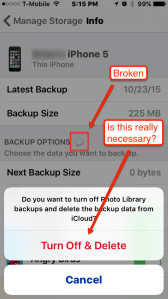 To a lesser degree, I had this same problem in 9.0.4 (or whatever the last 9.0 version was). When I attempted to backup my phone to iCloud, for whatever reason the iPhone decides to back up every app on your phone by default. Mind you, I have several gigs worth of apps on my phone on top of the 15G or so of images/videos in my library. I spent a good day working on getting my iCloud backup working on 9.0.x. It took me the better part of several hours working through stupid Settings app bugs just to get all of my apps excluded from backups. Let’s understand that Apple requires you to manually disable each and every app separately from being backed up. Let’s also understand that in order to do so, each time you click to green slider to the OFF position, you have confirm a popup that asks ‘Turn Off and Delete’ for every single app separately. Let’s consider that my phone has hundreds of apps installed. So many apps, in fact, that Settings crashes about 1/4 of the way through the ‘Turn Off and Delete’ confirmation banners. It’s an arduous task at best and it’s frustrating and aggravating at worst.
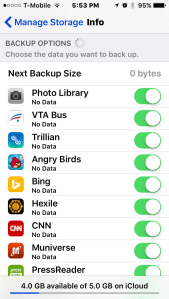 Yet, rolling into 9.1, Apple promptly reverts everything I spent 1-2 hours doing and now defaults back to turning every app ON (see left image) for backup yet again. How do I know? I get that very annoying ‘Not Enough Storage’ notification on my lock screen. I spent valuable time setting all of that up and Apple promptly forgets my settings. The very definition of bad user experience (UX). Instead, this time I can’t even stop the backups of any apps. Apple only gives 5GB of data storage for free. I had all of my devices comfortably making backups on iCloud using maybe 3.1GB total (4 devices), after the excruciatingly aggravating task of finally excluding all of the unnecessary crap that Apple insists on including. Perfect… until 9.1.
Now, I’m in a catch 22. I can’t make a successful backup because iOS continually resets all of my apps and forces me to back up everything to the iCloud the first time. Yet, iOS won’t allow me to change settings to deselect the apps because it must have a successful backup first. FAIL. You can go try to deselect apps, but that’s all for show. It doesn’t actually work. Oh sure, the green ON buttons turn OFF, but it’s not as if that actually works. It doesn’t respect that those apps are now OFF and the backup fails. Once it fails, all of those buttons you’ve spent tons of times clicking to OFF will all be automatically reenabled after the backup failure.
I have no idea what Apple was thinking here, but they clearly had their heads in the iClouds. This problem has gotten progressively worse with each release and has culminated in iCloud backup being entirely unusable unless you feel the urge to spend at least $1/mo for 50GB of storage so you can work around Apple’s stupid bugs. I have no intention of working around any developers bugs by spending money. Either provide workable functionality or don’t. But, there is no way I will ever spend money to a company to work around bugs in software. Apple, if you really want to force us to pay you to get more than 5GB, then just charge us up front for any space issued. Don’t beat around the bush by introducing bugs that make the freebie you’ve given become worthless. Let’s just be honest here.
If this is about spending yet more money with you to get people to buy into your iCloud storage, then just tell us that’s what you want. Don’t force us to go buy more because you want to force everything on our phones to back up. That’s not how you do it. Just change the terms and send everyone a notice that the 5GB storage you’ve issued us is no longer free and at the end of the month you lose it or you pay for it. Just tell the consumers what you want. You don’t need to do it by introduction of bugs that forces phone owners to backup everything on their phone.
Seriously… 5GB?
In this day and age when Google is giving practically terabytes of storage for free, Apple can only afford 5GB a month? Really? How much money does Apple make off of their products and they’re going to be that stingy with storage? On top of that, they force you to backup your entire 16/32/64GB phone over to iCloud. Not only is that stupid from the 5GB free perspective, it’s just asinine that I can’t control my bandwidth to this service. Seriously, I don’t want to send over 10-20GB of data across my network bandwidth. I want to control what I send and how much I send. Since I can no longer do that…
Buh Bye iCloud Backup.. it was nice knowing ya!
I’m done with iCloud backup. Not only is it stupidly designed, what real purpose does it serve at 5GB? I can backup my entire phone’s contents on iTunes on my local machine(s) as many times as I wish. There are no bandwidth constraints or disk space issues. Yet, I can barely backup my contacts on iCloud at 5GB. I have no intention of dropping $1/mo to get to 50GB, which is still only a pittance, let alone $10/mo for 1TB. Who knows how secure the data really is in iCloud? One breach and Apple will be run out of town on a rail.
I’m tired of dealing with Apple’s stupid developers who can no longer code their way out of a paper bag. I’m tired of dealing with bugs that shouldn’t even exist on a device that used to be the most intuitive device built. Now it’s a device that is merely following behind Android’s, ahem, innovation. So, I’ll happily head back to the time before iCloud existed. I’m done with that service for backups. I prefer to keep my backups local anyway. Buh Bye iCloud backups.
Apple, figure it out !
How to make iTunes 12 look and act like iTunes 10
iTunes 12 has been out since just about the release of Yosemite. In the fall, out of the box iTunes 12 looks like iTunes 11, with that horrible all new interface that Apple foisted onto us. Well, all is not lost. You can now make iTunes 12 look and act a whole lot more like iTunes 10. Though, keep in mind that it’s not a perfect reincarnation of iTunes 10, for most purposes it is still very functional. Let’s explore.
The New Interface
When you first kick off iTunes 12 (or 11 for that matter), you’ll see that it shows your albums as large icons. If you click an icon, it expands and shows track listings below it in a split screen setup.
Here’s a tutorial video that shows what can be done. This video is HD, so you should expand it full screen to see the detail.
Obviously there are still differences between iTunes 12 and iTunes 10, such as the row of buttons moved to the top rather than in the left playlist sidebar. But, these are more cosmetic than a problem. As long as I can get to list mode that I am most familiar with using, this was my biggest gripe with the the new iTunes views. I’m glad they’re back.
Searching, Movies and Playlists
Searching has changed somewhat. When you search, you will get search results by song and by album. This is relatively handy when creating a new playlist. You simply drag the album over and drop it on playlists and it will create a new playlist. Though, the playlist info is shown on the right including renaming it. Once you click ‘Done’, it will be saved into the playlist sidebar and you can edit it there the normal way.
You can also create playlists that now contain movies. So, you can drag your favorite trilogies over and create a playlist of these films. It will them play the playlist in order. These will also show in the left sidebar under Playlists when on Movies. The Playlists view is in the center section.
Changing Art
If you highlight all of the tracks in list view then right click and ‘Get Info’, you can paste the art in the upper right corner with the keyboard (as long as it’s on the clipboard already) and then save. It will then apply the art to every selected track. This is not much different from iTunes 10 if you used the get info panel. However, if you used the drag and drop method in the lower left of the window, that method is no longer here.
Cover Flow
Unfortunately, Cover Flow is still not back in iTunes 12. It’s funny too, because Cover Flow is still available as an option in MacOS X Yosemite in Finder. I don’t fully understand why it was removed from iTunes 11, but for whatever reason was left in MacOS X. This is inconsistent and odd. Apple is usually very consistent in UI design, mirroring whatever is in the OS in the applications. For whatever reason, the iTunes engineers have inexplicably removed Cover Flow from iTunes. I know that there was a lawsuit against Apple for the use of Cover Flow. So, it’s possible it was removed from iTunes 11 to satisfy that patent lawsuit. Apple, just pay the friggin’ patent trolls off and put Cover Flow back in.
iTunes 10
While I still like iTunes 10 for many reasons (full screen artwork), the small art panel in the lower left, etc. These are small concessions when considering an upgrade to iTunes 12 when you need to manage your library and you need to sync your latest iOS devices. Most all of the functionality I used is now back in iTunes 12 and I’m glad that it’s there. The ugly horrid album view is, mostly, a memory for me. I use that view only for films because it makes sense. I want to see the movie poster to know that’s the movie I want to watch. For albums, I want the track lists in the original way that made it easier to manage.
So, there you go. It’s now easy to get your iTunes 12 install very close to the way iTunes 10 use to work. Of course, there are still some things that haven’t been added back in. Though, the list view that looks like iTunes 10 is the thing that allowed me to finally upgrade to this this latest version.
Update for iTunes 12.4+
As of iTunes 12.4, Apple has once again rearranged the UI interface in Apple’s never ending revisionist tendencies. So now they’ve have added more buttons and buried some functions. They also removed the drop down available on playlists to make for easy configuration. The option is still there, but it’s now buried in a menu.
To change the playlist look-and-feel, you must now use the View=>Show View Options menu selection or use the ⌘J keystroke to bring up the options window.
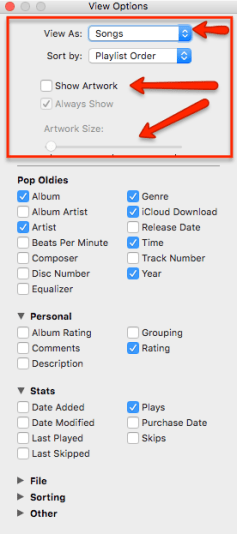 As you can see in the image to the left, the top most portion is what is most important for playlist setup. Click ‘View As’ to change the way the playlist looks. This drop down was formerly at the top of the playlist bar, but has now been removed. The only place where this option is now is in the View Options panel.
I guess Apple is now taking pages from Microsoft’s book of UI design. Meaning, they are now choosing to bury things under tons of mouse clicks which is extremely inefficient from a movement and time perspective. This does not in any way make moving around in this UI interface any faster. It is now firmly more cumbersome and pointless.
I just don’t even get what Apple is trying to accomplish here with these stupid and unnecessary design changes. If Jobs were alive, he’d be not only bringing some of these people to tears, but some of them might even see the door. It’s quite clear, there is no clear direction at Apple. If this is the work of Jony Ive, then please, let’s walk him to the Apple Campus door as fast as physics allows.
There seems to be no bad design depths to which Apple will now reach. I shake my head at just how far this malus domestica has fallen.
Apple Watch: A commentary
 I had not planned to write anything about the newest Apple announcements, but I’ve decided there are few things that need to be said about the Apple Watch. Let’s explore.
Apple Watch
So, this is the one thing that’s on everyone’s mind. I mean, it basically stole the show, but not necessarily in a good way. Why is that? Let’s start by saying that phones are the new watches. Most people don’t need to wear watches any longer because the phone itself suffices for that purpose. I mean, why carry around two different devices each needing their own battery charges when you can carry around one? I think this is where Apple assumes their distortion field is enough to overcome people’s recent aversion to wearing watches.
It’s not like the Apple Watch has reinvented something new. It’s a bloomin’ watch for chrissake. Its most basic feature is to tell time. It’s not like that’s new or revolutionary. It’s all the extra bells and whistles that come along for the ride that make or break the deal. Are those extra bells and whistles worth it? For some maybe yes, for others likely no. I mean, if you don’t need the pulse monitor or step tracker and you don’t really plan to use it as an iPhone controller, then you’re cutting about 60% of its functionality right off the top. For the $349 price tag, that’s quite pricey for a bulky thick watch.
Yeah, it’ll have a music player, but how much storage? We’re not really sure yet. But, if I know Apple, it’ll go out on the cheap and we’ll get 8G or some piddly amount like that. Just enough to hold a tiny music collection, but not enough to really be useful nor is that storage in keeping with a $350 price tag. It might also play movies, but why? Who wants to watch a movie on that tiny watch screen? Not me. That’s why I bought an iPod touch, though I don’t really much like watching moves there either. So that’s why I also bought an iPad.
Watch Failure?
Adoption of this device will be tough for Apple primarily because it will be difficult to retrain so many people to embrace the need for the Apple Watch. I mean, people have done without watches for the last decade just fine. For those people who love to wear watches, though, the Apple Watch might appeal to them. But, at that price tag, it might not. I mean, you’re going to be wearing a $350 device on your wrist in addition to carrying around a $500 valued iPhone. After all, what’s the point in buying this watch unless you have an iPhone? The other problem Apple faces is name brand watches. There is no way Apple will push aside such luxury brands as Rolex, Cartier, Patek Philippe, Tag Heuer or others. For the person looking for a luxury brand, they won’t think twice about looking at their favorite luxury brand. The Apple Watch won’t even factor in other than just having it as a novelty item. I guarantee the red carpet crowd will still show off their Rolex watches and not the Apple Watch when showing off their newest duds waltzing down the red carpet.
However, there will be a core group of Apple early adopters who will invest in this technology from Apple just because it looks cool and is new. After those people are done shelling out the cash, what then? We may find that the Apple Watch fares no better than sales of any other watch brands, which are not doing all that well today (other than the super ritzy brands of which the celebs adore).
Battery Life?
Apple faces a whole new set of problems when introducing this new device. Obviously, the battery will be a big deal clincher for a lot of people. If the battery lasts 3-5 hours, that’s just not enough to be useful or you’ll be yanking that watch off your wrist to charge it up frequently. This would be the absolute kiss of death for this device. No one is going to put that much time and effort into keeping it charged constantly.
Knowing that this device has Bluetooth and possibly WiFi, both of these wireless protocols are absolute battery hogs. There is no way around it. If you have Bluetooth and WiFi enabled, you can say goodbye to any decent amount of battery life on a device.
For example, when I cut off WiFi and cellular data on my iPhone 4s, I can typically get at least 3 days worth of charge out of the battery. With cellular data on, you might get a day at best. With WiFi on, you’ll get a day at best. These wireless protocols are out and out battery killers. For this reason, that’s why it wasn’t on the original square iPod nano. And, the battery on the iPod nano (aka. first gen Apple watch) lasted amazingly long.
Overall
This new Apple Watch itself is bulky, and bulbous. Though, I like some of the features, like the less breakable crystal. But, there are things I don’t like, like the icon vomit on the main screen. It’s easily one of the most ugly eyesores I’ve seen on an Apple device yet. I’m also not sure that Apple can sufficiently overcome this last decade of training people to use mobile phones as watches. Apple even ironically ushered in this trend with the iPhone itself. Now they’re trying to undo this? Good luck. I’ll wait and see just how the sales do on this long term, but I’m not holding out much hope with this first version of the watch.
Perhaps Apple can fix a lot of these problems in the 2G version of the watch. Personally, I’d rather see them do a pocket watch edition. Now that would be more useful. The screen would be bigger, you can hold it in your hand like you do a pocket watch and it has that cool button at the top which could be used for so many things (including opening a flap covering the display like a normal pocket watch). Not to mention, there are many people who collect pocket watches over standard wrist watches. We’ll just have to wait and see how well this all turns out.
iPad mini: Smaller? Yes. Worth it? No.
With all the hype over Apple’s new brainchild, the iPad mini, I’m just not so hopeful about this tablet model at all. Apple has definitely taken a step backwards in this one, which is quite an unusual step for Apple. Typically, Apple always retains previous technology standards it has already set in new products. Usually, it even improves upon those standards. Not so with the iPad mini.
What exactly is the iPad mini?
This tablet is effectively a smaller version of the iPad 2 with a better camera. That pretty much describes it. Many people even go so far as to call it the iPad touch. Actually, the degrades the iPod touch. The iPod touch at least has a market in small handheld touch devices. The iPod touch has a form factor that’s actually useful when you don’t want the expensive 3G data cost tether, that and having access to the rich set of applications available in IOS. So, you can buy into pretty much what an iPhone is without that monthly data tether. Unless you’re on the go 90% of the time or you travel 100% of the time, having a data plan on a phone is pretty much a waste when you are also buying internet at home.
Yet, Apple hasn’t yet to introduce the 3G version of the iPad mini, but it is apparently on the way. That said, what is it about the iPad mini that makes it a compelling device? Well, frankly not much. For me, Apple botched it. Shrinking an iPad 2 into a smaller form factor while adding a better camera just isn’t enough. This is not what Apple is known for, but it is what the NEW Tim Cook Apple will become known for. That is, rehashing old devices into new form factors. The Steve Jobs’s Apple was never about rehashing old technology in new ways. Steve Jobs was always about pushing the envelope to make technology better, easier and faster for the users.
So, the question is, how does the iPad mini fit into that Steve Jobs’ vision? It doesn’t. This is the reason Steve was against releasing a smaller form factor tablet. The iPad mini is everything Steve Jobs didn’t want in a tablet and it is the reason it has not existed until now. It took Steve Jobs departing this earth to undo that vision. That’s why Steve could make Apple better with each and every device and why Tim Cook will begin struggling to keep Apple alive.
Is there a market?
Probably, for people who simply don’t want to carry around multiple devices (i.e., Kindle, iPod touch, iPad and camera), the size of it the iPad mini might work. For me, the 1024×768 screen is just too much of a step backwards. The iPad 3 is a compelling device with its retina display. Why did Apple skimp in this department on the iPad mini? I don’t get it. They’re not known for taking step backwards in technology. This is something I’d expect from Samsung, Asus, Dell or pretty much any other PC maker. I would never expect this level of technological concession from Apple. On the other hand, if Apple had made a phone out of the iPad mini, that might be worth considering. In fact, turning the iPad 3 into a phone, I’d be all over that. I’m rather tired of carrying around a phone and the iPad. Just let me carry one device and let that device be an iPad. With wired and Bluetooth headsets, you don’t need to hold a phone to your face any longer. So, let’s consolidate the devices. That change would definitely make the iPad mini much more attractive as a device.
Weight and Size vs Price
Yes, it’s smaller and lighter, but at what a technology cost? You get a smaller technologically inferior device from what Apple has previously produced in the Retina iPad 3, but at a substantially higher price than is expected for such an inferior device. At $329, you’re effectively buying what exactly? An expensive 1024×768 tablet. Granted, it runs IOS that has previously been known for its stability. Unfortunately, that has changed with IOS 6. What has originally been considered base stability is now gone with IOS 6. Apps like Mail, Safari and even iTunes are unstable. You’ll get a notice for an email in a banner, click on it and the Mail app crashes. Definitely not stable. I’ve also had regular crashes with Safari and iTunes.
So, what Apple had going for itself in stability of IOS is pretty much gone. IOS has now lost its standing as the ultimate goto tablet OS. It’s just a matter of time before the quality of Apple’s products degrades to the point where it’s not even worth discussing. Note, we’re already on the downward side of the Apple quality bell curve. So, unless Tim Cook can manage to crack the whip and right this ship, Apple’s ship is already listing. It’s just a matter of time before it capsizes.
Apple’s Botched Rollout Plan
The whole roll out plan for the iPad mini was just convoluted with its staggered late announcement a month or so after its fall release announcement and then the staggered roll out of the device itself with the WiFi version releasing first. Definitely not something Jobs would have ever allowed. The parts also leaked on the Internet early, so many people already knew the form factor before ever hearing the announcement. Apple needs to lock down its supply chain much more tightly than it has. Again, this is something Jobs would have gone on a tirade as well. Secrecy was critically important to Steve Jobs.
Worth it?
Depends on what you want to do with an iPad mini? While I can definitely see a use and the usefulness for the iPad 3 with its multi-core processor and Retina display, taking this much of a step back for the iPad mini is not the answer. If you really must have this form factor, then perhaps. As a gift, if you really want to spend that level of cash on someone, perhaps. But, even as a gift, it could be seen as ‘cheaping out’. That is, giving them a Toyota when they wanted the Ferrari (iPad 3). Be careful with this one as a gift. For people who won’t use the pixels on the screen, it might be ok.
So, is it worth the price? No. This device would only be compelling if it were about $100 cheaper at each model price point or if it contained a phone. At $329, it’s too costly for such a huge step backwards technologically. The size does not make up for that. At $229, it would definitely be getting much closer to the right price. At $199 for a 16GB WiFi model, the iPad mini would be truly at the right price for that level of 2 year old technology. Asking people to pay $130 more for a 2 year old device is just price gouging, or as some people call it, the Apple tax. In this case, the Apple tax is most definitely not worth it.
Installing Mac OS X (Snow Leopard) in VMWare Player 3

With this article, I’ll start by saying.. please purchase your copy of Mac OS X desktop software from Apple. It’s $29 and you get the original media (which is always good to have on hand).
To start, here are the softwares you will need:
- VMWare Player 3 (need to create login to download)
- Empire EFI 1.3.2 for VMWare
- Snow Leopard Install Media (Disk or ISO)
- 7zip (for opening Empire EFI archive)
- ImageBurn (for making ISO images from CD Media)
Installing Mac OS X on VMWare Player is a pretty simple install, but note that there are some important issues that aren’t yet resolved. I’ll explain the issues, however, after the install steps.
Installation
Inside the Empire EFI 1.3.2 archive, you will see the following files:

You will see that the extracted ‘Snowy_VM’ folder contains several files besides just the EFI media. Inside the Mac OS X Server*.vmwarevm directory, you’ll see it contains two .vmx templates for VMWare. Use the .vmx file without the underscore at the beginning. Note, you’ll need to use this template to get the install going. It’s far simpler to use their existing template than trying to figure out all the proper VMWare Player settings. So, use what’s given rather than trying to reinvent the wheel. If you absolutely feel you want to reinvent, then I’ll leave that for you to determine what’s necessary.
To begin, inside VMWare Player, select File->Open a Virtual Machine. Find the .vmx file mentioned just above and open it. Once opened, it will appear as ‘Mac OS X Server 10.6 (experimental)’ in the VMWare Player selection panel. From here, you will need to modify the settings for the CDROM device under this machine. Choose the ‘Mac OS X Server 10.6 (experimental)’ imported machine and choose ‘Edit virtual machine settings’ on the bottom right of the window. Now click the on the CDROM device and under ‘Connection’ change it to ‘Use ISO image’ and browse to and select the darwin_snow.iso image inside the Snowy_VM directory’. Click ‘OK’.
You’re now ready to boot. So, click ‘Play Virtual Machine’. Once the machine has started and the system begins searching for a CDROM (read the text on the screen), you will need to change the CDROM to the Mac OS X Snow Leopard media. I recommend using an ISO media to install. So, I will assume you are using an ISO image here. At the bottom of the active VM Window, right click the CDROM icon which may now be greyed out (disconnected) and choose ‘Settings’. Locate the Snow Leopard media on your hard drive and click ‘OK’ to accept it. Check the box next to ‘Connected’ at the top of the window and click ‘OK’ at the bottom.
The system should recognize the disk change and begin to boot the media in about 10 seconds. Once the install begins, you are now installing Mac OS X. Follow the steps to install Mac OS X. Once Mac OS X is installed, reboot. Note the hard drive given in this Snowy_VM archive is ‘ready to go’. So you don’t need to format it.
Booting issues with VMWare Player and Mac OS X
Let’s pause and explain this. When you reboot the first time, the system may or may not boot up. There are two behaviors you should watch for. The first behavior is that you get to the Apple Logo screen with the spinning lines. If it never progresses beyond this grey screen, then you will need to reboot and try again.
The second behavior is that it may get past the grey screen, but then Finder never appears and you see a forever spinning cursor. If you see this, you will need to reboot and try again.
These issues are annoying, but that’s why this is ‘experimental’. So, we live with these issues.
The third issue is that you will need to continually leave the darwin_snow.iso image in the drive all of the time to boot up Mac OS X. Hey, at least it works. Leaving it in the drive is really not a problem as it boots up so quickly. Perhaps they can create a standalone booter later, but for now this works.
Note, I recommend setting up a second CDROM drive inside your Mac OS X virtual machine’s settings. This way, you leave one CDROM always set up with darwin_snow.iso and you use the second one to load/unload other ISO images. If you like, you can set the second one up to your physical drive also so you can pop real CDs in the drives as you need. Note that if you change the darwin_snow.iso image to something else, you have to remember to set it back when you’re done. If you don’t do this, Mac OS X won’t boot. So, this is why I recommend setting up a second drive for loading ISO images.
Booting up successfully
After getting through any unsuccessful boot attempts (or not), you should get to the registration screen. After going through all of the registration screens you will be at the standard Finder desktop. At this point, you might want to change things like Sound and Display. Note that the sound and display drivers are just about as good as what’s in Virtual Box. In fact, Virtual Box’s resolution setup is a bit more complete than this. So, don’t expect a whole lot here.
Suffice it to say that you will need to follow editing of the apple.com.Boot.plist file as in the ‘Installing Mac OS X on VirtualBox‘ article on Randosity. Add in the lines related to the graphics. Once you have done this, edit the virtual machine in VMWare player and choose the Display setup. Under ‘Monitors’ change it to ‘Specify Monitor Settings’ and manually change the maximum resolution to ‘1366×768’. When you reboot, Mac OS X should go into this mode. If it doesn’t work, then you may have to fiddle with the apple.com.Boot.plist file until it works. Note that the resolutions here are limited, so don’t try to set up some odd resolution as it won’t work.
Note, this is the best resolution I could find. Note that in the above directory, you’ll see the file ‘EnsoniqAudioPCI.mpkg.tar’. This is a Mac OS X driver for audio. I have tried installing this without success. But, your mileage may go farther. The trick is in getting this into the Mac. So, you’ll need to start a browser and download the EFI file again on the Mac. Then extract it, find this file and install it.
At this point, you should be all set. You may run into the booting issues from time to time, just reboot until it boots up. Hopefully this booting issue will be fixed at some point. Good luck and happy installing.
If you’re looking for something that boots consistently for Mac OS X, has better video mode support and working sound, then I would suggest setting up Mac OS X on VirtualBox. The setup for VirtualBox is a little more complex, but it boots consistently every time, has its own standalone boot loader and offers a few more features.
If you have questions, please leave a comment below.
iPad: After the dust settles
We are now a month post iPad launch and where are we? Some news sites are postulating the the use of iPad in the enterprise world. I can’t even fathom a use for it at home, much less putting it into the hands of corporate users. Let’s examine this platform more carefully to understand the reasons for its lack of viability in Enterprise, much less for simple home uses.
Multitasking
I know a lot of media outlets have harped endlessly on the lack of multitasking. Granted, it is a computing device and most computing devices do require some level of multitasking. I know that the iPod and the iPhone had very little internal memory (at least up to 3rd gen editions). So, it could only comfortably run one app. That was primarily a memory limitation. With the latest iPhone and iPod touch, that may have all changed. To be perfectly honest, I don’t keep up with Apple’s hardware spec details. Why? Because it’s not really that much of an interest. I mean, that’s the point. It shouldn’t be. Apple has always touted their devices ‘just work’. So, why should I need to dig inside one of their devices to find out the gritty details? I shouldn’t need to.
This issue is also what bites Apple many times over. They decide to under design the device by putting in not enough resources. So, they have to make concessions in the operating system by removing things like multitasking. Of course, with the iPod touch and the iPhone, we’re talking about very small devices that may not have the physical room to hold the amount of resources necessary to support multitasking.
The iPad’s physical size should no longer hinder their ability to put in the necessary resources to fully support multitasking (and then some). So, there is no reason why the iPad shouldn’t have supported multitasking out of the gate. But, it doesn’t. The iPhone 4.0 OS is supposed to address this issue, but not until the fall of 2010.
Multitasking and how it relates to computing
So, is it required that a PC support multitasking? Good question. It’s also a question not easily answered. In general, though, the answer should be ‘yes’. It should be ‘yes’ because the ability to run multiple apps is necessary to get things done. For example, to copy and paste between two different documents or to share information through application conduits. Even the simple act of embedding one app inside another requires multitasking. Quitting and restarting each app to move between them is cumbersome and time wasting.
In the end, yes, multitasking is required to make the computing experience be what we’ve come to expect. In the iPad, that computing experience isn’t there. So, for this reason, iPad won’t be fully accepted without multitasking. We’ll revisit this topic, however, once multitasking is (re) introduced in iPhone 4.0 OS.
Enterprise computing and the iPad
Is it ready for enterprise? I personally would say no. I’ve owned an iPod touch for several years and since the iPad really has no better selection in enterprise apps than does the iPod touch, the answer to this question is still no. Even though the screen on iPad is larger, it doesn’t offer the necessary productivity apps to fully work in a corporate enterprise. Yes, it does have a mail app. That’s a big part of what makes it work in Enterprise. Unfortunately, that mail app is so locked down and limited, that it may not fully work for the enterprise. That’s not to say that the mail app isn’t good in a pinch or to read a quick current email or two. But, don’t try to go searching for emails buried in your folders, that just doesn’t work well.
For enterprise computing, the current incarnation of the iPad is nowhere near ready.
What uses does the iPad offer?
Good question, once again. It isn’t a media PC, so that’s out. It isn’t good for enterprise level computing, that’s out. It can watch movies and read books, so coffee table literature, ok. Ignoring the touch screen and sleek design (which are just amenities, after all), it has to come down to the apps and features. The apps are limited, at this point, and I don’t really see much of that changing due to Apple’s app lockout situation.
Until Apple opens the platform up for general development, the platform will continue to be tightly controlled and, thus, limiting the applications that are available. Until this situation is resolved, this device may never end up anything more than a novelty.
HP’s slate cancelled
Looking back at history shows us that the tablet has had an extremely rocky past that always leads to failure. I’m not sure that even Apple can overcome this rocky past even with the success of the iPhone. The iPad is really too big and clunky to be truly portable. It’s too closed to allow open development. So, it’s no surprise that HP and other companies who had previously announced their intent to release a tablet are now reconsidering that release. In fact, HP announced the slate on the heels of Apple’s iPad announcement and has now cancelled the slate completely before it was even released.
Some people blame the ‘success’ of the iPad. Well, success is very much subjective. Putting 500,000 of the iPad into circulation is nothing to sneeze at. But, that doesn’t necessarily indicate success. The Newton comes to mind here. It was a hot new item that all but died in about two years. Where is the Newton now? Apple has a past history of deleting products rapidly and the iPad may be one of those items.
Apple’s past failures
If you really want an iPad, then get it now while it’s hot. Don’t wait. The reason I say this is that in 6-12 months, you could find yourself with a doorstop that Apple no longer supports. Apple has a history of killing off failing devices rapidly. So, with this particular device, don’t wait to buy it. If you wait until spring of 2011, you may find that the device is dead and buried. You could be holding a flat doorstop that iTunes no longer supports and with no active development. I can very easily see this device becoming one of Apple’s most recent failures.
Working while traveling
The tablet format has a questionable past anyway. The form factor isn’t pleasing to use. It isn’t easy to carry and, getting past the touch screen, it’s cumbersome to write text into it. So, it’s going to need a dock with a keyboard and mouse. A real keyboard and a real mouse. But, that takes the portability out of it. If you’re sitting on a plane, you’re locked into using the touch surface. Now consider that you can’t lay the device flat and work easily. I mean, you can lay it down, but then it’s not at the correct viewing angle. To get it into the correct viewing angle, you have to hold it in one hand, you have to balance it in your lap in a contorted way or you have to carry along a kickstand when you’re on a plane.
In this instance, a notebook, iphone, itouch or netbook works much better. For a netbook, the top pops open at the correct viewing angle and you have a real keyboard and mouse available. Granted, it’s not a touch surface, but that’s just a novelty anyway. Once the novelty of touch wears off, then you have to determine how to make use of this input method in an actual usable way.
Using an iPod touch or iPhone is also easy. It fits easily in one hand, is light in weight and works without the need for kickstands, contorted positions or clumsy positioning issues. Clearly, not a lot of usability was discussed when the iPad was designed. Usability is one of the things Apple usually prides itself in its designs. In the iPad, usability was clearly an afterthought.
3G iPad
This is the one and only one saving grace of the iPad. Internet everywhere is where we need to be. The supposed $29.95 monthly plan associated with the 3G version of the iPad is a reasonable price. Unfortunately, the iPad itself is marked up by an additional $130. So, instead of $499, it’s $629 (and that’s the smallest iPad). But, the iPad with 3G is the only version that I would personally consider. I already have an iPod touch and its uses are extremely limited unless you have WiFi handy (which isn’t very often). And, even when you do find a place that claims to have WiFi, 8 times out of 10, the connectivity is either slow or limited. So much for free WiFi. While 3G isn’t that fast, it’s at least always on pretty much anywhere you need it.
Form factor is the key to success
The problem with the current iPad is its size. This is the wrong form factor to release. It’s the wrong size and wrong weight. The size that the iPad should have been was about the size of a paperback book. Bigger than an iPod touch, small enough to fit in a pocket. This will take computing to the truly portable level. The screen will be bigger than a Sony PSP (which is a decent size to watch movies), but small enough to still be portable. Combine that with 3G and you have a device that people will want to use. The iPad is not that portable and still requires a case with handles. After all, you don’t really want to drop a $600+ device. But, a device the size of a paperback book at the cost of maybe $399, that’s in a price range that could work.
First Gen iPad
Remember that this is the first generation iPad. You really have to wait until the third gen of an Apple device to get to the features that make it worthwhile. The question remains, will the iPad even make it to a third incarnation? Only time will tell. Apple won’t abandon the iPhone OS on devices for quite some time. But, the form factor of the iPad is likely to change several times before it’s over. Like I said, if you want this thing, buy into it now. Otherwise, if you want to wait a year, you may not be able to get this form factor again and you may find that Apple has backtracked into smaller more portable devices.
Apple’s iPad: 10 inch iPod Touch or iDisaster?
Recently, I wrote the article “What is it about tablets?”. In that article, I discussed what Apple must do to make the newly announced iPad (tablet computer) successful. Apple needs a paradigm shifting technology embedded in the iPad that would make the usability of such a tablet go leaps ahead of previous tablet attempts. Unfortunately, that did not happen.
Failure to launch (and type!)
The iPad may look like a pad, but it functions nothing like a pad. In fact, this device looks and acts like an iPod touch on steroids. But, Apple failed this device on so many levels. First, let’s start with the design. The iPad back is not flat (which is just like the newest thin iPod touch). The back is curved. So, laying the iPad on a flat surface leads to wobbly typing or surfing. This forces you to put it on a soft surface or hold it in your hand. Not an optimal or convenient design.
Typing input
On the touch, however, it was small enough to hold in one hand and type with the other. In fact, you could hold it with two hands and thumb type. With a 10 inch sized device, one hand typing isn’t really an option. But, this whole typing issue just goes back to the fundamental input problem with tablets. How do you reliably get input into a tablet computer? The options are voice, handwriting recognition and touch typing. None of these input styles make for a truly usable computer experience. So, on this level, Apple has failed. Funny too, because Apple is usually the leader when it comes to innovative ways to improve user interface experience.
Finger Friendly?
I’d like to point out another possible problem. On the iPod Touch, the touch screen surface only works with an actual finger touch. It doesn’t work with gloves on or by using your fingernail. As a result, this makes the touch surface a problem in the winter or for women with long nails. I do not presently know that the iPad uses this same touch screen technology, but it’s very probable. Therefore, this could make the iPad not friendly for glove wearers or women with long nails.
Lack of ports
Most computers today need to support the latest in port technology. More and more, however, Apple seems to shun standards and try for their own proprietary connectors. Sometimes it works. More often than not, it fails. In this case with this device, it adds to the design failure. With the iPad, Apple should have added standard ports like HDMI and a Secure Digital slot. Unfortunately, they didn’t do this and this device suffers as a result. This is especially bad considering most Netbooks offer most of these ports. Yes, some Netbooks even offer HDMI ports.
iPod Touch Clone
Unfortunately for the iPad, it appears to be a 10 inch iPod touch. The interface is, of course, 10 inches. This means it uses the same interface that’s on the iPhone and iPod touch. On a small handheld device, that interface works well. On a 10 inch screen, the oddness of it all is quite apparent. The resolution is higher on the 10 inch screen and, thus, the iPad scales up most apps to accommodate. The problem is the scaling. Some apps look fine scaled. Some can actually take advantage of the larger screen (mapping softwares). With low res apps, the iPad scales up the app window to fill the 10 inch screen which looks quite lame. Granted, all of this can be fixed by developers reworking their apps. But, for now, it makes this device all the more clumsy.
App Store Tie-In
This is yet another in a series of devices that Apple is requiring the user to use solely with iTunes and the App store. Inevitably, the iPad will be jailbroken. Until then, the audience is captive to the Apple store. So, if you want apps or media, that’s where you must go. Of course, you can import media into iTunes app and sync that, but you cannot load any apps other than those that come from Apple’s app store until it is jailbroken (probably the day after it gets released).
This also means that tried and tested apps you’ve come to know on Windows or even Mac OS X may never become available on the iPad due to iTunes App Store restrictions.
A must have? No. Not yet anyway.
Apple has yet to convince me (and many others) of the necessity of this device. There’s no wow-factor here or anything compelling to make the iPad stand out as must have. There’s nothing here to say that it is even useful for anything beyond what a Netbook can accomplish for less money. The iPod touch is still much more useful due to its size. The iPad is sitting in a cost space near Netbook pricing (the iPad is more costly), but Netbooks still have much more functionality due to a real keyboard and better use of the screen (not to mention, full fledged apps).
At the entry level pricing of $499, which will mean a bare bones model, you’re sure to get as little as possible. To get all the bells and whistles, you’re likely to pay well over $1000 for the equivalent of a large iPod touch.
In other words, Apple did not provide a paradigm shifting technology necessary to make the iPad absolutely compelling. In fact, the whole big clumsy nature of this tablet is quite apparent even from the image of Steve Jobs holding it.
This is a 1.0 device that feels like a 0.5 device with poorly thought out software. The iPod/iPhone interface and its apps were designed to be used on handheld small screen devices. Putting this interface onto a 10 inch sized display and expecting full fledged computing out of portable apps is stretching this device to its limits. Granted, Apple can generally get the kinks out of new devices. But, the tablet has such a long history of failure going back to Grid Computers in the early 90s that Apple has a steep bank to climb to get out of this trench they’ve dug themselves into.
Overall, I’m still underwhelmed and I’ve seen nothing yet that screams, must have. An iPod touch screams that due to its sheer size and portability. The iPad definitely does not!
What is it about tablets?
Ok, I’m stumped. I’ve tried to understand this manufacturing trend, but I simply can’t. We have to be heading towards the fourth or maybe fifth generation of tablet PCs, yet each time they bring tablets back to the the market, this technology fails miserably. Perhaps it’s the timing, but I don’t think so. I think the market has spoken time and time again. So, what is it about this technology that make manufacturers try and try again to foist these lead balloons onto us about every 6 years?
Wayback machine
It was in the early 90’s that Grid Computers arguably released the first tablet (or at least, one of the very first tablets). Granted, it used a monochrome plasma screen and I believe that it ran DOS and Windows 3.1 (that I recall), but these things flopped badly for many different reasons. Ultimately, the market spoke and no one wanted them. It’s no wonder why, too. The lack of keyboard combined with the size and weight of the unit, the need for a pen and the lack of a truly viable input method doomed this device to the halls of flopdom. Into obscurity this device went along with Grid Computers (the company).
In the early 2000s, Microsoft+Manufacturers tried again to resurrect this computer format with XP Tablet edition. This time they tried making the devices more like notebooks where the screen could detach from a keyboard and become a tablet. So, when it was attached, it looked and felt like a notebook. When detached, it was a tablet. Again, there was no viable input method without keyboard even though they were touch screen. The handwriting recognition was poor at best and if it had voice input, it failed to work. XP Tablet edition was not enough to make the tablet succeed. Yet again, the tablet rolled into obscurity… mostly. You can still buy tablets, but they aren’t that easy to find and few manufacturers make them. They also ship with hefty price tags.
Origami
Then, later in the mid 2000’s came Microsoft with Origami. At this time, Origami was supposed to be a compact OS, like Windows CE (although CE would have worked just fine for this, don’t know why Origami really came about). A few tablets came out using Origami, but most computers that loaded this version of Windows used it in the microPC format. Since the Origami version of Windows was a full version (unlike CE), it was a lot more powerful than computers of that size really needed and the price tag showed that. Sony and a few other manufacturers made these microPCs, but they sold at expensive prices (like $1999 or more) for a computer the size of a PDA. Again, no viable input method could suffice on the microPC tablets and so these died yet another death… although, the microPC hung around a bit longer than the tablet. You might even still be able to buy one in 2010, if you look hard enough.
Netbook
Then came the Netbook. The $199-299 priced scaled down notebook using the Atom processor. This format took off dramatically and has been a resounding success. The reason, price. Who wouldn’t want a full fledged portable computer for $199-299? You can barely buy an iPod or even a cell phone… let alone a desktop PC for that price. The Netbook price point is the perfect price point for a low end notebook computer. But, what does a Netbook have to do with a tablet? It doesn’t, but it is here to illustrate why tablets will continue to fail.
Tablet resurrection
Once again, we are in the middle of yet another possible tablet resurrection attempt. Rumor has it that Apple will release a tablet. HP is now also pushing yet another tablet loaded with Windows. Yet, from past failures, we already know this format is dead on arrival. What can Apple possibly bring to the tablet format that Microsoft and PCs haven’t? Nothing. That’s the problem. The only possible selling point for a tablet has to be in price alone. Tablets have to get down to the $199-299 price tag to have any hope of gaining any popularity. Yet, Apple is not known to make budget computers, so we know that that price point is out. Assuming Apple does release a tablet, it will likely price it somewhere between $899 and $1599. Likely, they will offer 3 different versions with the lowest version starting at $899. Worse, at the lowest price point it will be hobbled lacking most bells and whistles.
Even if Apple loads up the tablet with all of the bells and whistles (i.e., Bluetooth, 3G, GSM, OLED Display, iTunes app capable, handwriting recognition, voice recognition, WiFi, wireless USB, a sleek case design, etc etc) the only thing those bells and whistles will do is raise the cost to produce the unit. The basic problems with a tablet are portability (too big), lack of a viable input device, weight and fragility (not to mention, battery life). Adding on a hefty price tag ensures that people won’t buy it. Of course, the Apple fan boys will buy anything branded with a half bitten Apple logo. But, for the general masses, no. This device cannot hope to succeed on Apple fan boy income alone.
Compelling Reasons
Apple has to provide some kind of paradigm shifting technology that makes such a failure of a device like the tablet become successful (or whatever Apple cleverly names its tablet device). If the tablet is over 7 inches in size, it will be too large to be portable. Utilizing OLED technology ensures the cost is extremely high. Putting a thin case on it like the MacBook Air ensures that it’s overly fragile. We’ve yet to find out the battery life expectancy. So far, this is not yet a winning combination.
So, what kind of technology would make such a paradigm shift? The only such technology I can think of would have to be a new input device technology. A way to get commands into the notebook and a way to drive the interface easily. Clearly, a multi-touch screen will help. The iPod is good in that regard (except that you can’t use it with gloves). But, if you want to write email, how do you do that on a tablet? Do you hand peck the letters on that silly on-screen thing that Apple calls a keyboard? No. That’s not enough. Apple needs a fully phonetic speech input technology that’s 100% flawless without any training. That means, you speak the email in and it converts it perfectly to text. Also, you speak in any conversational command and the computer figures out what you mean flawlessly. This is the only technology that makes any sense on a tablet. Of course, it will need to support multiple languages (a tall order) and it needs to be flawless and perfect (an extremely tall order). It will also need to work in a noisy room (not likely).
Can Apple make such a shift? I don’t know. The hardware technology is there to support such a system. The issue, is the software ready? Well, let’s hope Apple thinks so. Otherwise, if Apple does release its rumored tablet without such a paradigm shift, it could be the worst stumble that Apple has made since the Lisa.
iTunes can corrupt your iPod’s iTunes library
As a follow up to this Randosity article, this article will focus on a specific condition when iTunes will corrupt your iPod’s music database… over and over and over.
How it all starts
About a week ago, my iPod became unrecognized by iTunes. Because iTunes cannot ‘recognize’ the iPod, it requests that you restore the iPod using the restore feature. As a result of a domino effect issue, this problem became more and more compounded. Compounded to the point that I was ready to sell the iPod to someone else and get a different solution.
What is the issue exactly?
This issue started right after the first unrecognized error. After the iPod becomes unrecognizable (we’ll get to what that means shortly), I had to restore the iPod to actually use it again. From that point forward, I kept having to restore it about once a day. Mind you, this is the 8GB iPod Touch and not a 60GB iPod. If it had been a 60GB device, I would have sold it no questions asked. I digress. Anyway, the restores kept getting more and more frequent.
- So, I plug the iPod Touch into the computer’s USB port and let iTunes synchronize the touch. The synchronize progresses normally and then ends correctly.
- I unplug the iPod and check it out. Yep, everything is all there.
- I plug it in again and iTunes then syncs again. Except, this time I noticed (or thought I noticed) iTunes synchronizing some music that was already on the iPod. I thought it was weird, but I discounted it.
- I unplug the iPod and check the ‘Music’ app. I see a “There is no music loaded” message…frustrating (note this was the first time it had happened).
- I plug the iPod back into the computer. iTunes says, “This iPod is unrecognized, please restore it”.
- Note that the Touch’s Apps are all still loaded and the iPod works even though iTunes won’t recognize it (and the music is missing).
What does ‘unrecognizable‘ mean exactly in the iTunes?
After poking around on the Internet about any similar type issues, I’ve found others who’ve had similar behavior on their iPods. The base problem that prevents iTunes from ‘recognizing’ the iPod is that the iPod’s music database (iTunesDB) file has become corrupted. Basically, when the iPod’s iTunesDB file becomes corrupted internally, iTunes refuses to recognize the device or work with it forcing the user to do complete restore (even when the unit is STILL functioning).
Restore Process
There are so many problems with this restore process, suffice it to say that Apple is in desperate need of help. Apple has designed the iPod to work under ideal conditions (i.e., never need to restore). However, when it comes time to restore your iPod and because they didn’t really work this all out properly, the restore process is where iTunes fails miserably.
When iTunes needs to restore the unit, it places the iPod into a special restore mode. A mode that appears to make the unit receptive to installation of firmware (a special icon appears). After iTunes extracts and transfers the firmware over to the iPod, the iPod reboots and installs the firmware (all the while iTunes is watching the progress). After the unit has restored the firmware to factory defaults, iTunes allows you to try to restore from a previous backup or set it up as a new iPod. This factory reset process can take anywhere between 10-15 minutes.
iPod Backups
iTunes only allows for one (1) stored backup of your iPod at a time. So, if that one (1) backup that iTunes has is corrupted, you’ll waste a ton of time trying to restore only to find that the iPod is still corrupted. So, you’ll have to start the restore completely over again and then set the iPod up as a new device (wasting even more time). This happened to me. I also quickly realized it was simpler (and faster) to avoid using an existing backup and just setting it up from scratch again. Apple really needs to allow iTunes to take multiple backups in dated slots and allow these backups to be stored outside of iTunes in files.
Note, if you choose to set the iPod up from scratch, you will have to completely set up your apps again. For example, settings like your WiFi settings, your email settings and your VPN settings will all have to be manually reconfigured. Any apps that require login and passwords will need to be re-entered.
Restoring your settings and media
If you’ve chosen to restore your iPod’s customization settings from a backup, this process will take between 10-15 minutes to complete. And no, as slow as this process is, it doesn’t restore music, videos or any other media. That still has yet to be done (and comes last). After the settings have been restored, you now have a workable (and very blank) iPod again. So, the next thing iTunes does is sync up the applications, then the music, then everything else. The applications will take anywhere from a few minutes to over ten minutes depending on how many apps you have downloaded. The music restore will take whatever it takes to copy the size of your unit (about 6 gigs takes at least 15-25 minutes). So, an 8GB iPod Touch, it takes probably 15-45 minutes depending. If you’re restoring a fully loaded 32 or 60GB iPod, your rebuild will take a whole lot longer.
Corruption
The issue I faced, however, is that something kept corrupting the iTunesDB file on the iPod. It was either the iPod’s hardware messing up or iTunes was shuttling something over it shouldn’t have been. I noticed that on a particular CD the artwork kept disappearing in iTunes (it would be there and then it would show the blank icon when I know that the art previously worked). I also noticed that iTunes would randomly transfer this music over even when it already existed on the iPod and had not been changed. I guess it thought something changed about the music file. Anyway, after it transferred that music, I believe this is what corrupted the iPod. Whatever was causing the artwork to disappear must have corrupted an iTunes file which was transferred to the iPod.
Fix
The fix for this issue, that I found by trial and error, was to completely delete the entire iTunes music library, podcast library and video library and reimport it. So, I went to the ‘Music’ area and selected everything and pressed delete. Of course, I used ‘Keep Files’ to keep them on the disk. I also made sure to NOT use downloaded artwork on the reimported music as I believe the downloaded artwork database is what is getting corrupted. I don’t know why the corruption happens and the guy at the Genius Bar had also never heard of this.. so much for their Genius. He also offered to replace the iPod Touch just in case the hardware was bad, but I don’t think it is.
Arrgh.. Apple get your ACT together!
iTunes can be a hassle to deal with, as evidenced here. Apple needs to take a long hard look at how this all works and fix these problems. One of the ways to fix this issue is to stop marking the unit as unrecognizable when the iTunesDB is corrupted. Instead, they should simply delete the database and rebuild it. Better yet, they should keep a copy of the iPod’s database on the computer for restoration. Also, if Apple allowed multiple backups stored by date on the computer, it would be far simpler to roll back to a previously KNOWN working configuration. Because of this lack of foresight of Apple and because of the simplistic backup system Apple has implemented, this leads to a complete timewaster in restoration by trial and error.
Since there is no real fix you can do to iTunes itself to manage these limitations, I recommend that you turn off automatic synchronization so you can manually sync the iPod yourself at the time of your choosing. I should also mention that Apple decided to turn off visibility (through a drive letter) into the iTunes library files with the iPod Touch, so you can’t even use a third party utility. I can’t imagine having to go through this restore process on a 60GB or larger iPod. Having to go through it 5 times in 5 days because of iTunes is ludicrous and enough to make anyone want to get away from Apple as fast as possible. Apple, you definitely need to figure out how to deal with this issue!


 Random Thoughts - Randocity!
leave a comment