iTunes can corrupt your iPod’s iTunes library
As a follow up to this Randosity article, this article will focus on a specific condition when iTunes will corrupt your iPod’s music database… over and over and over.
How it all starts
About a week ago, my iPod became unrecognized by iTunes. Because iTunes cannot ‘recognize’ the iPod, it requests that you restore the iPod using the restore feature. As a result of a domino effect issue, this problem became more and more compounded. Compounded to the point that I was ready to sell the iPod to someone else and get a different solution.
What is the issue exactly?
This issue started right after the first unrecognized error. After the iPod becomes unrecognizable (we’ll get to what that means shortly), I had to restore the iPod to actually use it again. From that point forward, I kept having to restore it about once a day. Mind you, this is the 8GB iPod Touch and not a 60GB iPod. If it had been a 60GB device, I would have sold it no questions asked. I digress. Anyway, the restores kept getting more and more frequent.
- So, I plug the iPod Touch into the computer’s USB port and let iTunes synchronize the touch. The synchronize progresses normally and then ends correctly.
- I unplug the iPod and check it out. Yep, everything is all there.
- I plug it in again and iTunes then syncs again. Except, this time I noticed (or thought I noticed) iTunes synchronizing some music that was already on the iPod. I thought it was weird, but I discounted it.
- I unplug the iPod and check the ‘Music’ app. I see a “There is no music loaded” message…frustrating (note this was the first time it had happened).
- I plug the iPod back into the computer. iTunes says, “This iPod is unrecognized, please restore it”.
- Note that the Touch’s Apps are all still loaded and the iPod works even though iTunes won’t recognize it (and the music is missing).
What does ‘unrecognizable‘ mean exactly in the iTunes?
After poking around on the Internet about any similar type issues, I’ve found others who’ve had similar behavior on their iPods. The base problem that prevents iTunes from ‘recognizing’ the iPod is that the iPod’s music database (iTunesDB) file has become corrupted. Basically, when the iPod’s iTunesDB file becomes corrupted internally, iTunes refuses to recognize the device or work with it forcing the user to do complete restore (even when the unit is STILL functioning).
Restore Process
There are so many problems with this restore process, suffice it to say that Apple is in desperate need of help. Apple has designed the iPod to work under ideal conditions (i.e., never need to restore). However, when it comes time to restore your iPod and because they didn’t really work this all out properly, the restore process is where iTunes fails miserably.
When iTunes needs to restore the unit, it places the iPod into a special restore mode. A mode that appears to make the unit receptive to installation of firmware (a special icon appears). After iTunes extracts and transfers the firmware over to the iPod, the iPod reboots and installs the firmware (all the while iTunes is watching the progress). After the unit has restored the firmware to factory defaults, iTunes allows you to try to restore from a previous backup or set it up as a new iPod. This factory reset process can take anywhere between 10-15 minutes.
iPod Backups
iTunes only allows for one (1) stored backup of your iPod at a time. So, if that one (1) backup that iTunes has is corrupted, you’ll waste a ton of time trying to restore only to find that the iPod is still corrupted. So, you’ll have to start the restore completely over again and then set the iPod up as a new device (wasting even more time). This happened to me. I also quickly realized it was simpler (and faster) to avoid using an existing backup and just setting it up from scratch again. Apple really needs to allow iTunes to take multiple backups in dated slots and allow these backups to be stored outside of iTunes in files.
Note, if you choose to set the iPod up from scratch, you will have to completely set up your apps again. For example, settings like your WiFi settings, your email settings and your VPN settings will all have to be manually reconfigured. Any apps that require login and passwords will need to be re-entered.
Restoring your settings and media
If you’ve chosen to restore your iPod’s customization settings from a backup, this process will take between 10-15 minutes to complete. And no, as slow as this process is, it doesn’t restore music, videos or any other media. That still has yet to be done (and comes last). After the settings have been restored, you now have a workable (and very blank) iPod again. So, the next thing iTunes does is sync up the applications, then the music, then everything else. The applications will take anywhere from a few minutes to over ten minutes depending on how many apps you have downloaded. The music restore will take whatever it takes to copy the size of your unit (about 6 gigs takes at least 15-25 minutes). So, an 8GB iPod Touch, it takes probably 15-45 minutes depending. If you’re restoring a fully loaded 32 or 60GB iPod, your rebuild will take a whole lot longer.
Corruption
The issue I faced, however, is that something kept corrupting the iTunesDB file on the iPod. It was either the iPod’s hardware messing up or iTunes was shuttling something over it shouldn’t have been. I noticed that on a particular CD the artwork kept disappearing in iTunes (it would be there and then it would show the blank icon when I know that the art previously worked). I also noticed that iTunes would randomly transfer this music over even when it already existed on the iPod and had not been changed. I guess it thought something changed about the music file. Anyway, after it transferred that music, I believe this is what corrupted the iPod. Whatever was causing the artwork to disappear must have corrupted an iTunes file which was transferred to the iPod.
Fix
The fix for this issue, that I found by trial and error, was to completely delete the entire iTunes music library, podcast library and video library and reimport it. So, I went to the ‘Music’ area and selected everything and pressed delete. Of course, I used ‘Keep Files’ to keep them on the disk. I also made sure to NOT use downloaded artwork on the reimported music as I believe the downloaded artwork database is what is getting corrupted. I don’t know why the corruption happens and the guy at the Genius Bar had also never heard of this.. so much for their Genius. He also offered to replace the iPod Touch just in case the hardware was bad, but I don’t think it is.
Arrgh.. Apple get your ACT together!
iTunes can be a hassle to deal with, as evidenced here. Apple needs to take a long hard look at how this all works and fix these problems. One of the ways to fix this issue is to stop marking the unit as unrecognizable when the iTunesDB is corrupted. Instead, they should simply delete the database and rebuild it. Better yet, they should keep a copy of the iPod’s database on the computer for restoration. Also, if Apple allowed multiple backups stored by date on the computer, it would be far simpler to roll back to a previously KNOWN working configuration. Because of this lack of foresight of Apple and because of the simplistic backup system Apple has implemented, this leads to a complete timewaster in restoration by trial and error.
Since there is no real fix you can do to iTunes itself to manage these limitations, I recommend that you turn off automatic synchronization so you can manually sync the iPod yourself at the time of your choosing. I should also mention that Apple decided to turn off visibility (through a drive letter) into the iTunes library files with the iPod Touch, so you can’t even use a third party utility. I can’t imagine having to go through this restore process on a 60GB or larger iPod. Having to go through it 5 times in 5 days because of iTunes is ludicrous and enough to make anyone want to get away from Apple as fast as possible. Apple, you definitely need to figure out how to deal with this issue!
The Microsoft Botch — Part II
In a question to The Microsoft Botch blog article, jan_j on Twitter asks, “Do you think Microsoft is going down?” In commentary to that question, I put forth this article.
I’ll start by saying, “No”. I do not think that Microsoft is ‘going down’. Microsoft is certainly in a bad way at this point in time, but they still have far too much market share with Windows XP, Windows 2000 and Windows 2003 server as well as Exchange and several other enterprise products. So, the monies they are making off of these existing installations (and licenses) will carry them on for quite some time. Combine that with Xbox Live and the licensing of the Xbox 360 games… Microsoft isn’t going anywhere for quite a while. The real question to ask, though, is.. Is Microsoft’s userbase dwindling? At this point, it’s unclear, but likely. Since the Vista debacle, many users and IT managers have contemplated less expensive alternative installations including Linux. The sheer fact that people are looking for alternatives doesn’t say good things about Microsoft.
As far as alternatives, MacOS X isn’t necessarily less expensive than Windows, but it is being considered as one possible replacement for Windows by some. Some people have already switched. MacOS X may, however, be less expensive in the long term strictly due to maintenance and repair costs. Linux can be less expensive than Windows (as far as installation software costs and continuing licenses), but it requires someone who’s knowledgable to maintain them.
In comparison…
To compare Microsoft to another company from the past, IBM comes to mind. IBM was flying high with their PCs in the early days, but that quickly crumbled when IBM started botching things up. That and PC clones took off. To date, there has not been a Windows OS clone to compete head-to-head with Microsoft. So, Microsoft has been safe from that issue. But, Linux and MacOS X do represent alternative operating systems that do function quite well in their own environments. Although, MacOS X and Linux interoperate poorly, in many specific cases, with Windows (primarily thanks to Microsoft).
Linux as a replacement
While it is possible to replace Windows with Linux and have a functional system, the Windows compatibility limitations become readily apparent rapidly. Since most of the rest of the world uses Windows, Linux doesn’t have fully compatible replacement softwares for the Windows world. Because of Microsoft’s close-to-the-vest approach to software combined with their release-just-enough-information to allow half-baked Windows compatibility. Thus, Linux (and other non-Microsoft OSes) can’t compete in a Windows world. This is a ‘glass is half empty or half full’ argument. On its own, Linux interoperates well with other Linux systems. But, when you try to pair that together with Windows, certain aspects just fall apart.
That doesn’t mean Linux is at fault. What it usually means is that Microsoft has intentionally withheld enough information so as to prevent Linux from interoperating. Note, there is no need to go into the gritty details of these issues in this article. There are plenty of sites on the Internet that can explain it all in excruciating detail.
However, if your company or home system doesn’t need to interoperate with Windows, then Linux is a perfectly suitable solution for nearly every task (i.e., reading email, browsing, writing blogs, etc). If, however, someone wants to pass you an Adobe Illustrator file or you receive a Winmail.dat file in your email, you’re kind of stuck. That’s not to say you can’t find a workable solution with some DIY Linux tools, but you won’t find these out of the box.
This is not meant to berate Linux. This is just a decision specifically by Microsoft to limit compatibility and interoperability of non-Microsoft products. This decision by Microsoft is intentional and, thus, Windows is specifically and intentionally designed that way.
Microsoft’s days ahead
Looking at Microsoft’s coming days, it’s going to be a bit rough even when Windows 7 arrives. If Windows 7 is based on Vista and also requires the same hardware requirements as Vista, Windows 7 won’t be any more of a winner than Vista.
Microsoft needs to do some serious rethinking. They need to rethink not only how their products are perceived by the public, they need to rethink what they think is good for the public. Clearly, Microsoft is not listening to their customers. In Vista, Microsoft made a lot of changes without really consulting with their target userbase and, as a result, ended up with a mostly disliked operating system.
Apple, on the other hand, is able to introduce new innovative tools that, instead of making life more of a hassle, it simplifies things. Microsoft isn’t doing this.
Rocky Road
While this flavor of ice cream might be appealing, Microsoft’s road ahead won’t be quite so much that way. They are heading for a few rocky years coming. Combine their bad software design decisions with a bad economy and you’ve got a real problem. Microsoft’s problems, though, primarily stem from lack of vision. Windows roadmap is not clear. Instead of actually trying to lay out design goals for the next several revisions, Microsoft appears to be making it up as they go along… all the while hoping that the users will like it. But, their designers really do not have much in the way of vision. The biggest change that Microsoft made to Windows was the Start button. That’s probably the single most innovative thing that Microsoft has done (note that the start button is not really that great of a design anyway).
Microsoft forces everyone else to do it the Windows way
Microsoft’s main problem with Windows stems from its lack of interoperability between Windows and other operating systems. While Windows always plays well with Windows (and other Microsoft products), it rarely plays well with other OSes. In fact, Microsoft effectively forces the other OSes and devices to become compatible with Windows. Apple has been the one exception to this with many of their products. Apple has managed to keep their own proprietary devices mostly off of Windows (with the exception of the iPhone and iPods). Even Apple has had to succumb to the pressures of Microsoft (with certain products) and compete in the Microsoft world even when Apple has its own successful operating system. Note, however, that Apple’s softwares on Windows leave a lot to be desired as far as full compatibility goes.
Microsoft has an initiative to allow open source projects access to deeper Microsoft technologies to allow for better compatibility between open source projects and Windows. There’s two sides to this ‘access’. The first is that it does help open source projects become more compatible. On the other side, the developer must sign certain legal agreements that could put the open source project in jeopardy if Microsoft were to press the legal agreements. So, to get the interoperability, it becomes a double-edged sword.
The tide is turning
Microsoft’s somewhat dwindling installations of Windows, lack of quality control and bungling of major products may lead more and more people away from Microsoft to more stable devices. But, the market is fickle. As long as people continue to generally like Microsoft products and solutions, Microsoft will never be gone.
Note, you can follow my Twitter ramblings here.
iTunes 8 never installs or upgrades, requests to reboot over and over in Vista
[UPDATE: 9/15/10]
This issue is back (without the rebooting part) in iTunes 10 and Windows 7. Please see my most current post describing how to resolve this issue. Note, the information contained in the article below is here for historical value only. Please see my latest post describing how to fix the most current issue with iTunes 10 and Windows 7. -Brian
[UPDATE: 10/28/09]
As an update to this Randosity article, I have upgraded my system to Windows 7 and then installed iTunes 9. Since making this change, I am no longer having the registry issue documented in this Randosity article. So, it may be worthwhile to upgrade your system to Windows 7 to alleviate this issue. Of course, it could be a fluke, but iTunes installed and started up without any issues on Windows 7. Before you upgrade, though, you’ll want to remove iTunes from your system, then run the upgrade to Windows 7, then reinstall iTunes 9. If you still experience registry issues with Windows 7 and iTunes 9, refer to this article for tips on what to do.
[UPDATE: 4/08/09]
Note: I’ve just found that the permissions issues resurface after the upgrade to the 8.1.1.10 version of iTunes. If it happens to you, you will want to follow the instructions below to fix the permissions problems such as to enable the use of the itms protocol (the protocol that lets you get to iTunes URLs from your browser through the iTunes app). Note that you may be able to uninstall iTunes and reinstall it with success. However, I wasn’t able to do this on my system. So, I had to utilize the instructions below. Note also that when you use the Software Update tool under Windows that it will change the permissions back to being non-functional. So, you will, again, need to follow the instructions below.
Note that I have simplified these instructions.
[END UPDATE}
What is this all about?
I ran into this iTunes problem on my Windows Vista 64 Home Premium installation. If you have an iPod or an iPhone, this can be extremely frustrating. I am also using the iTunes 64 bit version. I spent probably 2-3 days poking around on the Internet for answers to this problem. The answer is not as easy as one might have hoped. This fix should work with all versions of Vista, but specifically works for Vista 64. However, there is a solution.
So, let’s describe the problems you might encounter because of this issue:
- iTunes upgrades and asks you to reboot. You reboot. You try to start iTunes and a Windows Installer says ‘configuring’ again. It asks you to reboot again. You do this 2 -3 times and realize this is a dead end. iTunes won’t start from the icon.
- You launch an itms, itmss or itpc protocol in your browser and the browser tells you there is no application associated with this protocol.
- Quicktime gives you an ActiveX error and won’t run.
There have been several proposed solutions to this issue. The easiest being, go to your Program Files folder and create a shortcut from the iTunes.exe file to your desktop (or wherever). While this first resolution does work and will let you play your music, it will only work to a degree. It doesn’t fix Quicktime. It also doesn’t fix the underlying issue and it doesn’t fix the browser launching problem described above. For that, read on.
The Reason Behind this Issue
Feel free to skip to the The Solution below if you want to get started right away.
Windows Vista adds in much stronger security protections within Windows including Windows registry entries. So, things tend to run as the psuedo user SYSTEM (sometimes called Local System) and also apparently some registry entries get installed as the SYSTEM user. Note, the SYSTEM user is not an actual user. So, you cannot log in as this user, nor can you easily use RunAs on this user. Fret not, there is a way to get an interactive session with the SYSTEM user in Vista. We’ll come to that under the solutions section.
With the release of Windows Vista, Microsoft has completely thwarted the idea of a superuser. No longer is there a superuser on Windows Vista. Because of this change, there are now permissions that can be set onto objects, things and registry entries that can even prevent Administrator (the once previous superuser) from getting access to that object within Vista. That doesn’t mean that Administrator can’t ulimately get access to the object, it means that the initial permissions prevent it. The superuser Administrator can still change the permissions and ownerships always, but the initial permissions prevent access. In a truly superuser system, this should never happen. There should always be a full superuser that always has access 100% of the time regardless of set permissions. That’s the idea behind a superuser. Thus, Microsoft has officially broken the Windows’ superuser.
The Broken Apple Problem
Because the superuser is now broken in Vista, there are registry entries that get placed (or replaced) as a result of Apple’s inept handling of the installation of iTunes (and probably Quicktime also). So, entries get built with only SYSTEM user permissions. No permissions are given to Administrator, Users or any other group or user on the system. Because SYSTEM has such limited privileges (created specifically by MS to thwart privilege escalation exploits), the installer for iTunes (actually the Windows installer) cannot reset the broken permissions that the initial installer created in the first place!
In other words, let’s say you’re logged in as your account named ‘beaners’. The account ‘beaners’ is not allow access to read objects that are created by the SYSTEM user (where this object has no other permissions set). Since your ‘beaners’ account doesn’t have permissions to SYSTEM created objects, your account gets ‘Access Denied’. That would be fine if the object were intentionally supposed to be set this way. However, because of Apple’s ineptness, the iTunes registry entries get set up this way. So, your ‘beaners’ account again gets ‘Access Denied’ to these registry entries. This breaks iTunes and is probably not what Apple intended. In fact, the permissions for these registry entries should have been set so that all users have full control over these registry entries. Yes, there is a Users group that includes all users of Windows.
This is a fairly serious and stupid mistake by Apple.
The Solution
As of 4/08/09, I have found that the reason the script didn’t work for me initially wasn’t related the administrator account. Instead, it was the script itself being incomplete. I have, therefore, included a lot more registry fixes for mostly iTunes, but it also includes many Quicktime registry entries. Because of the fixed script, I am able to present a far easier methodology to get iTunes working. As a result of fixing this script to work better, I was able to reduce this article down to only a few steps.
Actually, the solution relies on a script that ultimately resets the permissions on the iTunes and Quicktime registry entries to give Administrator and Users (the group described above) access to all of these entries. The script must run as Administrator to be successful. Therefore, you will need to use the ‘Run as administrator’ feature on the script. This fix will not succeed if the script isn’t running as Administrator.
To proceed with this fix, you will need the following things:
- Subinacl: Download ‘subinacl.exe’ from Microsoft here.
- Reset.cmd: You can download the script from here.
Find your script where you downloaded it. Make sure that subinacl.exe is in your path or place this subinacl.exe in the same directory with the script. Next, right-click the reset.cmd file and choose ‘Run as administrator’ (see image below):
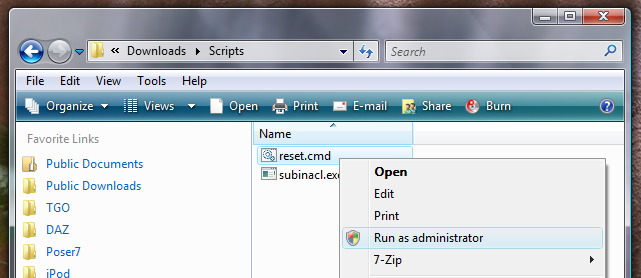
Run reset.cmd as Administrator
Once you run it as Administrator, it will open a command shell. You may see the security warning below:

Security Warning
If you see the security warning, it is just asking you to confirm that this is what you really want to do. Click the ‘Run’ button to run reset.cmd script. Once it runs, it will open a command shell:
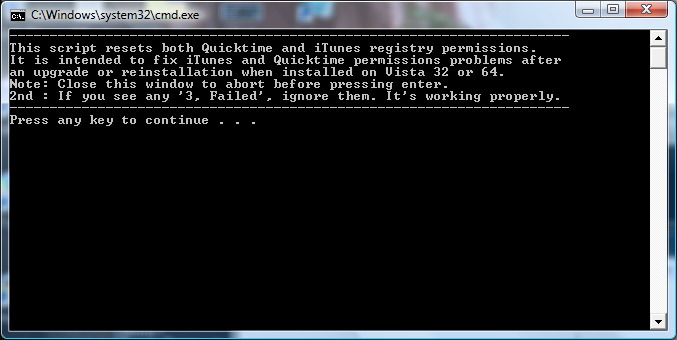
Command Shell Running Reset.cmd
Press any key to begin the repair or close the window to abort. If you want to see what the Reset.cmd command does before you run it, open it in Notepad. You will see that it simply modifies the permissions on the registry keys associated with Quicktime and iTunes to allow Everyone to access these registry keys. Once this task is completed, your iTunes will be repaired and functional.
Good luck and let me know if you have questions or if you have a success story.
Disclaimer: You are responsible for your use of this information. This information is provided as-is with no warranty expressed or implied. Use the above information at your own risk. You should always make system restore points or backups before making registry changes so you can restore your system in the event of unexpected problems.


 Random Thoughts - Randocity!
27 comments