Bluetooth Mouse Pairing: Fix ‘Authentication Error’ in Windows 7
Every once in a while my bluetooth dongle decides to go whacky on me and the mouse won’t work any longer. Sometimes the keyboard also. Usually, I can unplug the dongle and replug it. This generally recovers both the mouse and the keyboard. Sometimes it requires repairing one or both of the devices. Today was a repairing day (at least for the mouse). Except, today didn’t go at all smoothly.
Note: Before proceeding with any pairing operation to battery powered devices such as mice or keyboards, always make sure your batteries are fresh. Dead or dying batteries can cause pairing problems simply because the wireless transmitter in the device may not produce a stable enough signal for the receiver. Also note that dead or dying batteries can sometimes be the source of device connectivity problems. Therefore, always make sure your batteries are fresh before attempting pairing operations with these devices.
The Problem
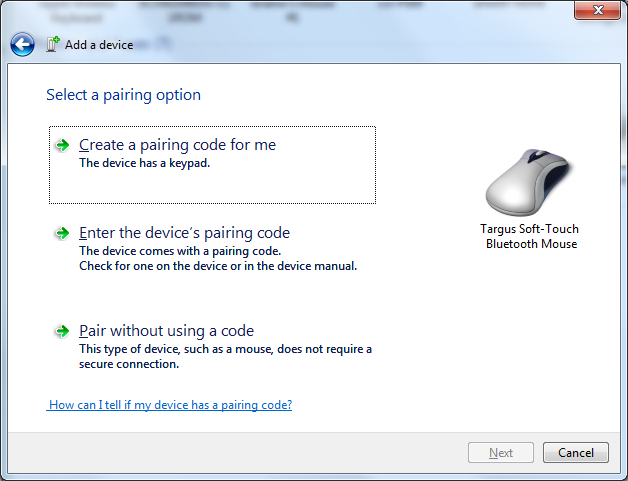
Normally I just go into ‘Devices and Printers’ and delete the device and pair it again. This usually works seamlessly. Today, not so much. I successfully delete the Targus mouse from the ‘Devices and Printers’ and that works correctly. I then put the mouse into discovery mode and start the ‘Add a Bluetooth Device’ panel. The panel finds the mouse fine. I select the mouse and click ‘Next’. I then see the next image.
 So, this is a reasonably stupid error because it’s a mouse. Mice don’t have authentication errors because they don’t use pairing codes. I have no idea why Windows would even present this. It’s clear that something is completely borked in Windows. And, you know, this is one of the things about Windows I absolutely hate. It gives stupid errors like this without any hope for resolution. Note that clicking the little blue link at the bottom of the window is completely worthless. Clicking that link won’t help you resolve this issue. It leads you to some worthless help page that leaves more questions than answers and only serves to waste time. I digress.
So, now that I’ve received this error, I proceed to Google to find an answer. Well, I didn’t find one. After traversing through several forums where people are asking the same questions, no answers here. Then, I proceed to search the registry thinking it left some garbage in the registry from the previous pairing. Nope, that search was a waste. So now, I’m basically at the trial and error phase of resolution.
I finally get to Microsoft’s knowledgebase which is probably where I should have visited first. Unfortunately, even that didn’t help, but I did find that Windows Server doesn’t support Bluetooth devices (not that that’s very helpful for my issue because I’m on Windows 7). What visiting this page at Microsoft did is give me an idea of how to proceed based on some images I saw. Not images of what I’m about to show you, though. Just an image of something that triggered a thought about how silly Microsoft is which lead to another thought and so on leading to the below.
The Fix
So, I go back to trying to pair again. I set the mouse up into pairing mode and then start ‘Add a Bluetooth Device’. Instead, this time I decide to right click the device about to be added:

You’ll need to do this pretty quickly as the device won’t stay in pairing mode for very long. So, click ‘Properties’ and you’ll see the following window:

Now, check the box next to the ‘Drivers for keyboard, mice, etc (HID)’ and click ‘OK’. This should immediately pair the device without the ‘Authentication Error’ panel appearing. At least, this fix worked perfectly for my situation. I can’t guarantee this will work with every Bluetooth mouse or every Bluetooth hardware. So, your results may vary. It’s definitely worth giving it a try, though.
Note: The differences in Bluetooth drivers may prevent this fix from working across the board. So, you will have to try this and relay your experience of whether or not it works for you.
Note, after I unpaired the mouse and repaired it after having done the above, I now see the following panel instead of the authentication error panel. This is the correct panel for the mouse. Clicking ‘Pair without using a code’ works perfectly now for this device. I have no idea what caused the other panel to present above. Note that once Windows gets into that state above, it stays there. Not sure why Windows would cache an error, but apparently it does. I’m at a complete loss why Microsoft would cache anything to do with real-time device connection activities like this! However, the mouse now unpairs and pairs correctly again. Whatever causes this issue, the Windows development team needs to fix it.
 My Rant
These are the stupid little things that make Windows such a hacky time-wasting experience. It’s these stupid quirky behaviors that give Microsoft a bad wrap and that continue to make Microsoft perceived as an inept operating system development company. It’s problems like this that make Windows a 1990’s level computer experience.
And, I’m not just talking about the error itself. I’m talking about the overall experience surrounding the error to the lack of any help in finding an answer. It’s having to resort to searching Google to find answers when Microsoft’s knowledgebase has nothing and offers no answers. It’s the having to guess using trial and error to find an answer. It’s the bad experience and bad taste that this experience leaves. Microsoft get your sh*t together. It’s long time for Windows to be done with experiences like this and time wasting experiences. If there are resolutions to a problem, then the time has long past to lead your users who see errors like this one to an exact resolution page with step-by-step instructions that work. Clearly, there is a resolution to my issue and I present it here. Why can’t your team do the same?
Seriously, I don’t understand why Microsoft relies on sites like mine to help users fix problems that Microsoft cannot be bothered to document properly. Yes, I realize I’m contributing to the problem by writing this article and ‘helping’ Microsoft out. Note, however, it’s not so much about helping Microsoft as it is helping users who run into this same stupid experience. The purpose of this article is to show just how stupid this experience is. It’s clear that Microsoft has no want in helping its own users who PAID for this product to actually give them real support and documentation. So, why do we continue to use Windows?


 Random Thoughts - Randocity!
Thanks so much. I’ve had a MS Sculpt Comfort Mouse that worked on a Bootcamp Partition of Macbook Pro OS X using Win 7 Pro 64 about 3 months ago. I didn’t use my windows partition for about 6 weeks, and when I logged back onto it, my bluetooth MS mouse wouldn’t connect. I’d just installed a game (Fallout 3 GOTY edition) and lots of things didn’t seem to be working as well, so I reformatted my partition, reinstalled Windows, and then, instead of getting the BS message about not having the right access code, the bootcamp wouldn’t pair at all, but just gave the constant circling blue circle while my BT mouse was in discovery mode. I’ve uninstalled and reinstalled ms mouse and keyboard center, been through all kinds of mildly related and unrelated MS forum pages and even searched several times and google and was finally thinking I’d just have to go back to a USB-hogging mouse when I stumbled on this site. (it was like the 4th or 5th down on google on searching for failure for bluetooth to connect to MS Sculpt Comfort Mouse). It finally works again for the moment. Thanks again. I’m pissed at Apple b/c my 4S microphone quit working at 18 months, now I’m pissed at MS. What’s a person to do?
Anyway. Thanks. I was going crazy.
LikeLike
Matt,
It’s funny how similar our stories are. I too have a Macbook Pro OS X running with a Bootcamp partitian with Windows 7. I recently bought the MS Sculpt Comfort Mouse too! I’m glad this method worked. I couldn’t figure it out. I have an appt for Geeksquad @ BestBuy tomorrow that I can cancel, lol. Glad everything worked out for you too.
-Avery
LikeLike
This would have worked except for the fact that I have a Logitech Keyboard K810 that requires a passcode.
LikeLike
This article is specifically about how to fix connections for mice when Windows asks for passcodes. If your keyboard is asking for a passcode, you enter it on your keyboard with the number keys and then press the enter key.
LikeLike
Understood except that the pairing code pops up in Windows then you would type it on the keyboard then connect. However in this situation that doesn’t work. Windows never generates the pairing code. When you click next to select it skips the pairing code screen and You get the exact screen you got when your mouse wasn’t working
LikeLike
Thanks for the clarification. I wasn’t understanding the extend of this issue with the keyboard. Since I haven’t specifically tested using this method with keyboards, it may or may not work. Though, I have to admit I’ve only ever run into this problem with mice and never keyboards. The most common problem I tend to having to repair the devices periodically. If I can ever run into this issue with a keyboard, I’ll see if I can figure out how to correct it.
LikeLike
Use this method too!
if the thing above does not work
http://windows.microsoft.com/en-US/windows7/Change-settings-for-a-Bluetooth-enabled-device
do that then once you reconnect then remove the option
LikeLike
THANKS MAN! It works for Mouse Targus AMB08. Works perfectly now!
LikeLike
Thanks a lot for this – just managed to get a Motorola Bluetooth mouse working. Silly authentication error.
LikeLike
OMG, Thank you!
Couldn’t get my Apple Wireless Keyboard & Mouse working with Windows 7 Ultimate until I saw this post!
LikeLike
Thanks, this helped out with my phone. Choosing the ‘add device’ in the context menu finally brought up the pairing code on both devices.
LikeLike
Hi, I had problem with connecting Appl Magic Mouse with bootcap in Macpro, the bluetooth could find mouse but pairing was unsuccesful, finally when the computer found the mouse instead of clicking connet, just right click on mouse icon, click property, change the name, and ask add driver, surely it works
Mark
LikeLike
Thanks man, this guide worked great for me on a Motorola bluetooth keyboard and mouse
LikeLike
And for me on exactly the same hardware just now. I probably would have figured it out eventually but this saved me a lot of head scratching.
LikeLike
Thanks for the above suggestion. I have an MS Wedge Mouse that works beautifully with my Android Phone and Win7 desktop (with a CSR BT dongle). Moving the mouse and dongle to a WinXP netbook was a exercise in frustration.
The mouse paired fine but then no interaction when the mouse was moved. Looking back at the Bluetooth Devices and the mouse had disappeared. Re-pairing worked fine again but this time looking at the Services afterwards shows none listed. An hour going through various iterations of this and I was ready to send the mouse back.
Then I found this posting :-) So again many thanks.
LikeLike
Hi Gunney,
Were you getting the authentication error when you were pairing the mouse? I’m a little surprised that this technique worked for correcting what appears to be a different issue, but it’s good to know that it worked for that.
LikeLike
I was get authentication errors, device install errors, or no errors; all with no apparent rhyme or reason. With no pointer movement with any of it.
I had not tried the right-click on the device during discovery to get the Services list, in fact I was not aware of the context menu at that point. That action seemed to be the key for me.
It was a Google search for ‘microsoft wedge mouse xp services’ that pointed me at this blog.
LikeLike
Found this fix and it worked like a gem. Works great on Mac OSX boot camp. Microsoft support couldn’t make it this simple. Nice job!
LikeLike
This is a brilliant solution. I especially like the witty banter about the uselessness of the Microsoft provided solutions. Those little blue links that seem very specific, “How can I fix device adding errors” should just say “Google this error” and put the first few words of the error message into the Chrome address bar.
LikeLike
Ironically, im having the exact problem here with a new microsoft sculpt touch mouse and windows 7… Authentication error was overcome by the solution above (much thanks!) but then it just removes itself from devices and printers, forcing me to reconnect, which repeats the authentication error. Ready to throw this mouse to the dogs!
LikeLike
I should also mention its unrecognised by ms mouse and keyboard centre *thumbs up microsoft!*, yet tells me it has connected and installed its’ drivers perfectly, seconds before disappearing in devices… At a loss for what to do here, other bluetooth devices working fine, and always have been!
LikeLike
Hi Chris, did you ever resolve this? I have the exact same issue with an ms wedge touch mouse. Same issue with mouse and keyboard center not picking up the mouse or the keyboard even though I’m typing this message with the bloody keyboard. Mouse pairs fine with my MacBook and my apple magic mouse pairs fine with windows 7 on my HP notebook. Bag of sh!te. And the wedge mouse was working happily yesterday with the same laptop on windows XP until I upgraded today.
LikeLike
elsewhere on the web I found this tip — go into services.msc and for the bluetooth service change the start up status from “manual” to “automatic”. That solved it for me.
LikeLike
Hi LK,
Thanks for the tip. It’s definitely worth a shot. However, in my case the Bluetooth Service in the services control panel is already set to Automatic, so I doubt this would have worked for me.
Thanks.
LikeLike
I’ve been using my apple magic mouse happily since Feb. I just changed my blue tooth adapter to a version 4 (plugable). Installed the windows 7 widcomm drivers that came with the CD with the adapter, and bingo, wedge mouse and keyboard paired first time. Might be worth updating your drivers if you can.
LikeLike
Endless thanks for this brilliant discovery and act of kindness. I am using a Targus comfort mouse. I knew I had to install the HID drivers specific to this mouse. I assumed the installation of the Targus software would do so. After completing the installation of the Targus drivers, I checked the installed drivers in device manager, under ‘Mice and other pointing devices’ all I found was the microsoft HID for mouse.
After searching forever for where to install the OEM specific HID drivers, I was fortunate to come upon your blog and how to update the OEM HID for my mouse. It is an inspired technique.
I fully agree with your assessment on Microsoft’s multi-generational OS problems. I can only assume after a programming career of over 30 years, is that these feeble problems with the Microsoft OS are deliberate, especially when it comes to any OEM that competes with Microsoft.
LikeLike
Yes, it’s very possible that these are deliberately left this way to help out Microsoft’s peripheral divisions. Although, maybe not. I’d tend to believe that it’s layers upon layers of different people’s code that no one ever wants to clean up and make work correctly. It’s more likely that this problem exists because of apathy rather than ingenuity. Saying that it is an intentionally deliberate act gives Microsoft a little too much credit. I might give them deliberate apathy. That is, the older layers are never changed or altered unless it’s absolutely necessary. Windows is probably such an unwieldy code base that no one programmer at Microsoft feels comfortable working on any part of it other than their own little tiny new piece. The problem is, that new tiny piece needs to wrap layers of older version code. This is the reason that when new features are added, they are simply add more layers on top of the older layers.
The problem with the documentation and the knowledgebase is also one of apathy. That is, there seems to be no one at Microsoft who really feels that customer experience is the biggest thing that Windows offers. Sure, they continue to redress Windows in a new outfit (like Metro), but the underlying functionality never really changes. Microsoft needs to take a page from Apple and bring in a UNIX system under the hood. Once they can finally dump the NT Kernel and NTFS, Windows will be a whole lot better of an operating system for it. At this point, though, even if they made that change today, it’s too little too late. It would take a miracle to bring Microsoft out of its operating system death spiral. It’s just a matter of time before Windows is no longer the defacto operating system. They’re already losing major ground to the tablet market as it is. Mobile computing is here to stay and the clock is ticking on the desktop and even to the notebooks as we know them today.
LikeLike
I’ve had this issue with pairing my BT mouse in windows 7 and this solution had worked for me! but now It’s about a week I’ve moved to Windows 8 and I’m facing this issue again! The new problem is, I cannot right click on my device while windows tries to connect to my mouse. so there is no way to access that window for check HID option…
what can I do now? is there any other way of accessing that window?
LikeLike
Hi AAA,
I’ve only recently bought Windows 8 and haven’t loaded it yet. So, until I can get Windows 8 loaded on a system with Bluetooth, I won’t be able to help you with Windows 8. It’s also somewhat surprising that this issue still exists in Windows 8. I’m hoping to get it loaded this weekend, so I’ll see what I can find after that.
Thanks.
LikeLike
I have a late 2008 Macbook Pro running OSX 10.8 and Windows 7 64 bit. I can’t get my motorola bluetooth mouse to connect without getting the “auth. error” in Windows 7. I have no trouble connecting the mouse in OSX it took seconds (no surprise) but Windows as always is f-ing useless! If it wasn’t for the fact that I have 1 game that I really like that will only run in windows I wouldn’t have even wasted my time with such a sh!t operating system.
LikeLike
As described in my previous comment, this is likely because of the Apple supplied BT driver for Windows. Because you’re running Windows directly on a MBP, you have to take the good with the bad here. Apple’s drivers may not work 100% on Windows using MBP hardware. In this case, I’d recommend getting an external bluetooth receiver, plug it into a USB port and install those drivers on Windows. This is almost certainly to get rid of the built-in BT hardware issues (and the lack of fully functional BT drivers from Apple).
Of course, this is non-optimal as you have a dongle hanging out of a USB port and you can’t take advantage of the built-in BT hardware. It’s unfortunate, but the problem is Apple. You’re at the mercy of Apple to provide you with fully functional Windows drivers for the MBP hardware. If Apple chooses not to provide them, then your only recourse is to complain to Apple or buy a PC designed specifically to run Windows 7.
As much as I would like to blame your specific problem on Windows, in this instance I can’t. MBP hardware is designed to run MacOS X. While it can run Windows, it isn’t designed for this purpose. Thus, all the drivers needed to support Windows must be supplied by Apple. This turns into a conflict of interest for Apple. While they understand the user’s want to run Windows on the MBP hardware, they really only support it to a point. Basically, Apple wants you to run MacOS X on it and not Windows. So, they create bare drivers to support Windows without all of the bells-and-whistles included in the MacOS X drivers. So, people like you run into these subtle incompatibilities and notice that things which work in MacOS X don’t work in Windows. They do this because Apple thinks that you’ll realize that MacOS X is ‘more full featured’ and use it instead of Windows. It’s kind of a psychological ploy that attempts to undermine the user’s Windows experience. Apple intentionally hobbles Windows on a MBP to make your MacOS X experience more favorable. This, Apple thinks, will make you want to use MacOS X over Windows. Unfortunately, it’s a ploy that won’t work because it patronizes Apple’s own customers in a subtle but definite way and, at the same time, doesn’t take into account the importance of Windows in the every day world.
If you really want to run Windows properly with all of the bells-and-whistles, you have to buy hardware designed specifically to run Windows and that includes fully functional drivers designed for that hardware. That also means buying your Windows PC from another hardware vendor like Dell, HP or Toshiba rather than buying the hardware from Apple.
Oh, and thank you for your comment. Your comment very nicely segues me into a new Randosity article on this very topic of running Windows on a MBP.
LikeLike
Actually I have already tried using a bluetooth dongle and a fresh set of drivers (this isn’t my first rodeo). The only thing I haven’t done is to rewrite Microsoft windows so that it works. The bluetooth dongle didn’t work either. It’s not an issue of Apples drivers. When using OSX 10 your always given 3 options to select when pairing BT devices. You can have OSX automatically supply a passkey, manually enter a passkey, or you can select no passkey required. I may not be a programer but I would like to believe that Microsoft with their team of programers could have included a similar feature into windows.
LikeLike
First, I was a bit confused by you saying that the mouse wouldn’t pair. That’s different than pairing but not choosing the correct pairing type. The issue is that Microsoft tries to be too smart about detecting what the device is. For some reason, it loses the fact that it’s a mouse (which is clearly a bug). Second, since you’ve tried an external BT dongle with the same device, I have to conclude that Microsoft is using a global device profile database. So, no matter what receiver that device is paired to, Windows sees that it’s the same device and is still confused by what it is. So, not only is Microsoft stupid for not determining the device correctly, the device’s profile appears to be stored globally on Windows so that it’s always identified no matter which receiver device is used. At this point, I might suggest rolling back Windows to a previous recovery point before the issue started. That will likely repair the database and let you get the device working again. That’s the only suggestion I can make here.
Note, however, that it’s still a MBP and you’re still at the mercy of Apple to supply drivers for that hardware. So, I cannot completely rule out Apple foul play here. That said, this error inside Windows has Microsoft solely to blame. So, yes, Windows does have its share of driver issues. Of course, I believe a lot of these stupid errors were as a result of holdovers from Vista that Microsoft just never bothered to fix.
LikeLike
I’ve been trying to pair a Motorola Bluetooth mouse SJYN0767A with a mid-2009 MacBook Pro running Windows 7 Ultimate 32-bit on Boot Camp. I just wanted to let you know this solution did not resolve my problem with my particular set of hardware and software. I continue to get the “authentication error” message.
LikeLike
Hi Taylor,
The only thing I can suggest is to go to Devices and Printers and find the mouse and delete it. Then reboot. Then try the process I describe again. I can’t guarantee this will work, but sometimes rebooting can help with Windows. Also, make sure your batteries are fresh in the mouse. Let me know if any of this helps. Thanks.
LikeLike
Taylor I feel your pain! Windows is sh!t and doesn’t seem to allow the motorola mice to connect. My guess is windows is treating it like a microsoft mouse which doesn’t require a passkey. I feel like the problem would be fixed if there was a setting that would allow you to manually enter in the 0000 passkey before windows tries to pair with the mouse. Unfortunately there is no such option because Bill Gates seems to believe windows is so perfect and it will automatically select the correct settings. Yes, truly that is an option that is not necessary because windows is just so awesome.
LikeLike
Hi Jesse,
Bluetooth compatibility is as much about the Bluetooth receiver on the computer as it is about the device trying to connect. That is, not all receiver devices are capable of handling all profiles of all devices. So, while you may find that some mice connect perfectly, others may not. It could also be that the BT chipset used in the mouse may not be fully compatible with the BT chipset used within the receiver. So, sometimes they just won’t pair. These subtle hardware incompatibilities are the hallmark of unrefined protocols. That is, chip makers taking liberties with the specification for their own purpose. These don’t really have to do with Windows. This issue also has little to do with this article either as a device that won’t pair initially, will never pair ever with that receiver. You’ll need to buy a different BT receiver to get that device to pair assuming you’re talking about actual PC hardware. When you’re talking about booting Windows on a Mac, that is likely a driver issue. Note that the drivers when running Windows 7 on a Mac are still supplied by Apple. The issue here is that Apple provides solid complete drivers for MacOS X. For Windows, they may not. That is, they’ll provide enough of a driver to get you into Windows, but for every single bit of functionality, you may find Windows comes up short here.
Why? Apple sells MacOS X and Macs. They do not sell Windows PCs and have no real intention of completely supporting Windows. So, if you’re using the built-in hardware on the Mac and running Windows 7 on that, you’re at the mercy of Apple to provide you with completely functional drivers. The sad truth is, Apple won’t do that. So, if you really want a BT stack that actually works, forgo using the built-in BT on the motherboard and plug in a USB BT dongle with an actual Windows 7 driver. If you do this, it’s nearly guaranteed your Motorola mouse will start working. The downside is you’ll have to have this dongle hanging out of the port. If you don’t really like this scenario, complain to Apple through their feedback form. While it may not get you a fix, it lets Apple know of your displeasure.
Note however, the fail to pair properly combined with the specific error code I describe in the above article is very much a stupid Windows behavior. There should never be a time where the device works correctly and then later doesn’t. This is specific issue says bad operating system design. Windows should recognize the problem and fix itself. It should realize that this is a mouse device that has no passkey and clear out any caching issues present that prevent this pair from working. Barring that, Microsoft should provide users with a tool to reset or fix Windows to get around this problem. Basically, there should never be a time where a mouse cannot pair unless the driver has become corrupted (in which case Windows should detect that condition too).
LikeLike
Thank you!!! Just resolved a problem I’ve been dealing with
LikeLike
Sorry, I know how this sounds, but that’s why people like Macs. They will give you sh*t, but not as often, or as much, as PCs.
LikeLike
Actually, MacOS X (and iOS for that matter) have their own share of quirky behaviors (spring loaded folders, for example, in MacOS X). The only real difference is that MacOS X is much less kludgy than Windows. There isn’t a perfect operating system, it’s just that Microsoft would have you believe Windows is so much more ‘friendly’ than MacOS X. The reality is, Apple has friendliness and ease-of-use sewn up. Microsoft secretly wishes they had the level of friendliness of MacOS X or iOS. It’s just too bad they don’t see this. And when you have stupid problems like what happened above, it definitely drives home what Windows is really all about… and that’s certainly not about displaying a high quality user experience. Windows is to MacOS X as Ford is to Ferrari. Neither make perfect cars, but one of them is a whole lot more fun to drive.
LikeLike
Thanks Dude saved me going nuts.
LikeLike